How to Add a YouTube Subscribe Widget Box to Your Website or Blog | YouTube Widget Embed Code

how-to-add-a-youtube-subscribe-widget-box-on-website-blog-code-html.jpg

If you regularly blog and create video content for YouTube, one of the simplest ways to permanently promote your YouTube presence on it and to encourage new subscribers is with a YouTube widget. box, which you can embed in your site's side bar or somewhere else similarly prominent

The Anatomy of the YouTube Widget

Above is an example of a working YouTube widget - in this case, it's mine, but yours will be customised to reflect your account details. It features several elements, all of which, in their own small way, should help to attract people to click and/or subscribe to your channel:

  • Username (which is a clickable link to your channel)
  • Total number of video uploads (proof of your activity on the site) 
  • Current subscriber count (proof of your popularity on the site)
  • YouTube channel icon (also a clickable link to my channel)
  • The all-important "Subscribe Button."

How to Install and Customise Your YouTube Widget

Here's how to install and customise your own YouTube widget,:

1. Copy the code in the text box above and paste it into the section of your site where you want your widget to appear. 

2. Replace the youryoutubeusername text to your own YouTube username - do not delete the single speech mark that follows it. 

3. Change the "height" and "width" numbers to increase or decrease the size of your widget in pixels as required. 

4. Save, refresh your web page, and voila! 

The Finished Result

youtube-subscription-box-subscribe-widget-how-to.PNG

Here's how your YouTube widget will look. In my example above, you'll notice I have embedded a playlist of my most recent uploads on top. While the widget might work okay by itself, by adding a playable video for people to click on as a sample of your content, you're increasing your chances of snagging another new subscriber.  You can embed any individual video here, but in a future blog post, I'll show you how to embed a playlist too. 


ABOUT THE AUTHOR
Andrew Macarthy is the author of the #1 Amazon Web Marketing Bestseller, 500 Social Media Marketing Tips, available for Kindle and in paperback.

Buy 500 Social Media Marketing Tips
Amazon US: http://www.amazon.com/dp/B007L50HE6
Amazon UK: http://www.amazon.co.uk/dp/B007L50HE6

Follow Me:
http://www.facebook.com/500socialmediatips/
https://pinterest.com/500socialmedia/
http://www.twitter.com/500socialmedia
http://www.youtube.com/500socialmediatips


 

photo.jpg

How to Pin Images to Pinterest on iPhone App | How to Use Pinterest on iPhone

how-to-pin-to-pinterest-from-iphone-app.jpg

Pinning images to Pinterest from the iPhone was something of a faff before an update to the official Pinterest app in the spring of 2013. Now, it's much easier. Here's how: 

1.PNG

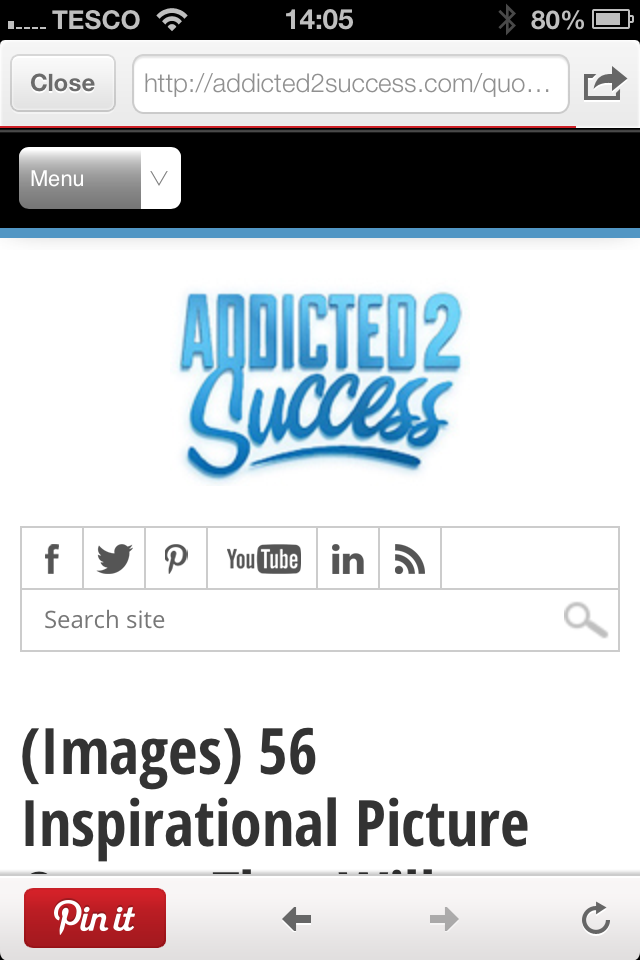
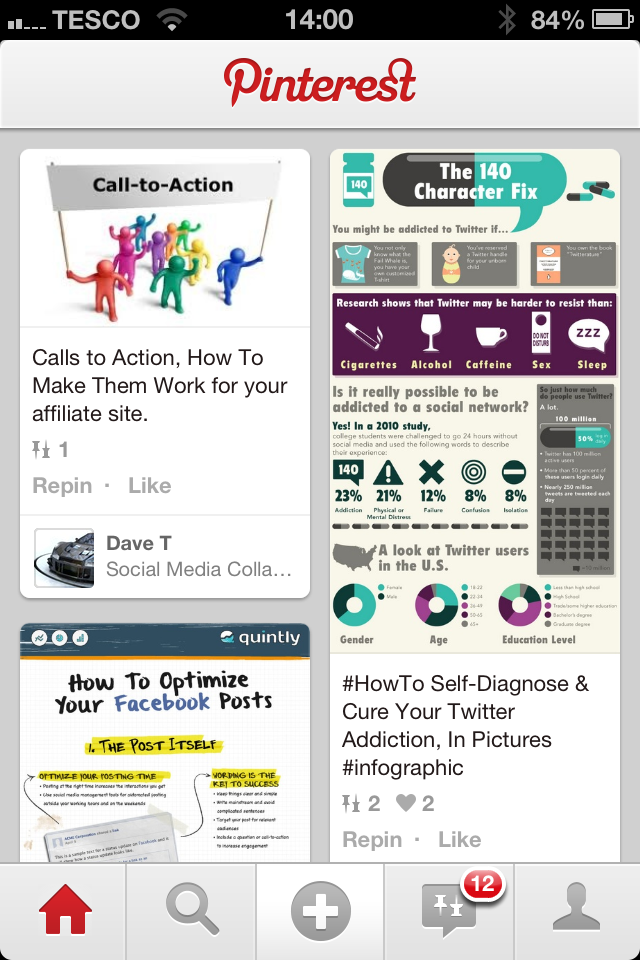
1. Make sure you've got an up-to-date version of the Pinterest app, and when you load it up, you'll see a "plus" icon in the middle of the home screen. Click that to begin the pinning process.

how-to-pin-to-pinterest-phone-app-2

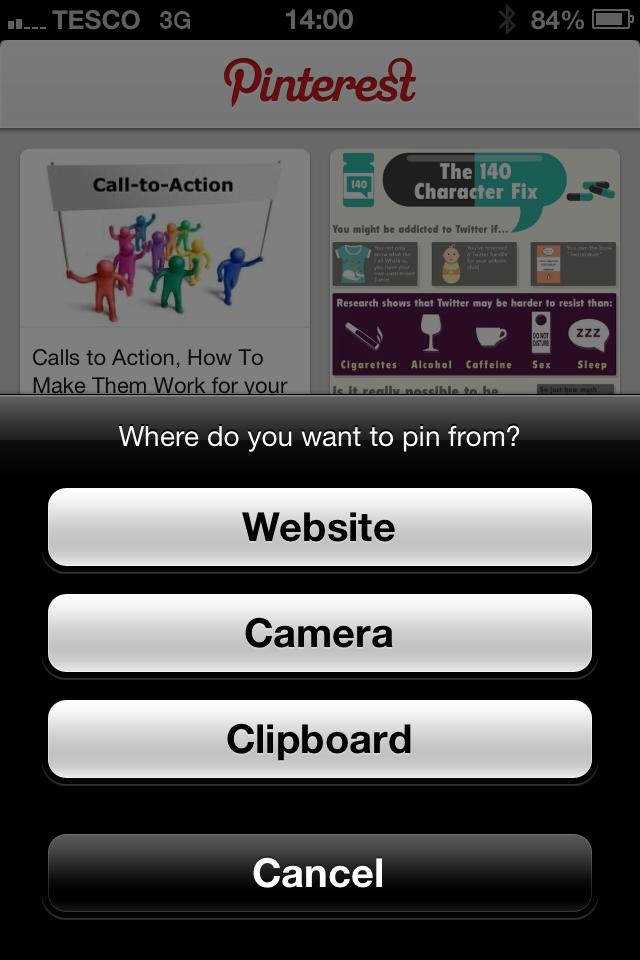
2. You'll be given three options at this stage - Website (search for a website or enter a a website address where there is an image you want to pin), Camera (take a photo to pin), or Clipboard (paste in a website address that you have copied whilst browsing the web in Safari, Chrome, etc.)

how-to-pin-to-pinterest-phone-app-3

3. Once you're on the page that contains the image you want to pin, tap the "Pin it" button. 

how-to-pin-to-pinterest-phone-app-4

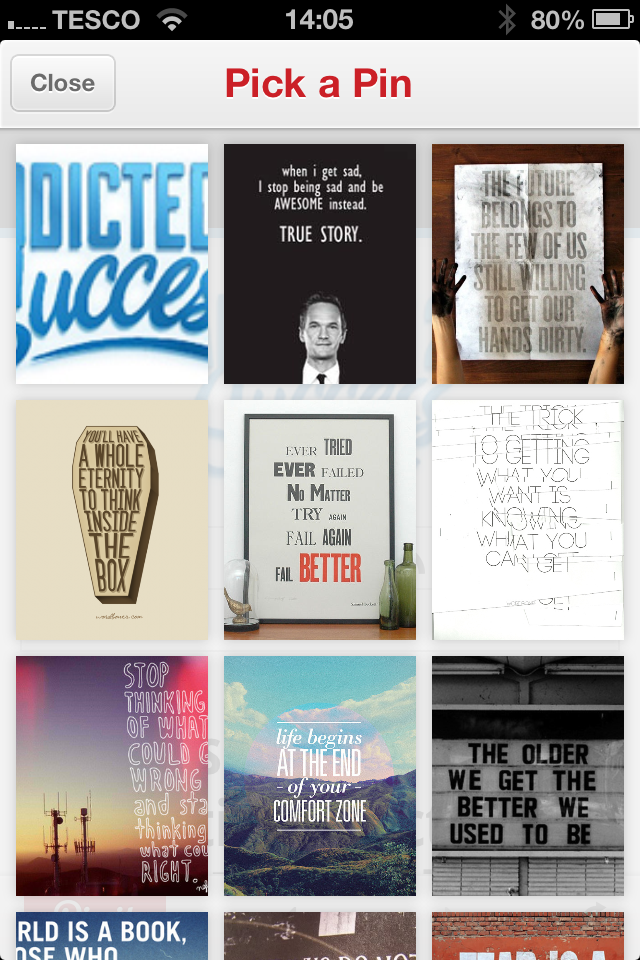
4. The Pinterest app will scan the page for pinnable images . Just tap the one that you want to pin. 

how-to-pin-to-pinterest-phone-app-5

5. With your image chosen, pick the board that you want to add it to (or create a new one by tapping the "plus" symbol), and that's it! You'll get a message to let you know that the image has been pinned successfully.


ABOUT THE AUTHOR
Andrew Macarthy is the author of the #1 Amazon Web Marketing Bestseller, 500 Social Media Marketing Tips, available for Kindle and in paperback.

Buy 500 Social Media Marketing Tips
Amazon US: http://www.amazon.com/dp/B007L50HE6
Amazon UK: http://www.amazon.co.uk/dp/B007L50HE6

Follow Me:
http://www.facebook.com/500socialmediatips/
https://pinterest.com/500socialmedia/
http://www.twitter.com/500socialmedia
http://www.youtube.com/500socialmediatips
Google Plus Profile Photo Template for Square Logos | FREE Download PSD Photoshop

Google Plus Doesn't Like Square Logos

In the first major design change to Google Plus earlier on this year, the social network's profile photos were changed from a square to a circle. While a circular shape works well for head and shoulder photos  of individuals and plenty of company logos, if your logo is a square shape - like mine for 500 Social Media Marketing Tips  is - then, by default, it doesn't fit... some proper squarelogoism going on from Google! As you can see from the examples in the image above, uploading a square logo sees it being cropped on all four corners, and it just looks messy. Even if you play around with the site's cropping or scaling tools, you really fix it.

The Solution: A Google Plus Profile Photo Template

As a work around to this problem, I have built a simple template for Photoshop or GIMP that will allow you to create and upload a square logo that fits inside    the default circular parameters, as in the image above. Of course, you stand to lose a smidgen profile photo "real estate," but what you gain is logo that will display without cropping on your cover photo, and next to every post and comment you make around the site.

The template is 1000 x 1000 pixels big - four times the minimum size that Google+ recommends - meaning your logo will enlarge into a nice, large image when clicked on from your page. 

How to Use the Template

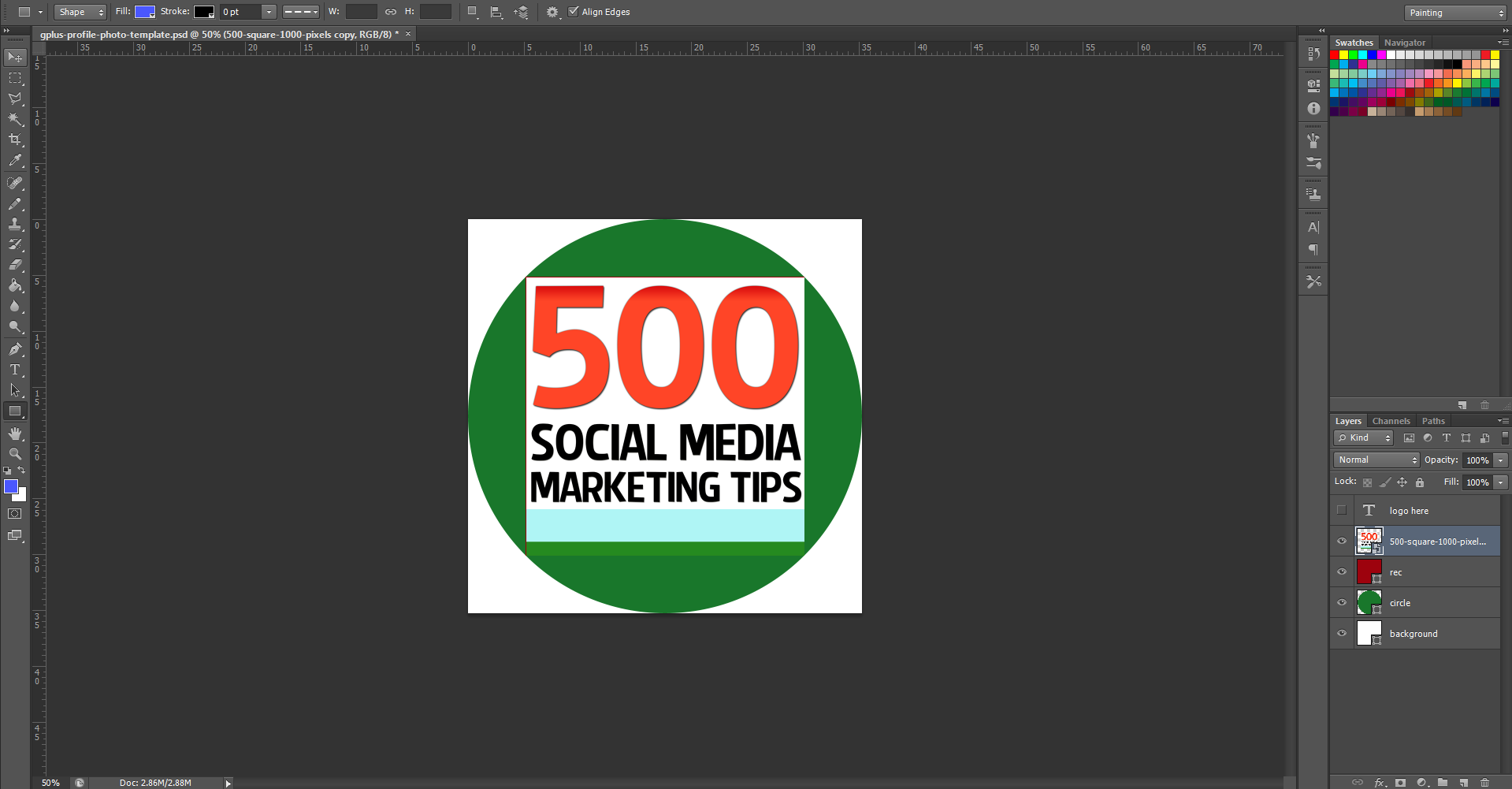
When you first open the template, this is what you will see. The green circle represents the Google+ profile photo circle, while the red square shows the "safe" area in which you can add your square logo design. You've got some leeway in all four directions outside of the red square, but anything that passes into the white area will not be visible. So, first of all, hide my "Place your logo within this red square" layer and insert your logo on top of the red square layer instead.

Note: I have chosen a white background for this template to match and blend seamlessly the white of the Google+ layout, though you may choose to experiment with different colours if you wish.  If you delete the background and make it transparent, Google+ will not recognise it, and replace your image with a black background by default.

logo-in-square.PNG

Once you have inserted your logo, hide the red square layer and you'll have something like this. 

To finish, hide the green circle layer to remove all traces of the template, as above, and save your image as a PNG or JPEG file.

Uploading the Profile Photo

Visit your Google+ page and click on your existing profile profile photo to upload your new one in its place. When you select the file and it uploads, make sure to drag the cropping lines all the way out to the corners , as above. If you don't, your logo will not look right. When you're done, click the "Set as profile photo" button.

The Finished Result

google-plus-profile-photo-square-logo-in-circle-template.PNG

Here's that finished result once again. Hopefully yours will look very similar! 

Download the template

This Google+ template (and several others for all the biggest social networks - expertly measured, simple to use, and up-to-date) is available instantly as a downloadable zip file via the purchase link above. For more information on all my social media templates, click here.

Note: Payment is fast and secure via PayPal, but you do not need a PayPal account to buy and download. 

ABOUT THE AUTHOR

Andrew Macarthy is the author of the #1 Amazon Web Marketing Bestseller, 500 Social Media Marketing Tips, available for Kindle and in paperback.

Buy 500 Social Media Marketing Tips

Amazon US: http://www.amazon.com/dp/B007L50HE6
Amazon UK: http://www.amazon.co.uk/dp/B007L50HE6

Follow Me:
http://www.facebook.com/500socialmediatips/
https://pinterest.com/500socialmedia/
http://www.twitter.com/500socialmedia
http://www.youtube.com/500socialmediatips
 

10 Examples of Terrible LinkedIn Profile Photos | Bad LinkedIn Profile Pics

linkedin-profile-photo-examples-terrible-bad-how-to-tutorial.jpg

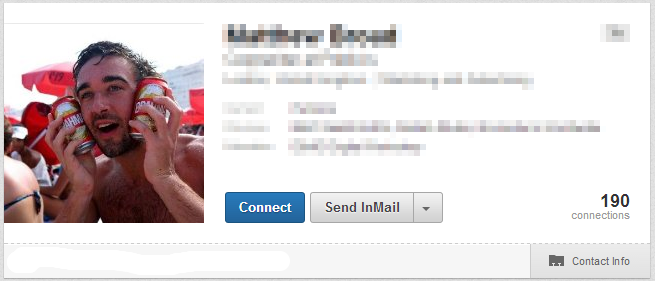
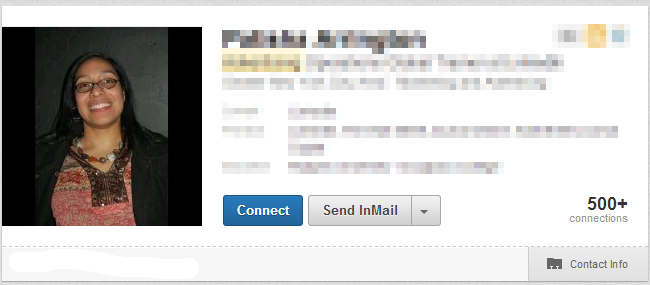
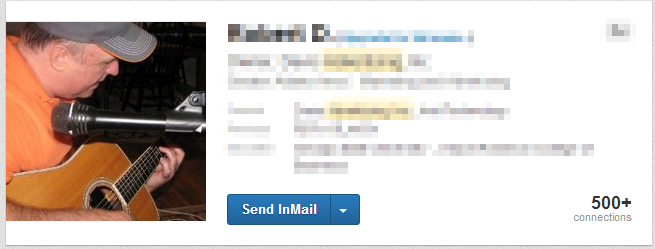
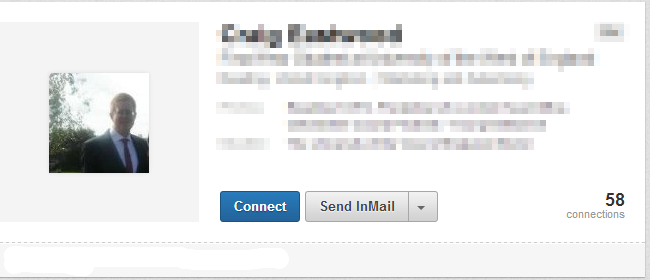
Whatever your aims are on LinkedIn - to make new connections with professionals in your field, to tout yourself to potential employers, or just to demonstrate how generally awesome, friendly, and talented you are to anyone who comes across your profile - arguably the most important primary factor in achieving your goal is an eye-grabbing profile photo.

I'm going to save examples of great LinkedIn profile images for another blog post - in short, they should be simple, clear, and professional - but for now, the following examples are the kinds of images that you should definitely avoid uploading.

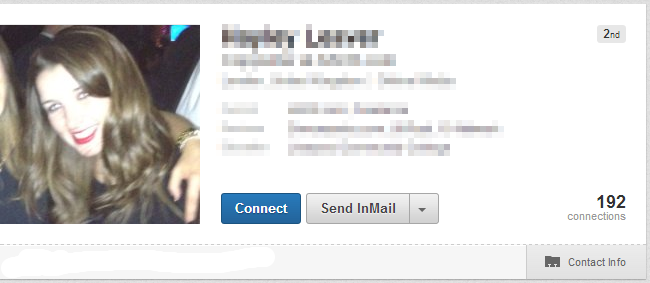
1. Cropped and blurry

linkedin-profile-photo-example-bad-1.PNG

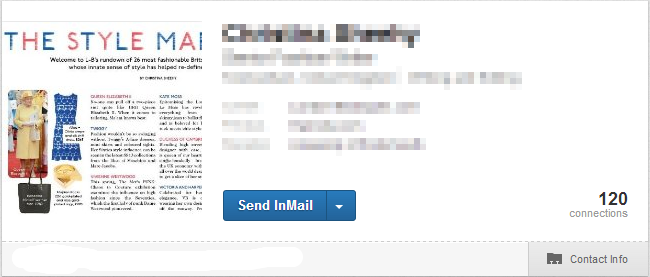
2. Just a screen grab

linkedin-profile-photo-example-bad-2.PNG

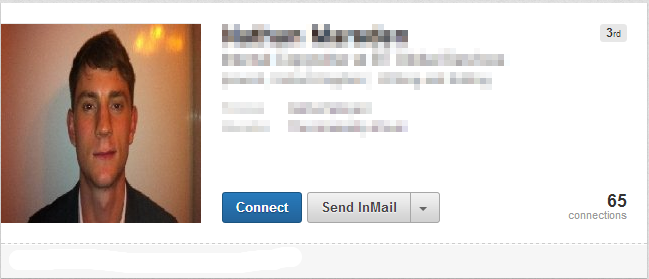
3. Proportions squeezed

linkedin-profile-photo-example-bad-3.PNG

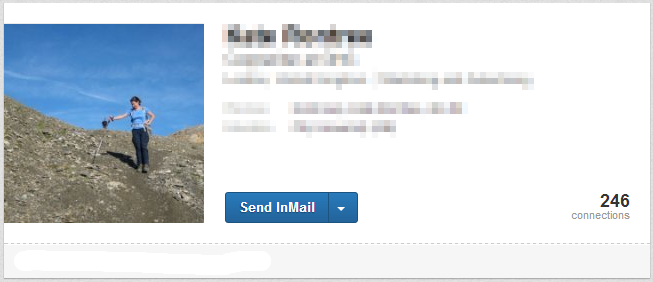
4. Subject miles away! 

linkedin-profile-photo-example-bad-4.PNG

5. Unprofessional photo

linkedin-profile-photo-example-bad-5.PNG

6. Photo not a square

linkedin-profile-photo-example-bad-7.PNG

7. Can't see person's face

linkedin-profile-photo-example-bad-8.PNG

8. Poor lighting

linkedin-profile-photo-example-bad-9.PNG

9. Logo instead of photo

linkedin-profile-photo-example-bad-6.PNG

10. Tiny photo!

linkedin-profile-photo-example-bad-10.png

For a lot more advice and information about using LinkedIn to its full potential, check out my book, How to Build the Ultimate LinkedIn Profile in Under an Hour.


How to Create A Seamless Twitter Header Background and Profile Image

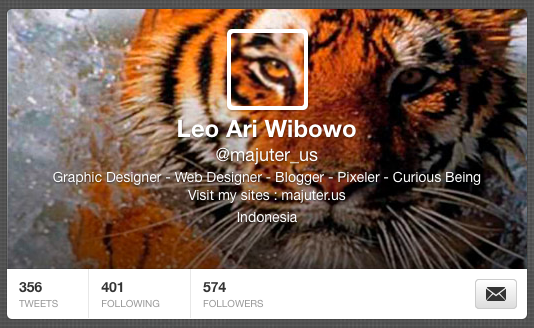
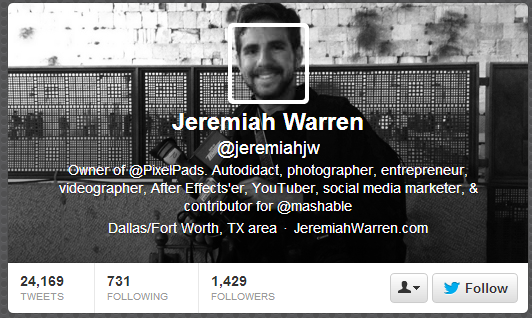
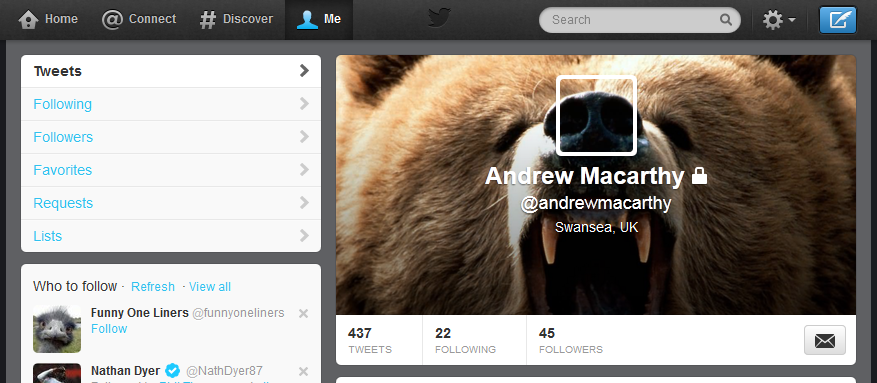
One of the most inventive ways to utilise your Twitter header space is to create a header background image that blends seamlessly into the profile photo that overlays it, as shown in the examples above.  If you'd like to do something similar, it's really not too difficult, even if you are a photo editing newbie. All you need is to download my Twitter Header Template .psd file for Photoshop or GIMP (link opens in a new window), and follow the simple step-by-step instructions below:

Alternatively, if you'd just like me to do it all for you or your business, get in touch and hire me via the Contact Me page or purchase using the Shoplocket widget above.

1. Open the template.

seamless-twitter-header-template-tutorial-step-1.PNG

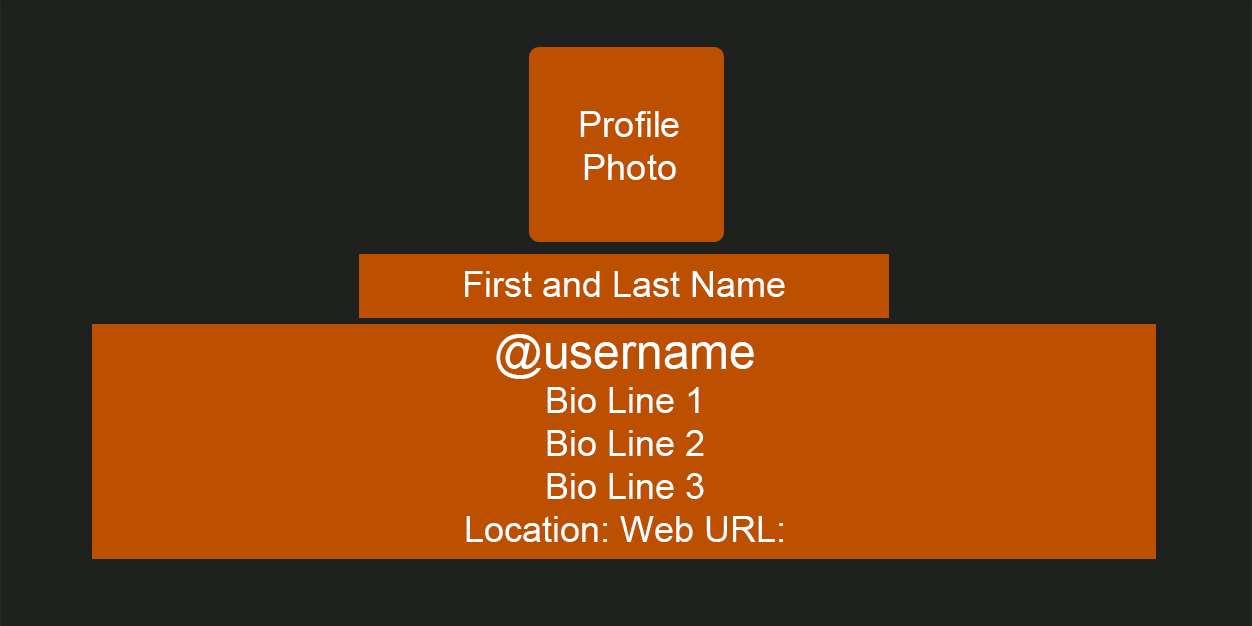
When you first load the template, this is what you will see. The grey area represents the size of your Twitter header's background image, while the orange boxes represent the different sections that sit on top of it - name, bio, website address, etc..

2. Hide every layer except the profile photo box.

seamless-twitter-header-template-tutorial-step-2.png

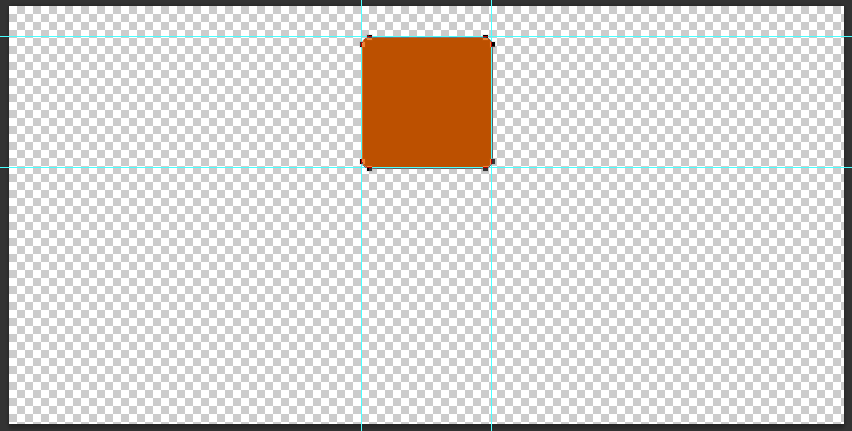
In this instance, we're only concerned about the position of the profile photo because we want it to overlay on top of our background image in exactly the right position. So, go ahead and hide every layer except the orange profile box layer, as above.

3. Insert your background image behind the profile box layer.

seamless-twitter-header-template-tutorial-step-3.png

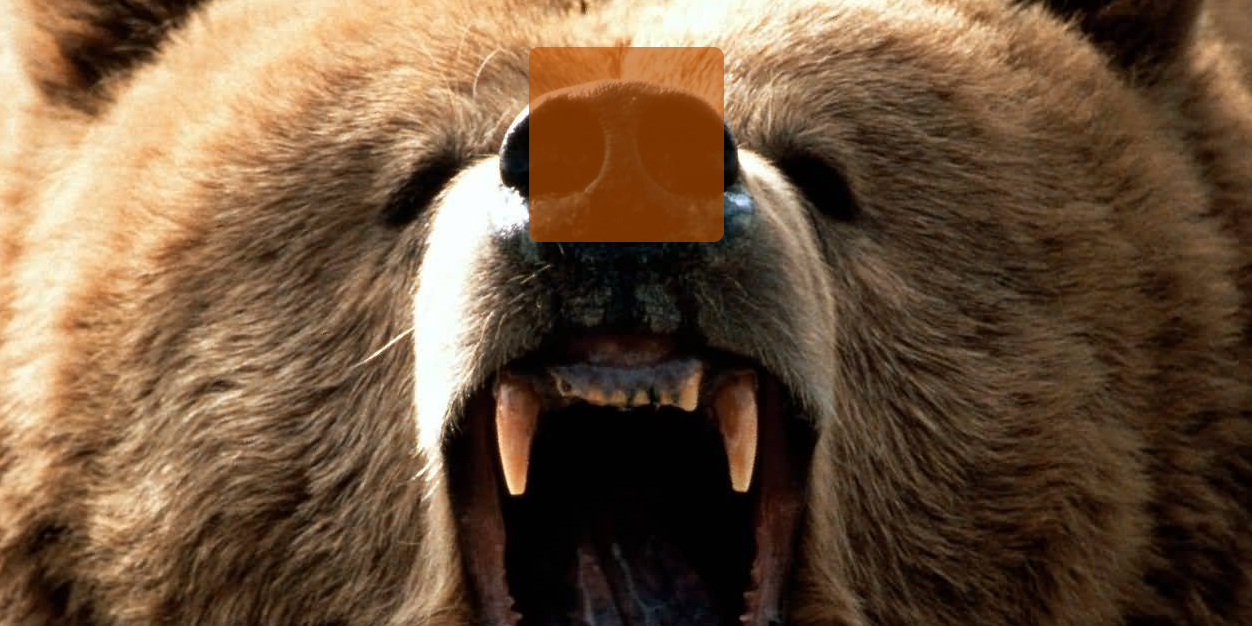
I want my header image to show this ferocious grizzly bear. Whatever image you choose, insert it into the template and move the layer so it is positioned behind the profile box. To make sure the image is lined up as you want, lower the opacity of the profile box to get a better look. 

4. Select the profile box layer, then copy from the background layer

seamless-twitter-header-template-tutorial-step-4.PNG

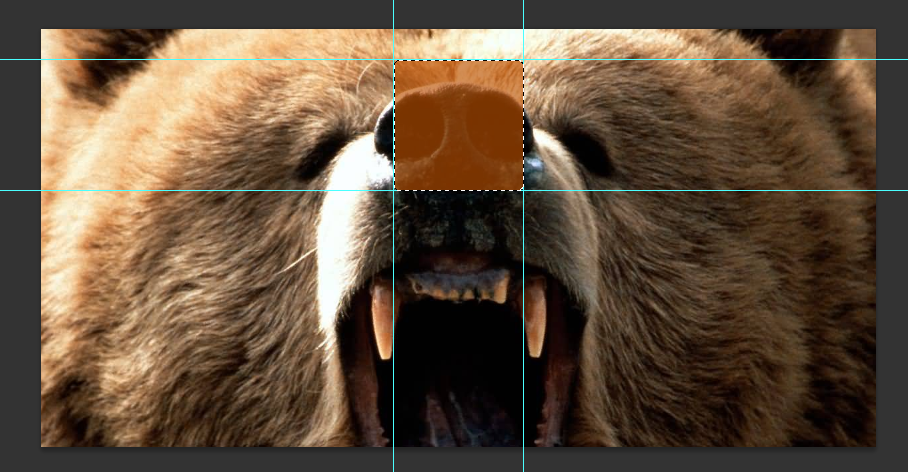
Here's where we create the profile pic that will sit above your background image. Choose the profile box layer and use the Magic Wand tool to select the orange box, as above. With the selection made, highlight the background image layer from the Layers panel, and copy the selection.  

5. Create a new image file and paste the copied selection into it.

seamless-twitter-header-template-tutorial-step-5.PNG

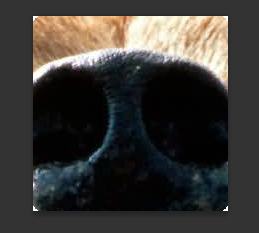
With your selection copied, create a new image file and paste the selection in - if done correctly, it should be 195 x 195 pixels big.  Save this file as a PNG and keep it safe for later.

6. Save your Twitter background image

seamless-twitter-header-template-tutorial-step-6.png

Return to the Twitter background template, hide the orange profile box layer and save the image as a PNG.  You should now have two images - this one, and the profile image you created in the last step.

7. Visit Twitter and click 'Edit' on your Header image

seamless-twitter-header-template-tutorial-step-7.png

It's time to upload your seamless header image! Visit your Twitter account, hover your mouse over the header and click the "Edit" button that appears.

8. Upload your profile and header background images.

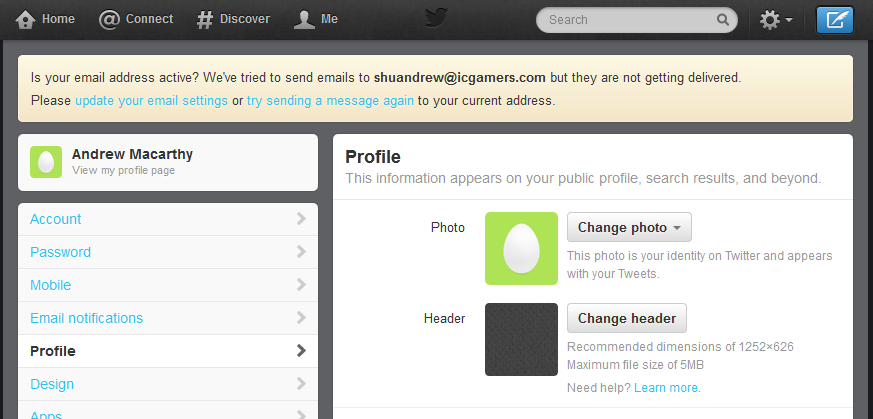
seamless-twitter-header-template-tutorial-step-8.PNG

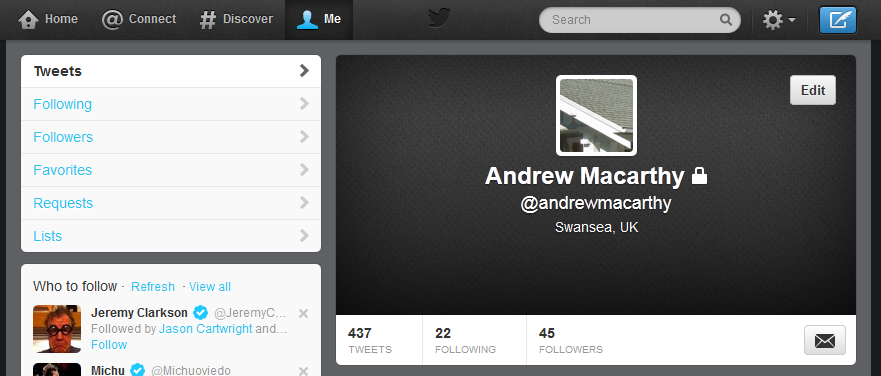
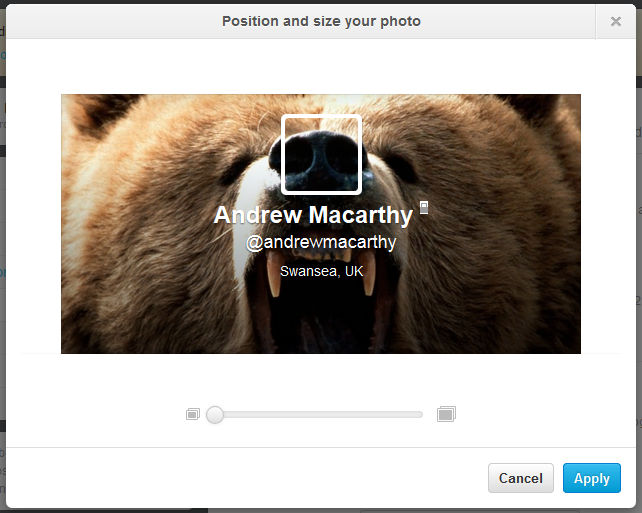
Click the "Change photo" and "Change header" buttons to upload your profile photo and header images. Don't adjust the position and zoom of them when prompted, just save them as is.

9. Tweak background image position if necessary

wonky2.PNG

If, as above, your background image doesn't line up with the profile pic seamlessly when you upload it, no worries. Head back to the template file and shift the position of your background image up or down a four or five pixels, then upload it again. It might take a try or two, but you'll get there :)

10. View the finished product! 

seamless-twitter-header-template-tutorial-step-10.PNG

Here it is, the finished header and profile image, perfectly lined up with each other and looking great!

Want me to do it for you? 

If you'd like me to create a Twitter header image like the ones above for you or your brand, please get in touch via the Contact Me page for more information.