Case Study: Top Brands' Twitter Background Design Fails

 
twitter-background-case-study.jpg

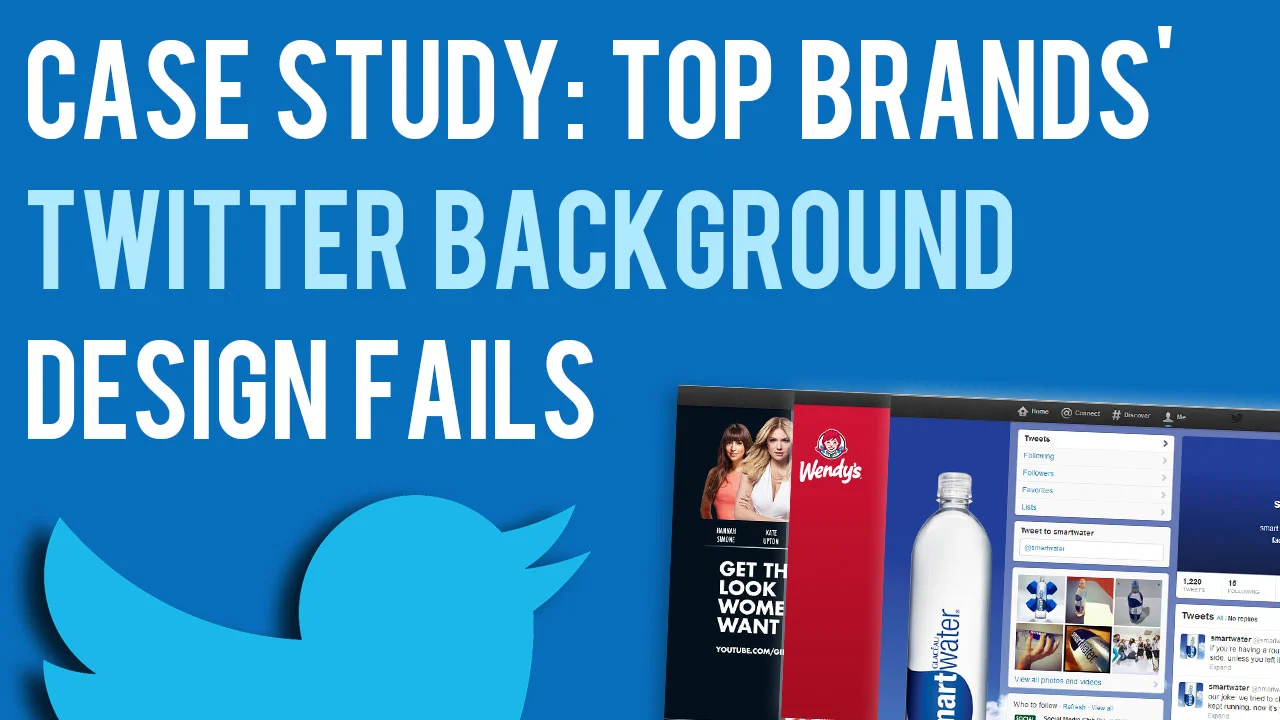
In a recent blog post, I offered my new Twitter background template as a free download so that you can easily optimise your profile's design to be viewed as intended on whichever screen resolution a desktop viewer is using. That got me wondering... with teams dedicated to design and social media management, how do the Twitter background designs of some of the world's biggest companies fare?

Across a random sample, I screen grabbed the 1920 x 1200 (the biggest screen resolution at which people are likely to view a Twitter profile) and 1366 x 768 (currently the most common screen resolution, according to global statistics). The results were pretty surprising...

The Bad

Where the companies I came across had attempted specific Twitter branding on both sides of the news feed, i.e. not just a single-image background), lots of the designs had not been optimised for viewers on different resolutions. Here are a few examples: 
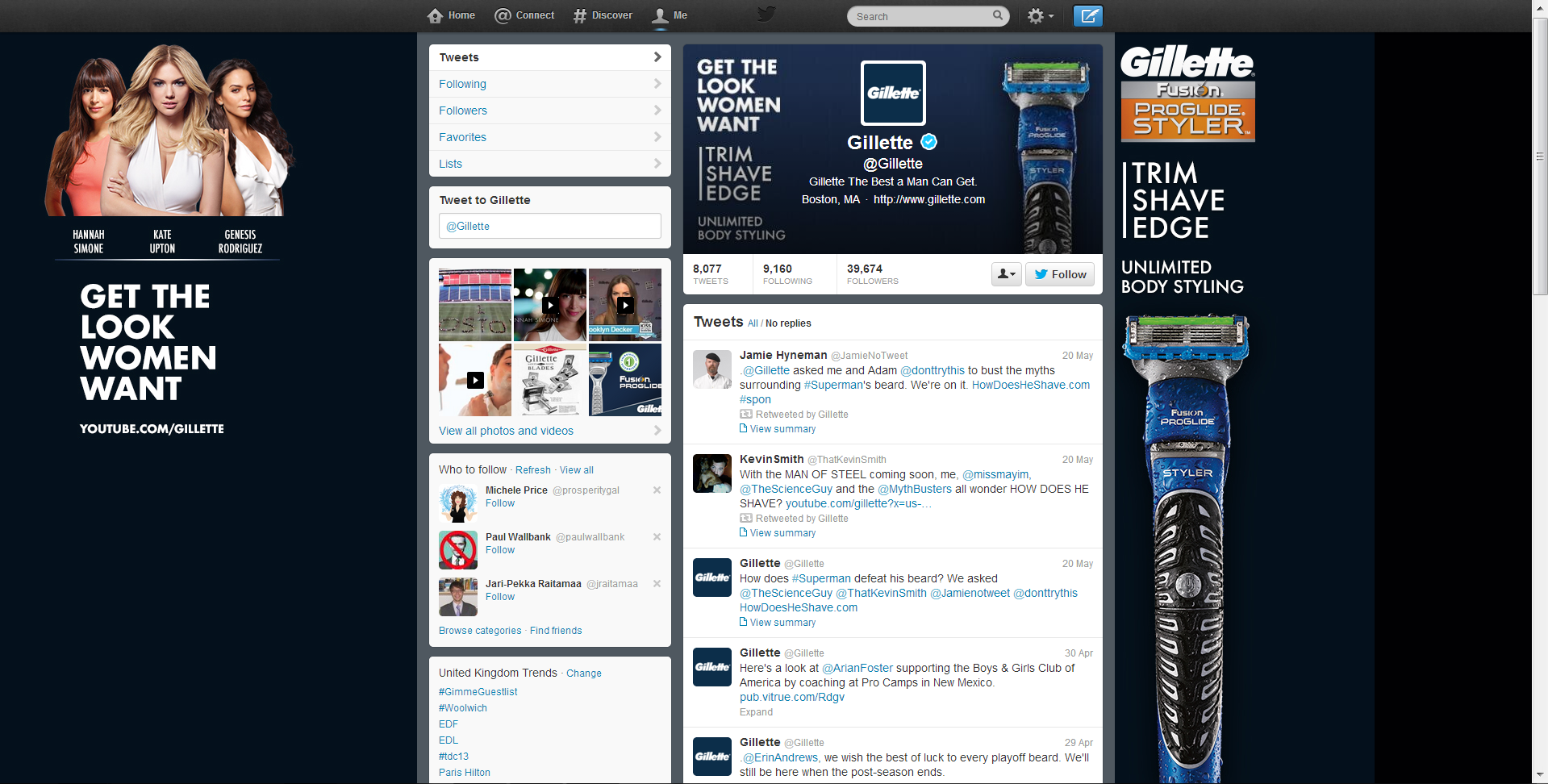
gillette-big.PNG
gillete-sm.PNG

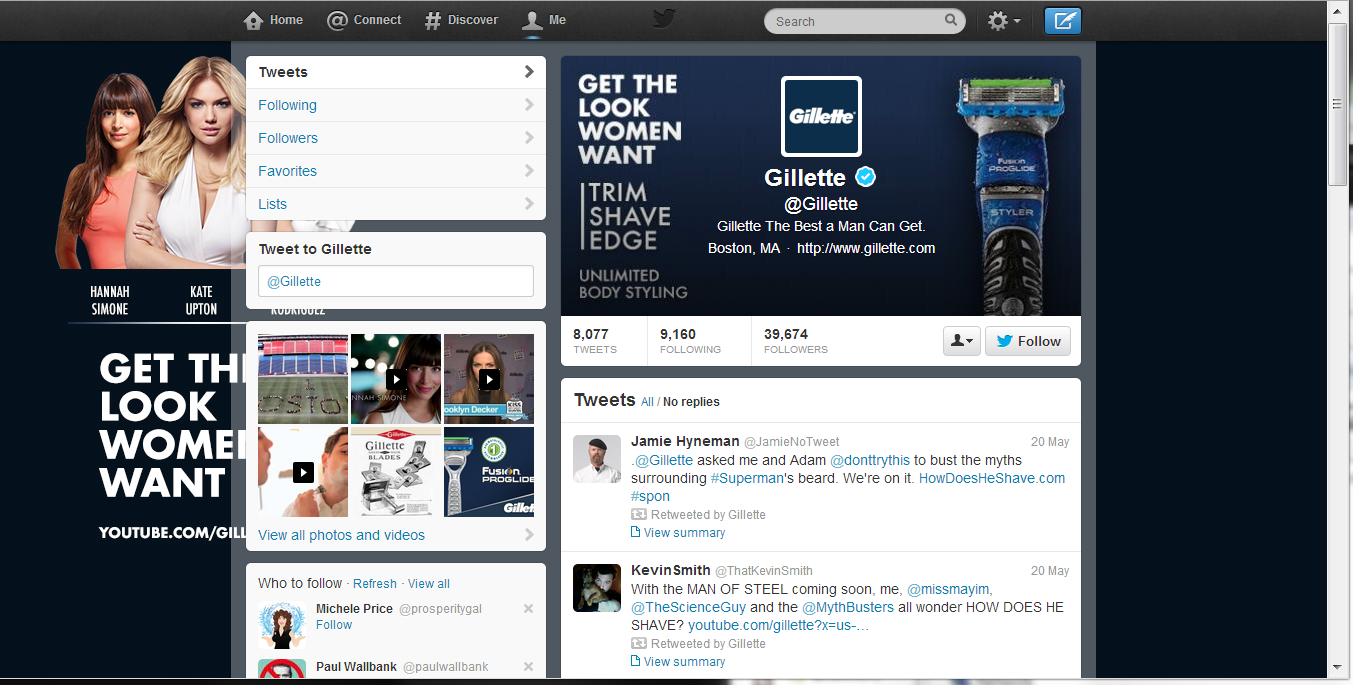
Here's the Twitter page for Gillette. At 1920 x 1200 pixels, the design looks great but for the big black bar on the right-hand side which reveals that the navy gradient hasn't been made big enough to accommodate for large displays. And at 1366 x 768 pixels, the "Get the Look Women Want" branding is hidden behind the feed, while the image on the right-hand side of the feed completely disappears! 
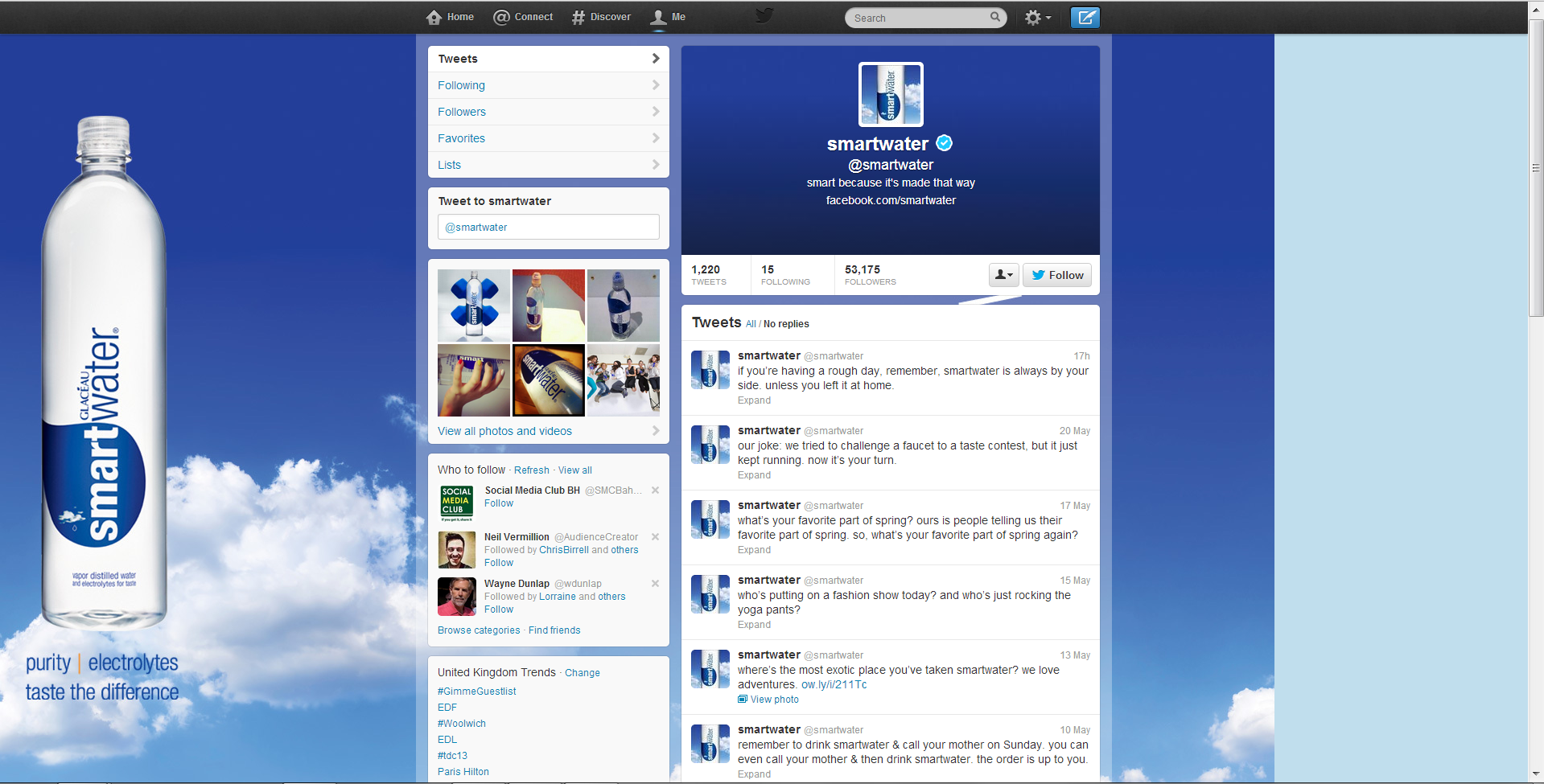
smartwater-big.PNG
smartwater-small.PNG
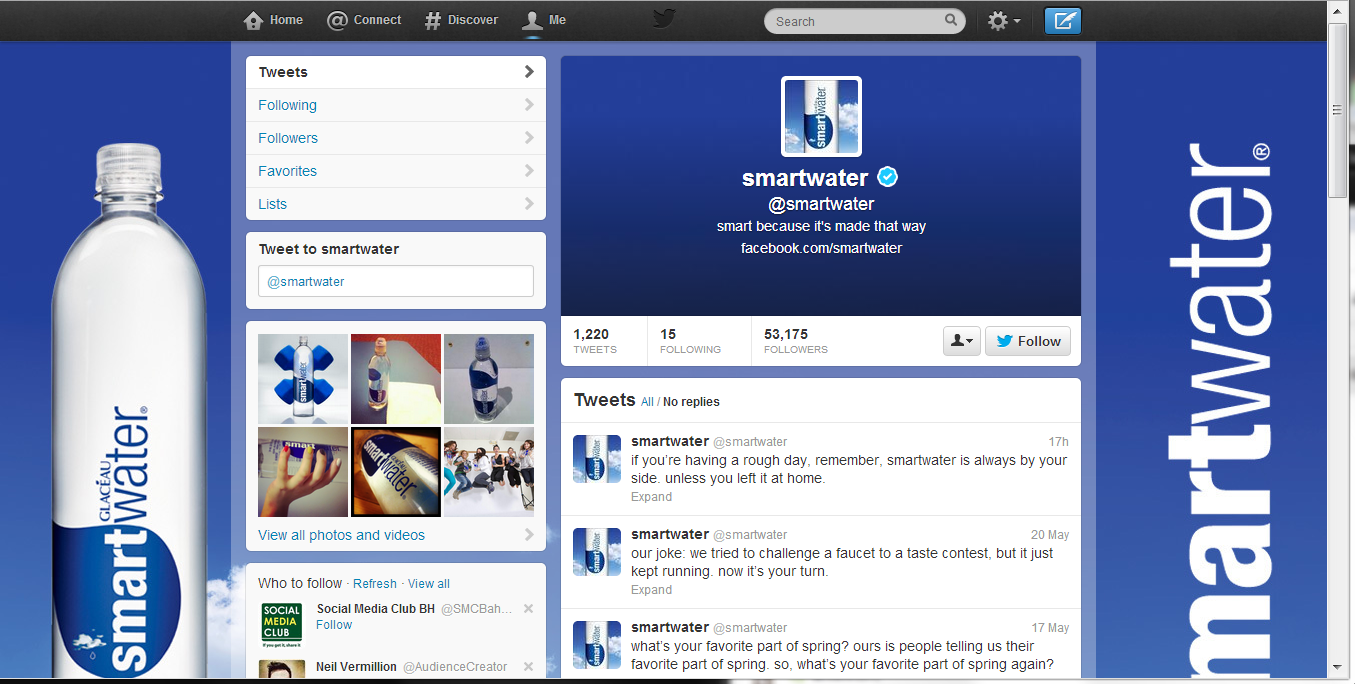
Onto SmartWater now. As with Gillette, its Twitter profile suffers from a big empty space  on the right-hand side at high resolutions. At the most common resolution, however, a "SmartWater" brand logo appears... well, most of it.

wendys-big.PNG
wendys-small.PNG

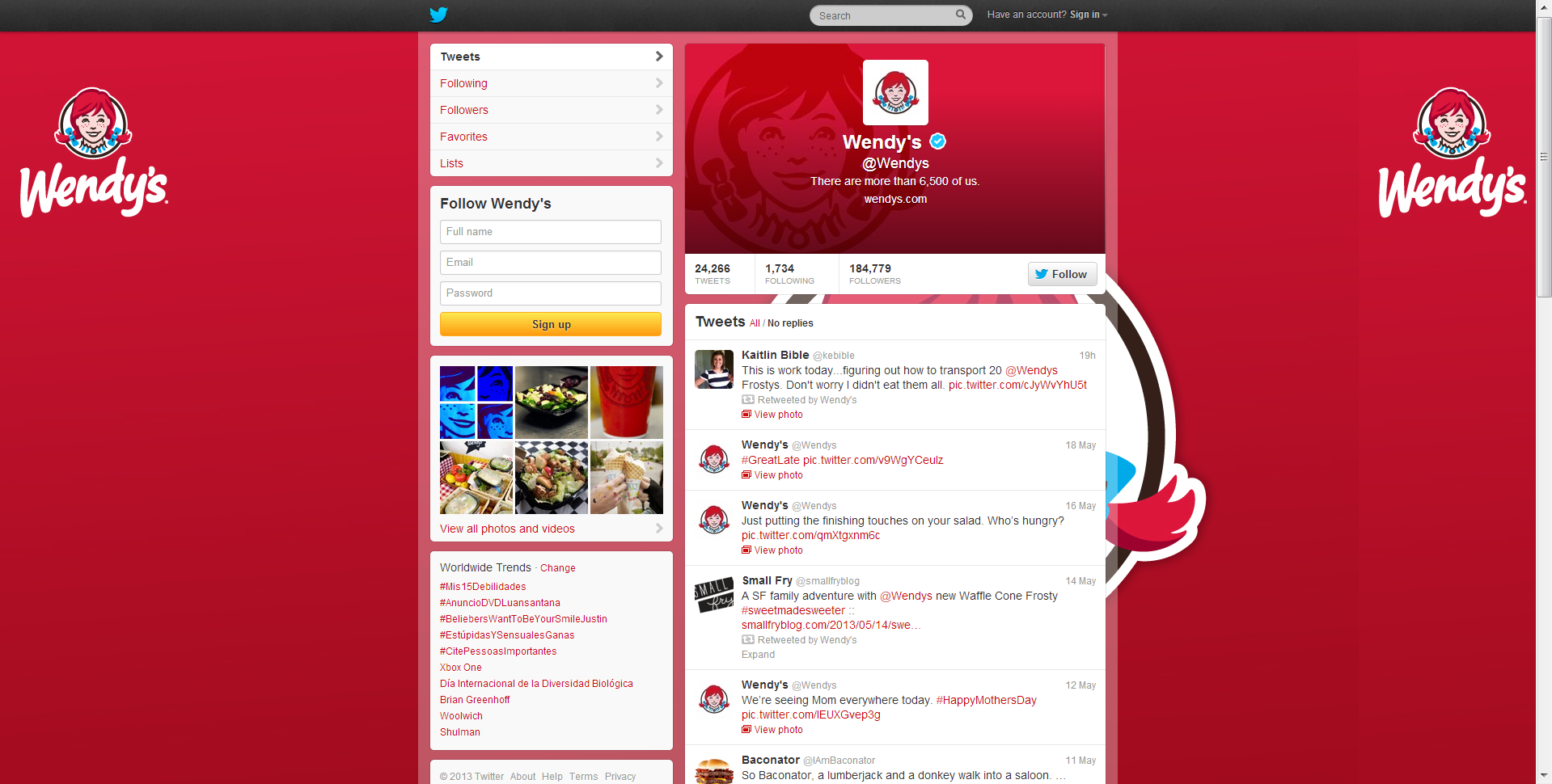
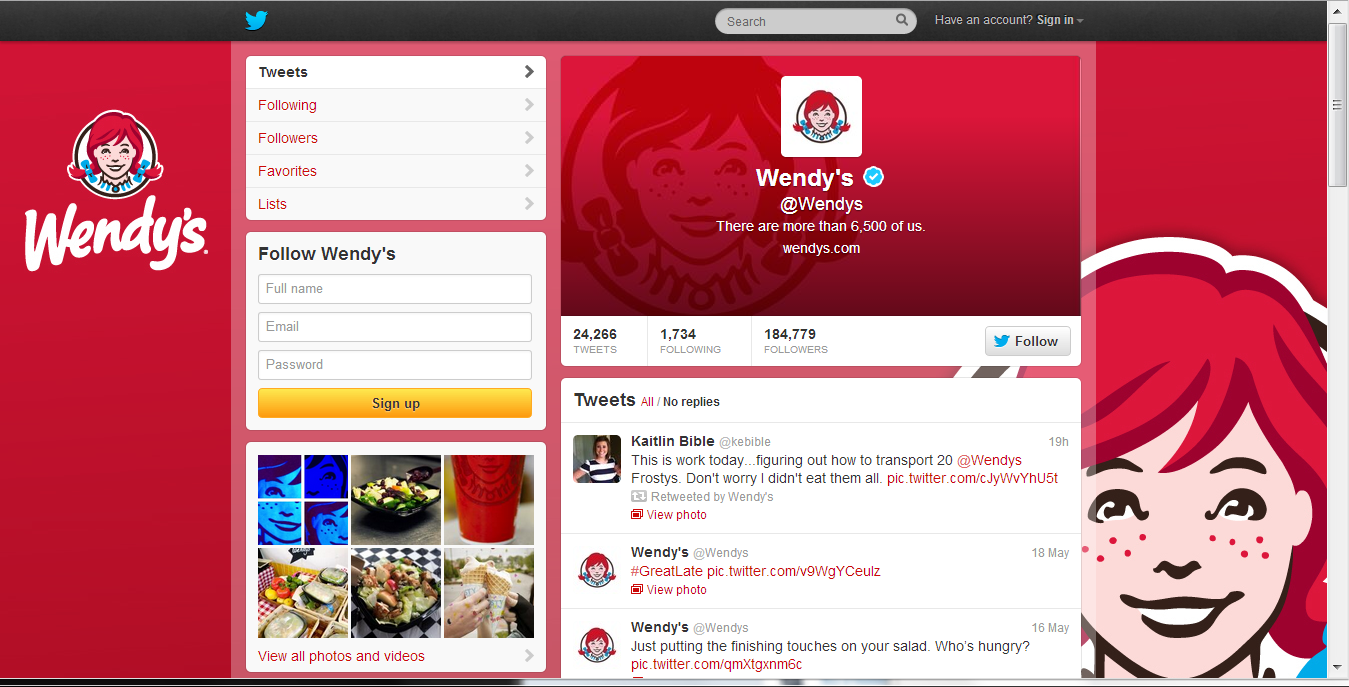
 Last up, here's fast food company, Wendy's, who get things half-right. At high resolution, its left-hand side Twitter branding is fine, but a second large image is obscured by the news feed. At 1366 x 768 pixels, the design looks as it was probably intended to. 

The Good

It was surprisingly difficult to find good examples of optimised Twitter backgrounds from the hour or so I spent looking at the feeds of big brands, so props go to Gap and Sprite (kinda) for these examples!
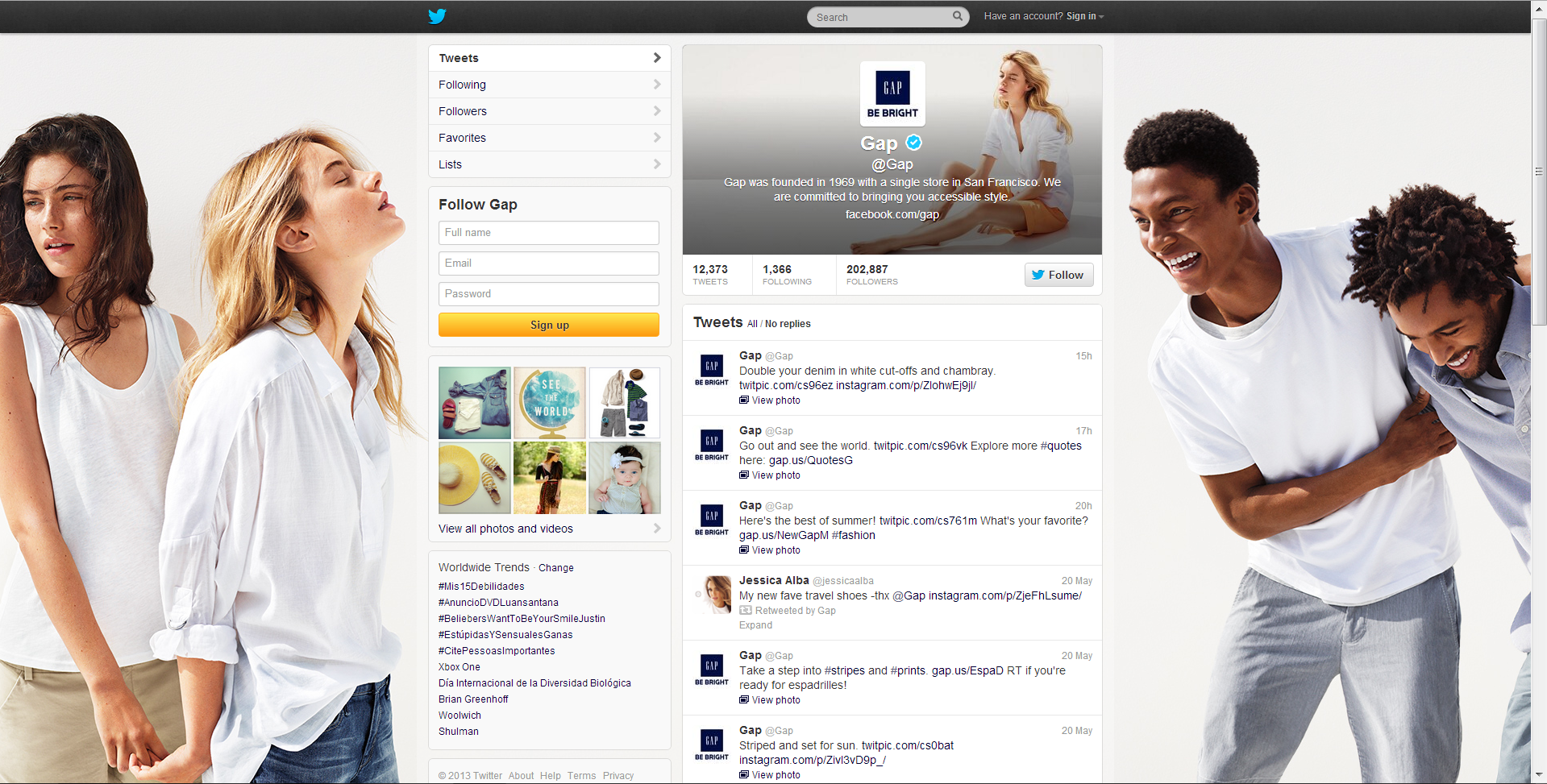
gap.PNG
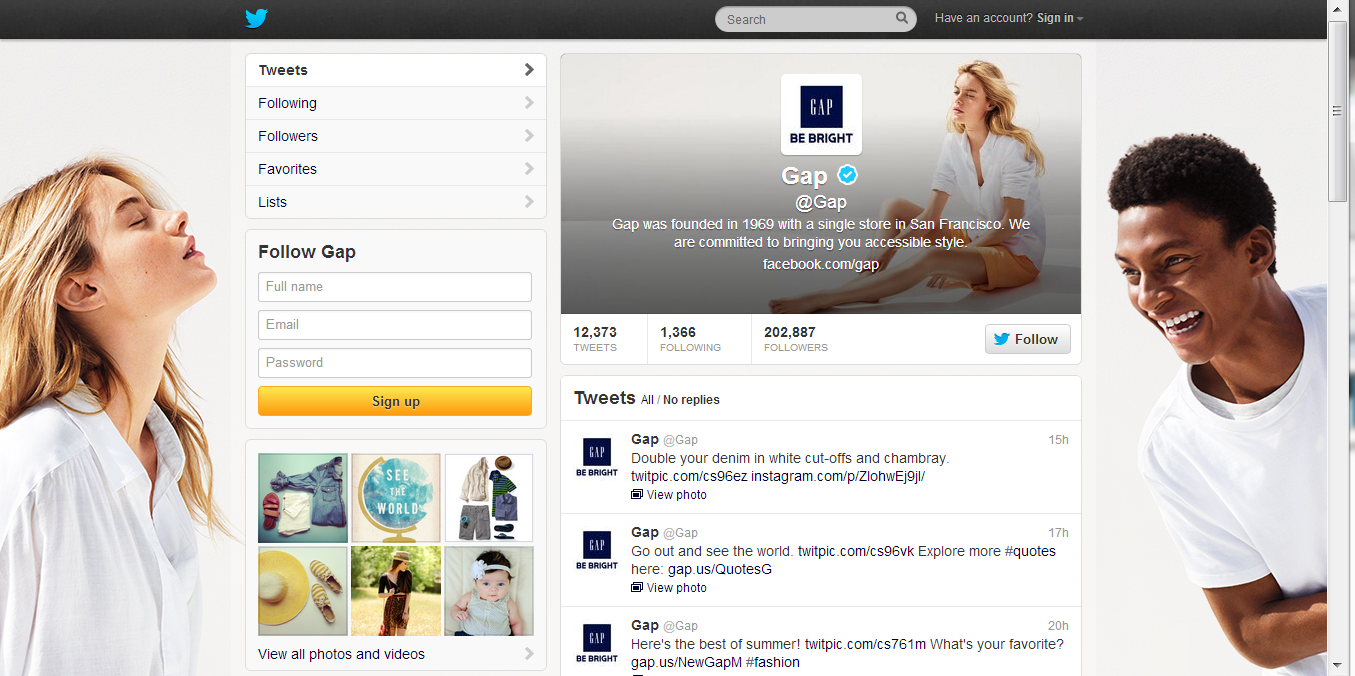
gap-small.PNG

Gap's Twitter background works at both the biggest resolution, and at the most commonly viewed resolution. While one person is chopped off either side in the reduced view, the design still looks great.
sprite-big.PNG
sprite-small.PNG

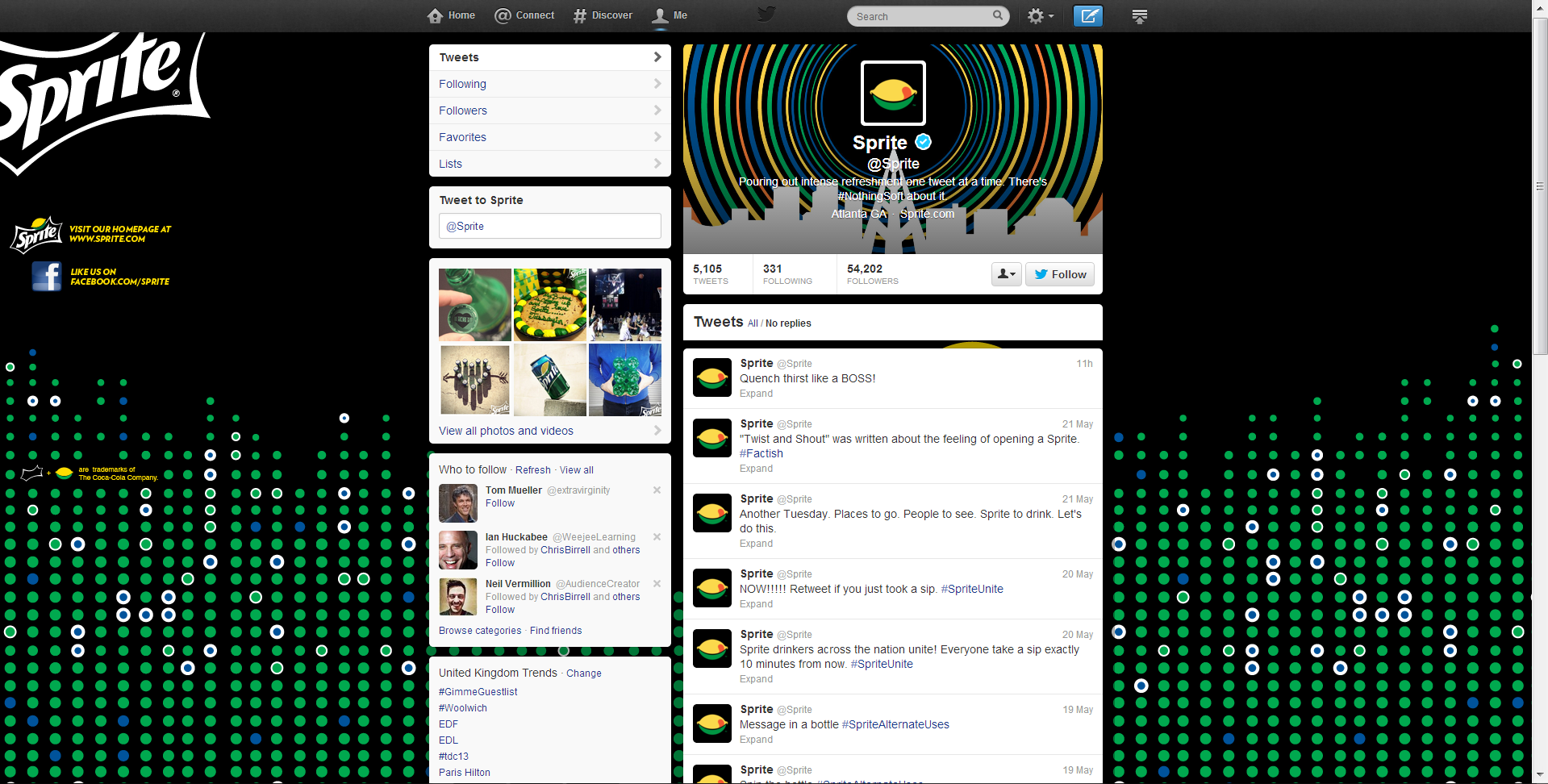
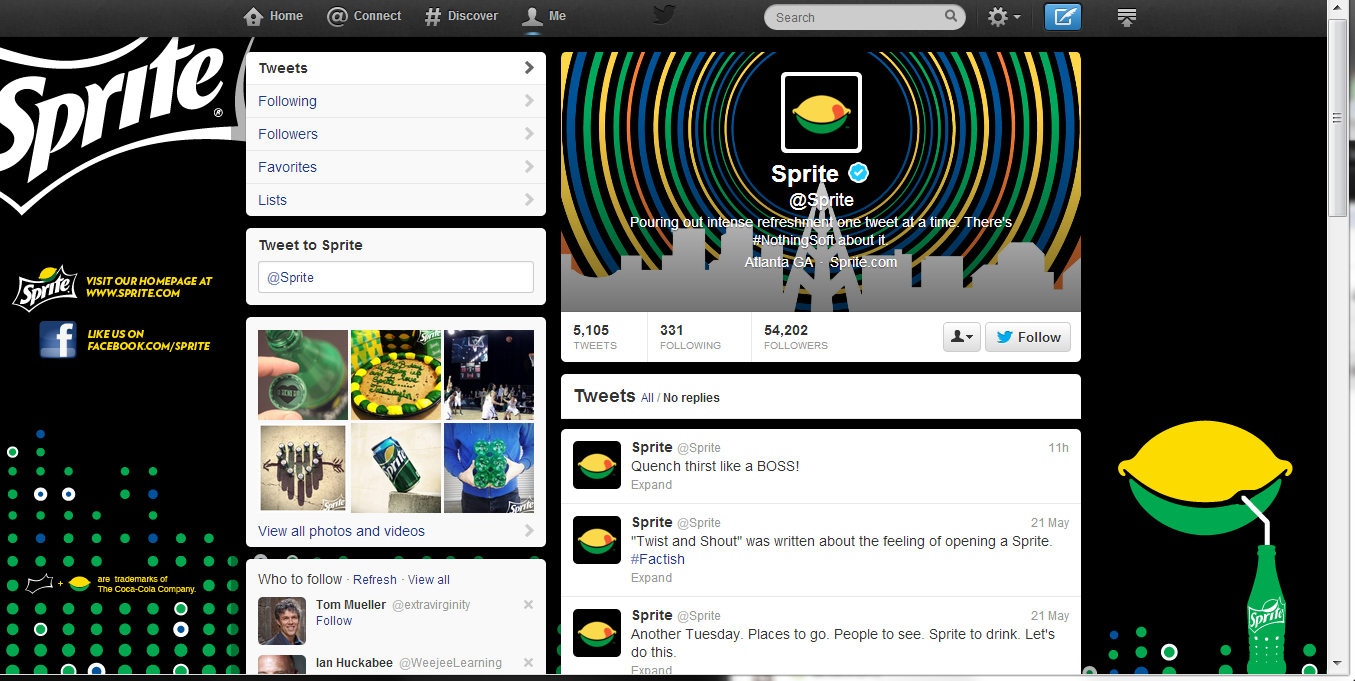
Finally, here's Sprite. Okay , the logo is chopped off the side in both examples, and the lemon-sipping-a-drink graphic is missing in the high resolution review, but both designs still mostly  work! 

Conclusion

From my terribly unscientific experiment, it seems that a significant proportion of big brands, while keen on branding their Twitter accounts, have not done so in a way that takes into account all of the different resolutions that people will be viewing their pages at on desktop computers, resulting in branding that is unusually slack for such big commercial voices. 

If you want to stay one step ahead of Gillette, SmartWater, Wendy's, and many others with an optimised Twitter background design, have a read of my Twitter background Template blog post and grab a link to download the template there too.


Twitter Background Template PSD 2014 | 1920 x 1200 Photoshop Download


STOP! THE TWITTER LAYOUT HAS CHANGED AND THERE IS AN UPDATED BACKGROUND TEMPLATE AS OF APRIL 2014. CLICK HERE:

http://andrewmacarthy.com/andrew-macarthy-social-media/new-twitter-background-template-2014-psd-1920-x-1200-photoshop-download


free-twitter-template-2013-2014-psd-photoshop-1920-1200.jpg

NEW 2014 TWITTER BACKGROUND TEMPLATE NOW AVAILABLE: CLICK HERE.

Free Twitter Background Template Introduction

As with so many a hunt online for free social media templates, I couldn't find one for a Twitter background that provided everything I needed - specifically, a template that took into account how I might go about designing my Twitter background to cater for the many different resolutions at which it would be viewed on desktop screens (only the Twitter header, not the background can be seen on mobile devices). So, after lots of screen capturing, measuring, and testing, I designed my own and I'm giving it away for you to use too.  

I know this post is long and you're probably eager to just download the template and get started, but I urge you to have a quick read to understand how the template works and how it will help you design as good a background as possible. 

The Trouble With Twitter Background Branding

Twitter profile backgrounds are a a prime piece of real estate for brands, but creating one that is optimised to be seen as intended by as many users of the site as possible can be tricky due to the wide variety of screen resolutions that the site is browsed at on desktops. Problems include:

  • Design hidden behind news feed
  • Design looks different from one screen to another (brand message hidden)
  • Design not optimised for largest resolutions, leaving blank areas (see image above).

If you've had any of these problems, my free Twitter background template will help.  But, before we get to it, let's take a look at the relationship between Twitter, screen resolutions, and Twitter background designs so that you can use the template as effectively as possible. 

Explained: The Anatomy of A Twitter Page

twitter.png

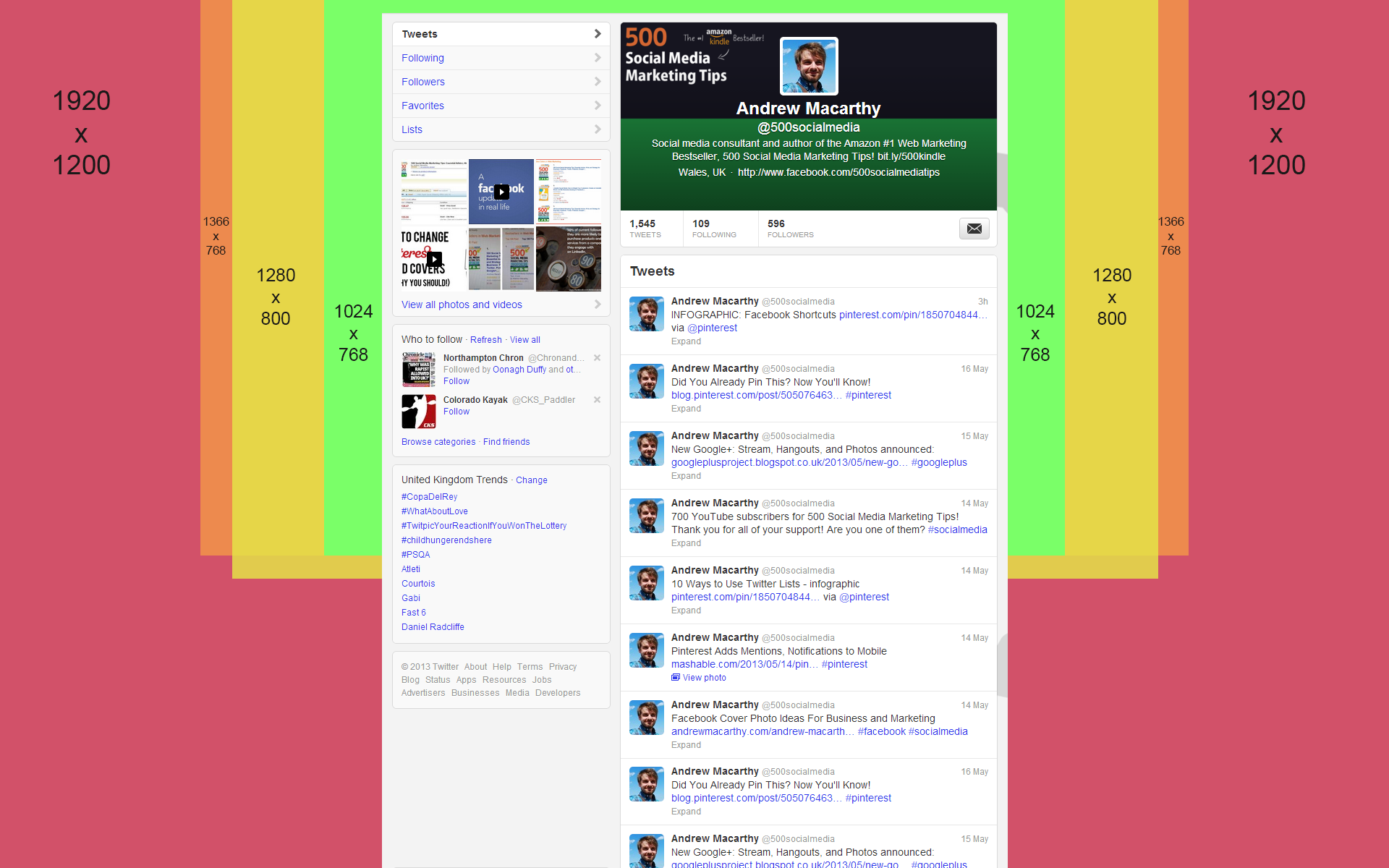
No matter what resolution people view Twitter on their desktop monitor, the news feed - which is always 865 pixels wide - will always sit in the centre of the page. That leaves an equal amount of space either side of it for visible background design (the rest being hidden behind the news feed itself). How much of the design is visible by a user, then, depends on the resolution of their display.

Therefore, in designing your Twitter background, you should aim to cater to as many people using as many different resolutions as possible, especially if you want branding on either side of the feed that isn't just a plain or patterned background (promotions, slogans, product images, etc).

Global Stats For Screen Resolutions

st.JPG

According to the most recent global statistics, the most popular screen resolution for viewing the web is 1366 x 768 pixels (around 24% of the total) followed by 1024 x 768 (around 16%). From these stats (and those for less common sizes), we can deduce that for the vast majority of people viewing your Twitter profile will be able to view a background design optimised for a 1366 x 768 pixel resolution. Anything designed for bigger resolutions will be wasted on the majority of users.

Using the Template to Cater for the Majority

twitter-background-template-psd-2013-photoshop.png

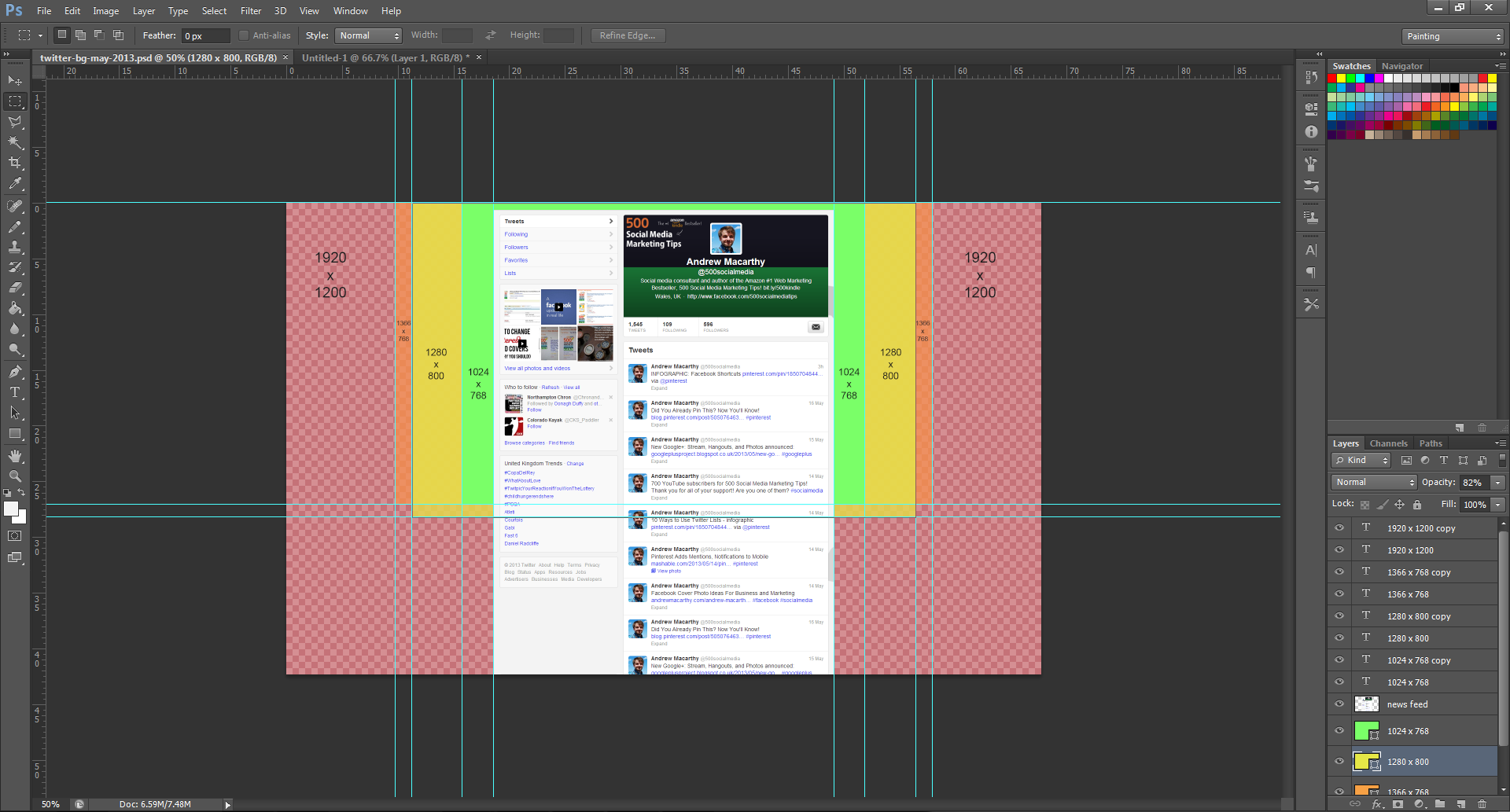
Now, let's look at the template I have designed. For display resolutions of 1024 x 768 pixels, 1280 x 800 pixels, and 1366 x 768 pixels (represented by the green, yellow and orange boxes in the cropped image of the template above), the amount of your background design that will be visible on either side of the news feed is 66 pixels, 194 pixels, and 238 pixels respectively. 

Optimising Your Twitter Background Design

The biggest resolution people are likely to view Twitter at is 1920 x 1200 pixels, so the template is offered at this size and I urge you to design with people viewing at this resolution in mind, but optimised for the majority who only see up to 1366 x 768 pixels, i.e. when using the template, put your most important branding elements - logo, products, offers, URLs within the orange box. View the gallery above for examples of how the Twitter background will appear for users at different resolutions. 

Of course, while 1366 x 758 is the most popular screen resolution for now, this is likely to change in future and so you may want to change your Twitter template with it.

How to Use the Twitter Background Template

twitter-background-template-photoshop.png

When you open up the Twitter Background template in Photoshop or GIMP, it will look like the image above. Work above and/or hide the layers representing the Twitter news feed and screen resolutions, then remove them all before saving your design as a PNG before uploading it to Twitter. Remember to work using the whole space, but optimize your design for 1366 x 758 pixel resolutions.

Note: The Twitter navigation bar does not appear in the template. This sits above your background when it is uploaded, not on top of it.  And while every effort has been taken to make this template as accurate as possible, prepare yourself for minor tweaking of your background design elements if necessary. Test and tweak is the name of the game!

One Last Thing - Centre Your Background!

center-twiter-background.JPG

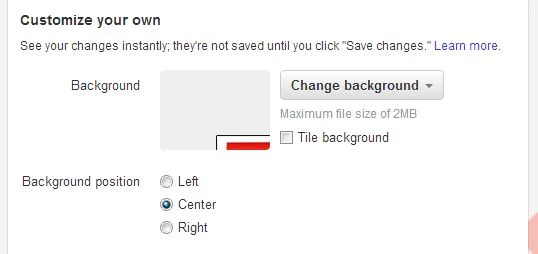
Twitter backgrounds are left-aligned by default, but this template is designed for optimal viewing on all resolutions when the background is centred, so make sure to switch to this option when you upload, as shown above. 

Download the Twitter Background Template


This Twitter template (and several others for all the biggest social networks - expertly measured, simple to use, and up-to-date) is available instantly as a downloadable zip file via the purchase link above. For more information on all my social media templates, click here.

Note: Payment is fast and secure via PayPal, but you do not need a PayPal account to buy and download.  it!


5 Things You Must Do to Prepare For the New YouTube One Channel Layout 2013

new-youtube-one-channel-layout.jpg

The new YouTube One Channel layout has been available for a month or two now, but only on an opt in basis. Over 100 million users have already made the switch, but from June 5th, all channels will be automatically and permanently moved to the new design, whether they're ready for it or not! The last thing you want is for your channel and its branding to look out of sorts when the switch happens, so here are 5 Things You Must Do to Prepare For the YouTube One Channel Layout. These simple steps to get yourself ready ahead of time and take advantage of the benefits of the new layout as soon as possible.

1. Opt In Now

opt-in.JPG

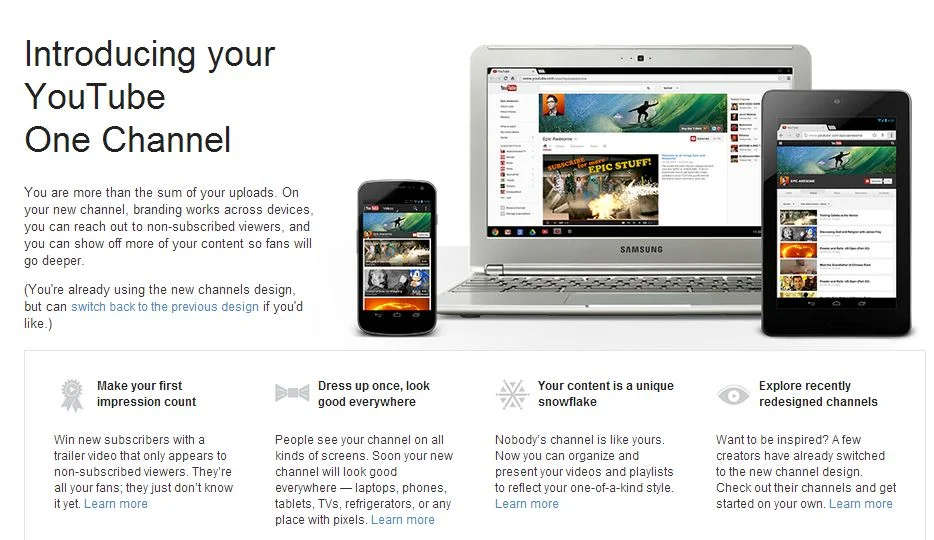
To be ready before the automatic switchover (and make use of the next four pointers), opt in to the YouTube One Channel layout now by visiting http://www.youtube.com/onechannel. Have a read through the overview provided if you wish, bid farewell to your old channel layout one last time, then hit the button at the bottom of the page to upgrade.

2. Upload A Channel Icon

500socialmedia-1354822281_600.jpg

Once you're upgraded, upload a square, high-resolution (800px x 800px) image for your channel icon; a pic that is also recognisable at smaller resolutions. This image will be your channel’s icon all over YouTube - in search results, comments, and on your Channel Art (explained next).

3. Upload Channel Art

youtube-channel-art-example.JPG

The One Channel design ditches the background branding of old and opts instead for a simple cover image known as your Channel Art. Your YouTube channel's icon sits on top of it, and you can also add clickable icons to your website and social media profiles. To get started, hover over your channel art place holder and click the pencil icon that appears in the top-right corner. In the drop-down menu, click "Edit Channel Art" and "Edit Links" respectively.

The most effective YouTube Channel Art is an image that is optimised to display well on whichever resolution it is being viewed. To ensure yours looks great on screens from mobiles to HD televisions, use the guidelines in my template, which you can download here: Social Media Templates Page

4. Create A Channel Trailer


The new YouTube channel pages have two primary ways of displaying video content in the Home tab: through the Browse view or through the Activity Feed. The Activity Feed broadcasts your activity on YouTube to your subscribers, while the Browse view two different "sub-views": a view for subscribers, and a view for viewers who have not yet subscribed to your channel. For this reason, the Browse view is my preferred default, but it needs to be enabled first. Here's how:

1. Hover your cursor over the menu bar that contains the 'Video', 'About', and 'Discussion' tabs on your Channel Page.

2. Click on the pencil icon that appears to open the Channel Navigation menu.

3. From here, click the button to enable the Browse feed, and then click Save. Go back to your Channel page and you'll be able to add a trailer over a place holder.

For instructions about how to create a great channel trailer to entice in new subscribers, watch my tutorial video above. 

5. Add Sections

sections.JPG

Sections are a way for you to organise your videos into groups on your channel page, and they can either be built manually or created dynamically from video tags, likes, etc. Use sections to highlight your best content, both to subscribed and non-subscribed viewers. To begin, scroll to the bottom of your channel page and click the "Add a section" button.

Conclusion

So there you have it, a handful of simple and effective ways you can help make your brand's transition to the YouTube One Channel layout as painless as possible, and hopefully increase your audience at the same time. What are your thoughts on the new YouTube layout? Let me know in the comments below!


Facebook Page Review: Munchkin Photos

Munchkin Photos

As part of my Free Facebook Page Review promotion over at the 500 Social Media Marketing Tips Facebook Page, I selected Munchkin Photos, a photography studio by husband and wife team Andrew and Jo based in Warrington, England, as the third and final free review. Here's my analysis of his current Facebook Page - the things that are done well, along with tips and recommendations for how I think it could be improved.

Page Name and URL

page-name.JPG

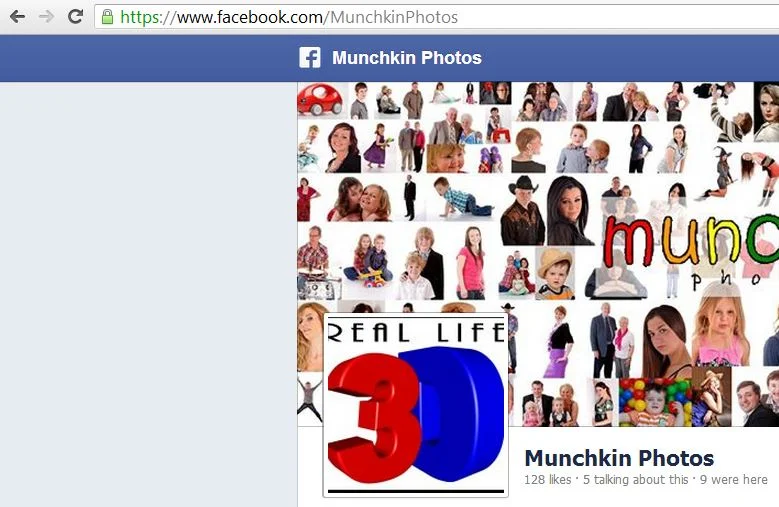
Munchkin Photos has got his Page name and URL spot on. The name is nice and short so that it appears optimally both on web and mobile devices and its vanity URL (https://www.facebook.com/MunchkinPhotos) mirrors the page name too, making it easy and memorable when communicating it in person and on marketing material. 

Cover Photo

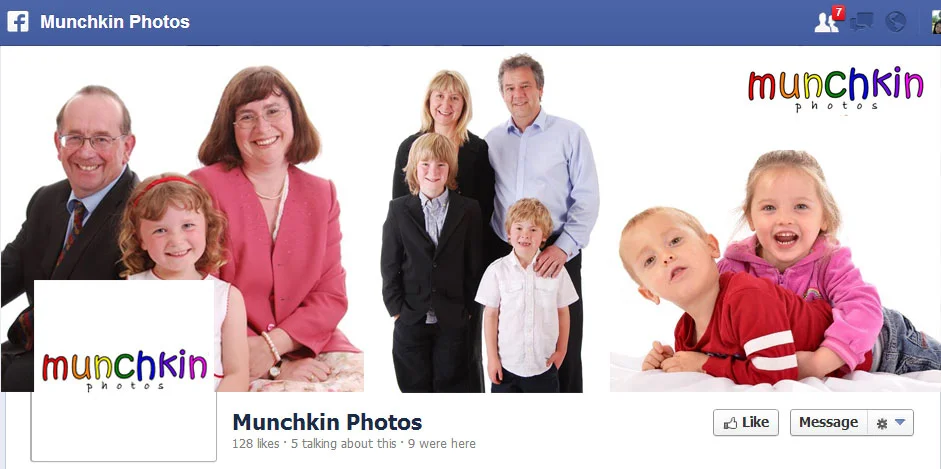
coverphoto.JPG

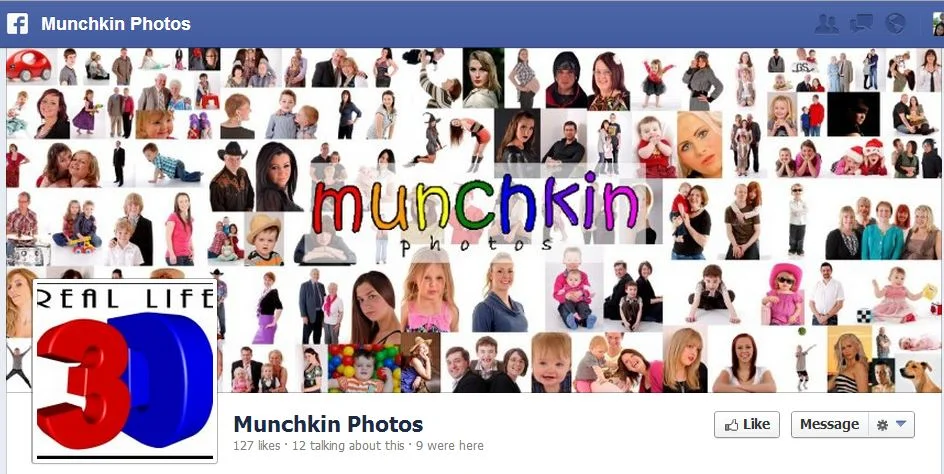
Munchkin Photos has used a collage of a wide selection of its customers for its Facebook cover photo. While I am generally a fan of this approach, I feel this example is a bit too crowded.

Cover photos are a prime space for brands to communicate who they are and what they do to viewers, and I think Munchkin Photos could do this more powerfully with a focus on just a collage of just a few photos in its cover image, or (my preference) just a single photo at a time. As well as a more lucid brand message, this would also allow them to tag the cover photos to feature different customers on a regular basis - encouraging likes and shares that will promote the business - as well as leaving space to feature details about promotions, offers, etc.

Profile Photo

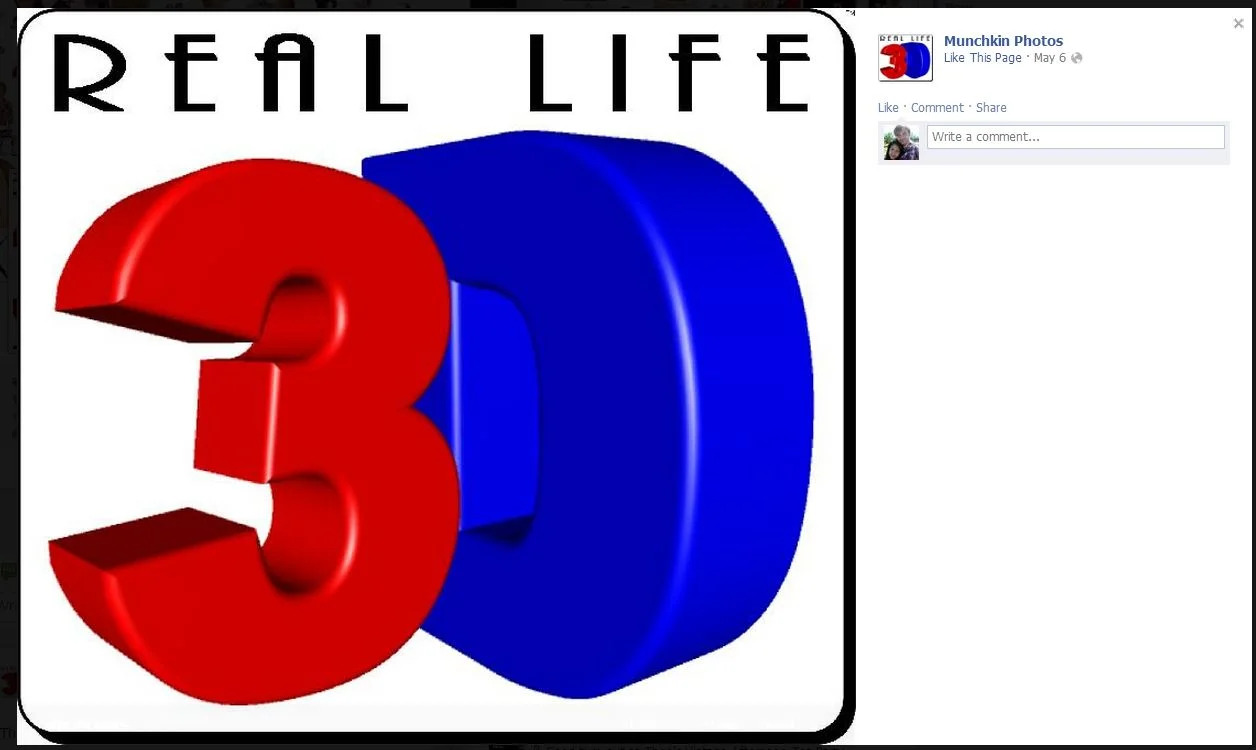
3d.JPG

Munchkin Photos' profile photo is currently used to highlight one of the business' latest offering - 3D photos. As this photo will represent the company around Facebook and beyond, my preference is for it to be a square image of a company's logo. A more effective way to promote the 3D photos would be using the cover photo, as described above. Whatever profile photo is used, I encourage my clients to add a description featuring a few lines about the company, a URL, and a call to action.

mock-cover.jpg

Here is a quick mock-up of how I feel the cover photo and profile photo for Munchkin Photos could be used more effectively - preferably without a little girl's neck being severed by the profile pic! If a single image is used, it could be tastefully annotated with the family name and/or price of the shoot as a nice, big advert.

About Section 

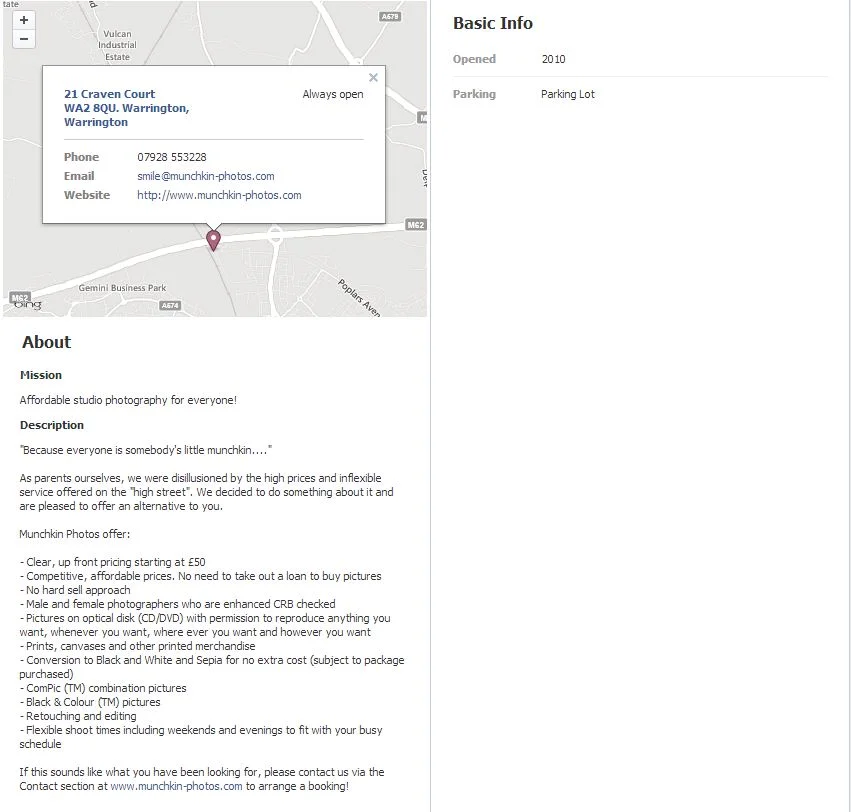
about.JPG

On the whole, Munchkin Photos has done a great job with its About section. It features a map with contact details, Mission, and a Description detailing information about the company and the products it offers. As well as a reminder to make sure the About section is filled out 100% (or as close to as possible), I have just one more suggestion here: I would be tempted to move the product information to its own section, just to make for slightly easier reading.  

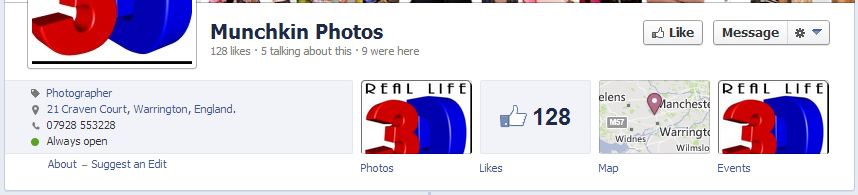
Custom Tabs

tabs.JPG

At present, Munchkin Photos does not make use of any custom tabs or apps. Not only can custom tabs help enhance the branding of your Facebook Page, but can also be used to house more information about the company, what they do, and any offers they have running.

As Andrew is the only photographer, I think a custom tab to let customers get to know him would be a really great idea - a nice portrait pic and welcome message or even a short video to show off his personality, which is so important for a photographer, and to a customer who might be nervous or shy of what to expect, or being in front of camera.

Another tab could feature information about pricing and gift certificates. And, as families in particular may want to visit the studio for several photo shoots over the years, creating a tab with a sign-up form to an e-mail list could be really beneficial. With the e-mails Munchkin Photos gathers, they can send details of offers and promotions, and perhaps even a gentle reminder to families about visiting the studio for an updated group photo! 

Types of Posts and Frequency

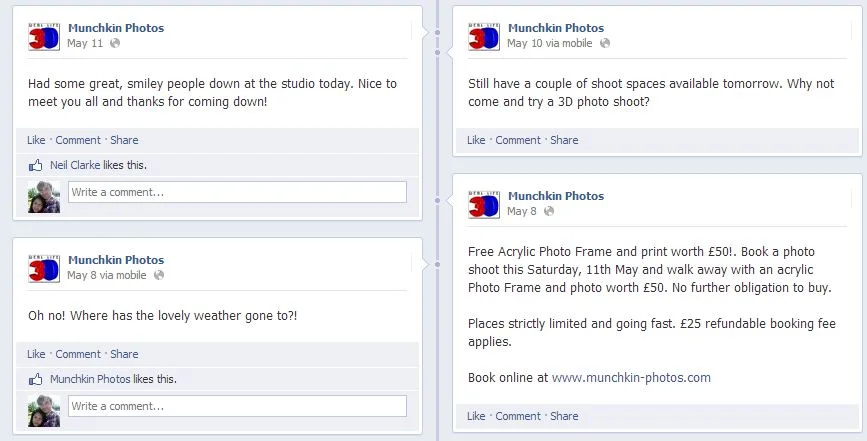
posts.JPG

Munchkin Photos posts status updates regularly, and they're short and snappy on the whole too, which is fantastic. However, there's one crucial detail missing... photos! Unless the status update is a video or a link, I always recommend adding a photo as they draw people's attention in news feeds and receive considerably more engagement. And working in such a happy and dynamic space, Munchkin Photos has a perfect opportunity to show off to current and potential customers what goes on. Examples might include photos of the studio being prepared for the day's events, shots of Andrew snapping happy families (with their permission, of course), the odd post of products such as frames and canvases, and Andrew's tools of the trade - especially for the 3D photo effect.

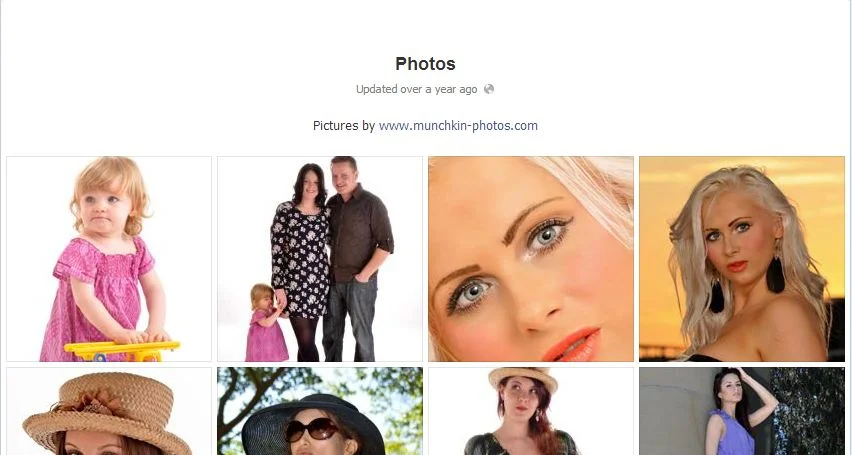
year.JPG

And of course, the Page's timeline and Photos section could feature regular albums of snaps of happy customers to show off the company's work to potential customers. A quick look at the Photos section shows that no new albums have been added since 2011! As a potential customer checking the studio out, that's like walking past a clothes store still advertising its Spring/Summer ranges from a few years ago... eek!

Basic Competitor Analysis

As you might imagine, there are plenty of photographers vying for attention in the same market as Munchkin Photos. These are just a few in the local area, and a very basic look at how their Facebook Page's operate. 

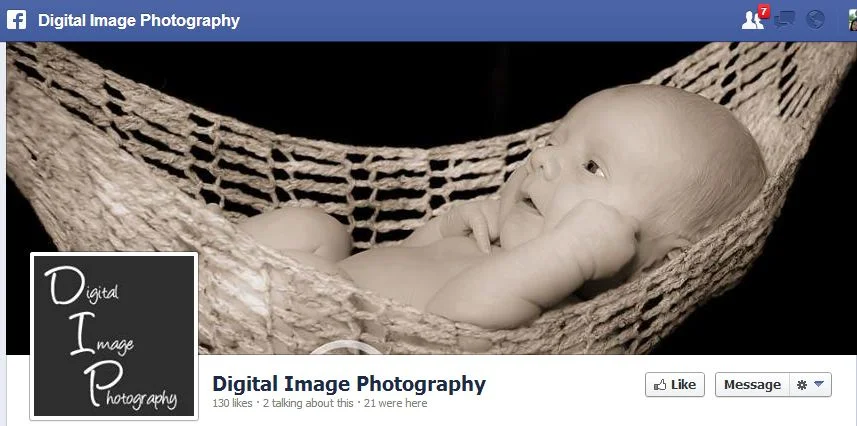
dim.JPG

Digital Image Photography: Decent cover photo, but infrequent, boring, and "moany" updates.

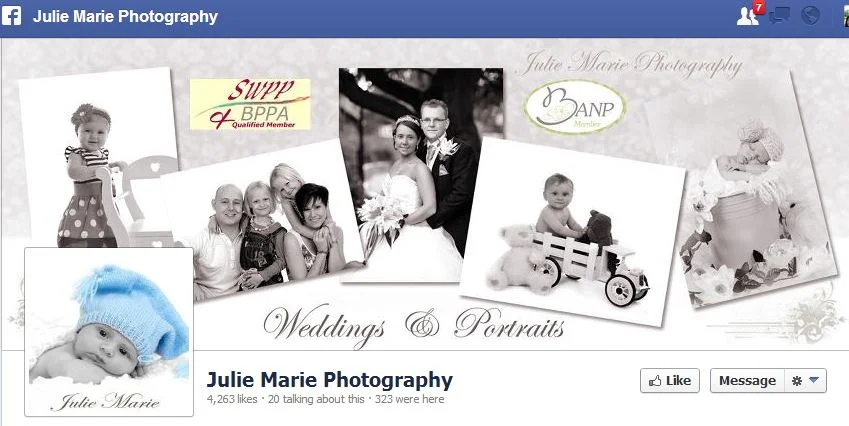
julie.JPG

Julie Marie Photography: Large fan base (over 4,000 likes) and overall, a well-run Page with semi-regular updates and lots of engagement with customers.  Good competition here!

clarity.JPG

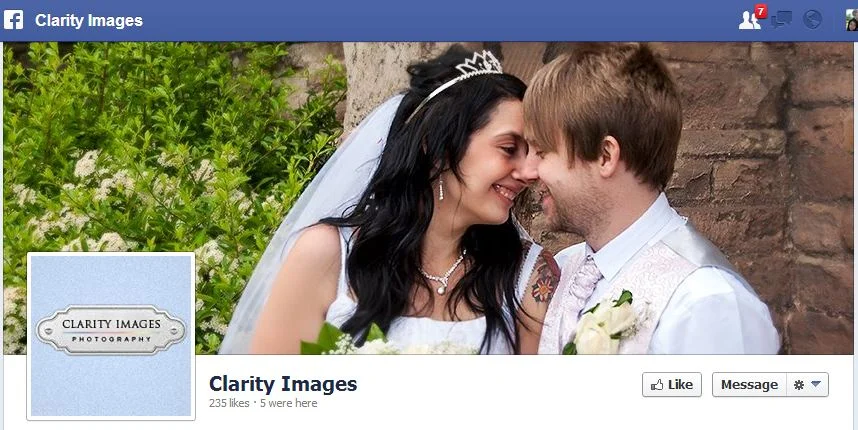
Clarity Images: Nice cover, profile pic, and About section, but very infrequent posting schedule. Most photo posts that are there are without any written context, or solely promotional. 

Conclusion

All in all, I believe Munchkin Photos has the makings to foster a really effective Facebook presence in several ways, especially as it differentiates itself from the competition with a child-friendly focus:

  • Posting customer snaps and encouraging them to tag, like, and share to spread the word. This can be done in person on marketing material and just before they leave the studio. People (especially parents, love  to share photos and show off to their friends on Facebook!)
  • Tweaking the cover photo and profile image to show off the brand and its offerings in a more impacting manner.
  • Building custom tabs to enhance branding of the Page and to tell people about the business and its offers.
  • Continued regular posting schedule, but including images!

For more information about Munchkin Photos, visit http://www.munchkin-photos.com.

Want A Facebook Page Review? 

If you'd like me to help you with your Facebook Page, and want a customised review similar to the one above, check out the Facebook Page Review Service section of my website for full details and to purchase for a launch price of only $49

.


Google+ (Plus) Cover Photo Template PSD May 2013 | Photoshop Google+ Template

google-plus-cover-photo-template-may-2013-psd-photoshop-free.jpg

The Google+ Cover Photo Default View Changes Again! 

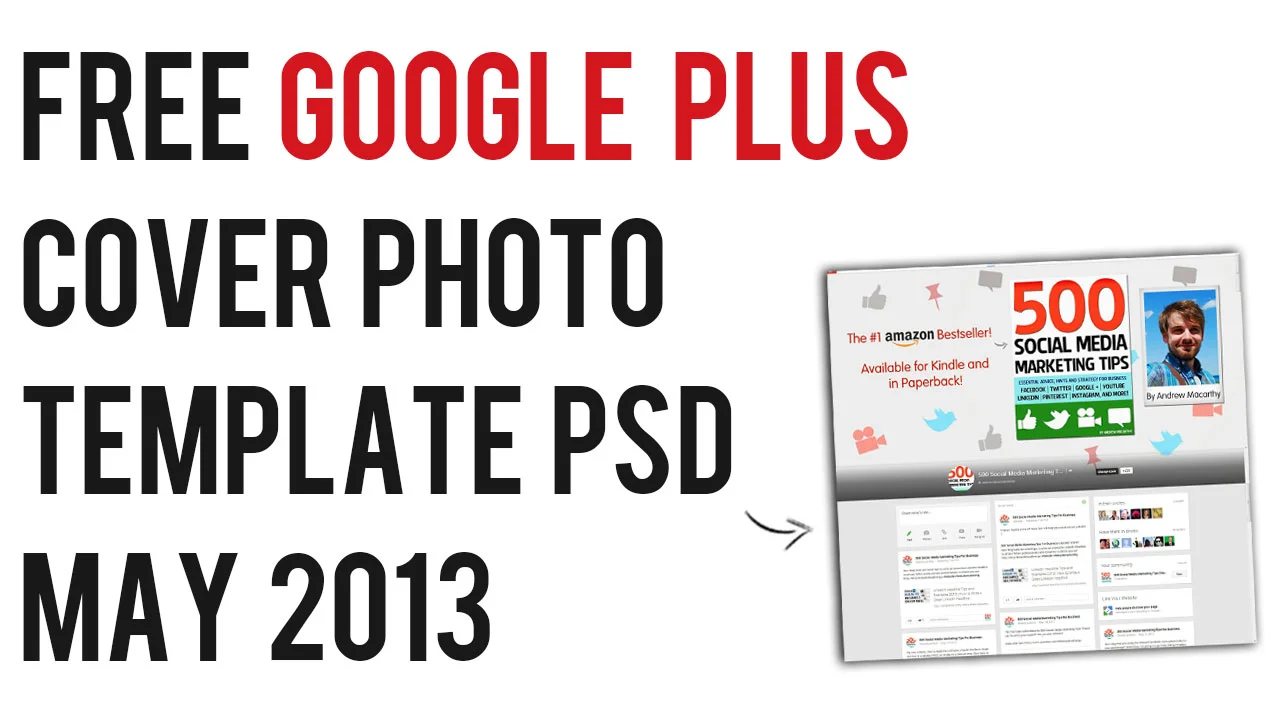
In March this year, Google+ rolled out huge  new cover images for the social network. When a user landed on someone's profile or page, only around the bottom two-thirds of it was displayed. Now, following another update - and the introduction of a refreshed new feed, auto photo editing and other features, the Google+ cover photo has changed again - not in size, it seems, but another change to how it is displayed.

As you can see in the image above, when someone lands on your Google+ page, pretty much all of your cover photo (except the bit hidden behind the default grey overlay containing your profile photo and page name) is hidden. 


To see the cover photo at all, users have to scroll up. Many brands are already voicing their disappointment at this design change,  as it means the visual impact of their branding is all-but lost on a viewer's initial visit to their Google+ page. Whether Google will listen and make a u-turn on their decision is anyone's guess, but for now all we can do is adapt with them. 

The New Google+ Cover Photo Template

So here is it, my new Google+ cover photo template for May 2013.  Since nearly all of the design is hidden by default, you now have an even bigger area to emphasise your branding in the hope that someone will scroll up to see it! The green area represents the grey overlay at the bottom of the cover photo - don't put anything important to your design in this area.

Download the Google+ Cover Photo Template  

This Google+ template (and several others for all the biggest social networks - expertly measured, simple to use, and up-to-date) is available instantly as a downloadable zip file via the purchase link above. For more information on all my social media templates, click here.

Note: Payment is fast and secure via PayPal, but you do not need a PayPal account to buy and download. 

Alternatively, buy a copy of my #1 Web Marketing Bestselling book500 Social Media Marketing Tips,  on Kindle or in paperback, and receive a link to download them all for free - you'll find it located in the Social Media Templates chapter.  

Your Thoughts

Do you like the new Google+ cover photo design? Let me know in the comments below! 


ABOUT THE AUTHOR

Andrew Macarthy is the author of the #1 Amazon Bestseller, 500 Social Media Marketing Tips.

Buy 500 Social Media Marketing Tips (Kindle or Paperback)
Amazon US: http://www.amazon.com/dp/B007L50HE6
Amazon UK: http://www.amazon.co.uk/dp/B007L50HE6

Follow Me:
http://www.facebook.com/500socialmediatips/
https://pinterest.com/500socialmedia/
http://www.twitter.com/500socialmedia
http://www.youtube.com/500socialmediatips