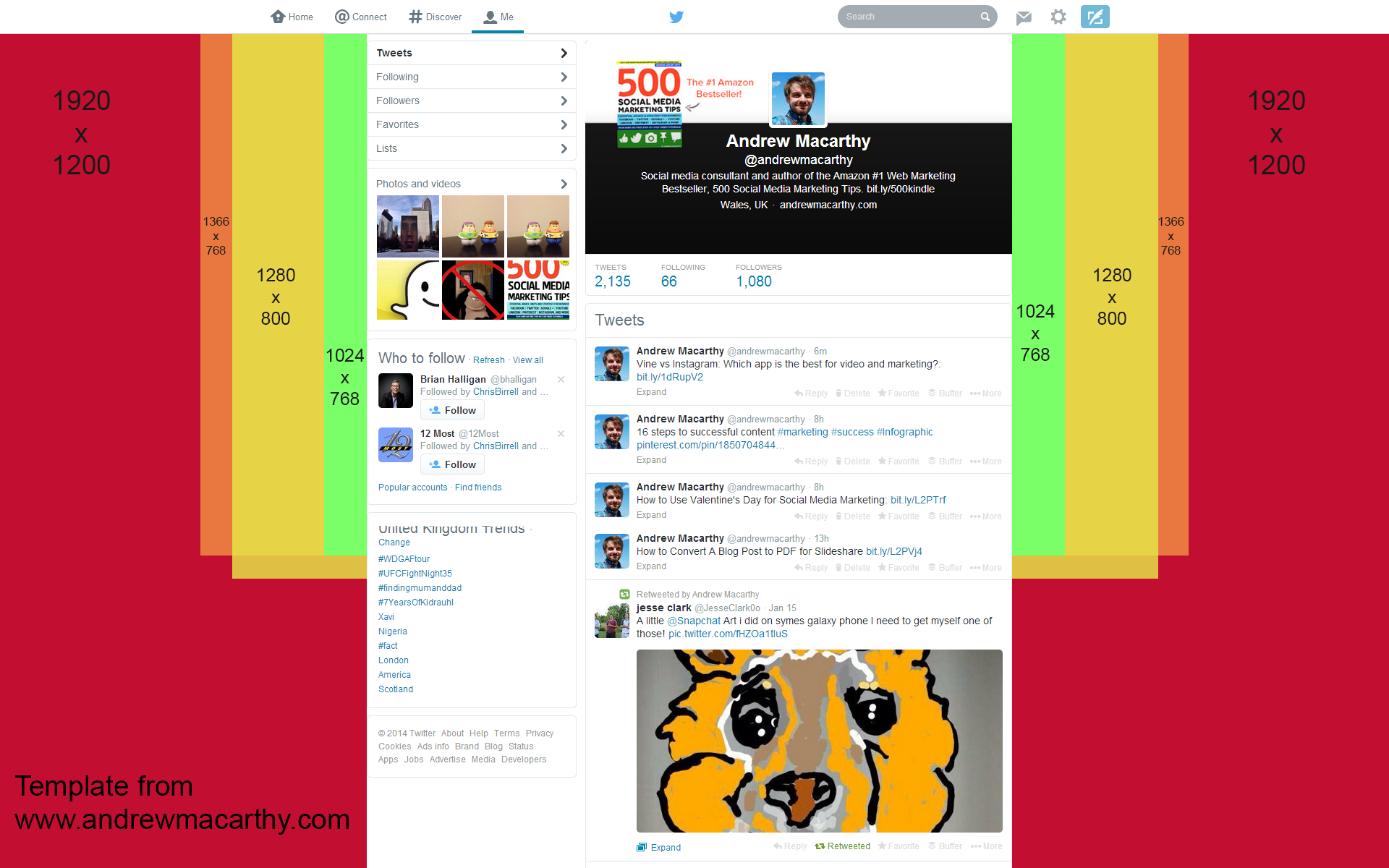
Twitter Background Template 2014, 2015 PSD | 1920 x 1200 Photoshop Download

Twitter Background Template 2014, 2015 PSD | 1920 x 1200 Photoshop Download

In January 2014, Twitter refreshed the look of its desktop site, with three noticeable changes: a wider news feed, a larger header image, and bigger and more colourful font to display a users' tweet and followers count. A new design means a new template is needed in order to help keep your Twitter background branding optimised, so let's get right to it.

Read More


Sacco and Gogo's Real-time Twitter Marketing Fail

 
js.PNG

When Justine Sacco, a PR executive of all people, posted the above tweet before boarding a flight, little did she know of the reaction while she was in the air. Amongst the thousands of replies and retweets condemning her comment, Gogo, a provider of in-flight wi-fi, decided to use the buzz as a way to market itself with the following tweet:

Not only was the tweet not very funny, nor did it make a lot of sense in the context, but it is one of the most recent  examples of how some brands try to use social media to position themselves as "current" and "edgy" by piggybacking on trending stories - and fail.

While Gogo's tweet is not offensive in itself, its timing is pretty poor, and the company later admitted so in an apology. Opportunistic tweets like that from Gogo can be extremely powerful in the right circumstances, but all-too-often, we see marketing departments posting before thinking thoroughly about what the consequences might be given the speed and ferocity at which one tiny piece of social media content can turn into a backlash they never saw coming.


3 Ways to Use Twitter Feed Image and Vine Previews For Business

3 Ways to Use Twitter Feed Image and Vine Previews For Business

In late October, 2013, Twitter rolled out an update to its desktop site and mobile apps that changes how images (specifically those that are uploaded to the site directly) and Vine videos are displayed to users in their feeds. Let's take a look at the changes in detail and how you can use them for marketing purposes.

Read More

How to Use Illustrated Tweets for Business | Twitter Marketing With #illustratedtweets

How to Use Illustrated Tweets for Business | Twitter Marketing With #illustratedtweets

In October 2013, Twitter released a version of its app designed specifically for Android tablets, and with that update came a brand new feature - Illustrated Tweets. Let's take a look at how this new avenue of communication can be used to benefit your business.

Read More

How to Auto Tweet Old Blog Posts on A Schedule for FREE | Auto Post Blogs to Twitter


Why schedule and automatically tweet old blog content?

If you want to continue to grow a steady Twitter following, encourage more replies and RTs, and  increase traffic to your blog, then posting regular tweets containing links through to your best content is a must. However, carrying out this work manually can be a laborious task.

In this post, I'll show you one method of automatically posting a continuous stream of scheduled tweets containing links to your blog's best evergreen content; a method that ensures that your Twitter followers are given ample opportunity to check out the valuable content that you produce, and are reminded of it often.

The whole process takes just a few minutes to do per day (or every few days, depending on how much you want to tweet), and won't cost you a penny. Let's get started!

1. Sign up to Buffer

The tool I use to schedule and post tweets to Twitter is Buffer. Head on over to https://bufferapp.com/ to sign up or sign in using your Twitter, Facebook, or LinkedIn credentials.

Buffer has two main plans for its users. A free plan that allows you to schedule and publish up to 10 pieces of content per day (that's tweets in our case), or an "Awesome" plan for $10 per month that enables an unlimited amount of scheduling and an unlimited amount of posts per day. If you're like me, you'd rather save $10 per month in favour of sacrificing just a few minutes of your time every few days. So we'll take stick with the free option, thank you!

2. Choose your schedule

Once you're logged into Buffer and have added your Twitter account, click on the Schedule tab to choose when you want your queued tweets to be sent. You can choose to post tweets every day, or on individual days. In the example above, I have chosen to post one scheduled tweets at five points throughout the day. This ensures that I have a consistent (but not too spammy) feed of content being distributed, and that I catch as many followers as possible, who will be looking at Twitter at different times throughout the day.

With an allowance of 10 tweets to schedule at any one time, this means that I will have to refresh the queue once every two days. Depending on how often you choose to post, you will need to do the same, or more, or less. Now, let's look at how to do it:

3. Prep your tweets in a spreadsheet

With a schedule set, it is time to prepare the tweets containing links to your awesome content, ready to upload in bulk to Buffer. In the context of this whole process, this step is likely to be the most time consuming, particularly if you have a lot of old (but still valuable) blog content that you want to share. 

  • Open up a spreadsheet - I'm using Microsoft Excel, but the idea applies to any similar program. In Column A paste in the text that you want to include in your tweet, including the link to your content.
  • Every time you publish a new evergreen blog post onto your site, add it to this document in the same format as above.

4. Randomise the order of tweets

    Since Buffer will only allow us to schedule 10 posts at a time - whether that's 10 in a single day or spread out over a week - it is necessary to randomise your list of tweets every time you want to upload them to your queue, so that the same few tweets don't go out again and again. Over time, this will ensure even exposure to the tweets in your list. While the following instructions might look heavy, this process will only take you a few moments to do when you know how:

    • In Column C of your spreadsheet, type =rand()  to generate a random number. 
    • Highlight the cell containing the randomly generated number, hover your cursor over its bottom-right corner, click, then drag downwards to duplicate the creation of a random number against all of the rows (as pictured above).
    • Highlight all rows in Column C and copy them. Paste Special  as Values into Column B.
    • Delete Column C's contents.
    • Lastly, highlight all of the content in your spreadsheet and sort it by Column B.

    Here's the finished result, a random list of awesome tweets! Before you finish, delete the contents of Column B  (you don't want random numbers appearing in any of your scheduled tweets!) and then save the document as a .csv file.

    Always remember to randomise your list of tweets every time you need to upload more to your Buffer queue.

    5. Upload and queue your tweets

    The last step in the process is to bulk upload the list of tweets you have created in your .csv file.  For this, I use https://www.bulkbuffer.com/ (free at the time of writing). Click the "Let's get started" button, allow Buffer to authorise the app, and you're ready to go.

    To upload your file, simply drag and drop it from wherever it is saved on your computer over the "Drop a text file on me to import updates" box.

    When the tweets are in the queue, scroll down to the bottom of the page, click your Twitter account icon to confirm that is where you want the content to be sent to, then click the button below "Send to Buffer!"

    You will be provided with real-time confirmation about the status of your tweets being queued to buffer. Green means the tweet is sent and scheduled, while red means it has not. Failure to schedule will occur if you already have any more than 10 tweets already scheduled to be post. In the case above, I have 9 posts already scheduled to go for the next two days, so only one is accepted.

    When you return to your Buffer account and click on the "Buffer" tab, you will see the tweets that Bulk Buffer has scheduled for you, spread out according to the timings you set at the beginning of this process.

    And that's it! Just repeat this short process as often as is necessary (Buffer will even send you an e-mail when your tweet stash in running low). It shouldn't take more than a few minutes once you've done it a few times - and you'll maintain a constant flow of great tweets that old and new followers alike can enjoy. Don't forget to check on the progress of your Buffered tweets by clicking the Analytics tab from time to time, too!

    Do you schedule your tweets? Will you be giving the above method a go? Let me know in the comments! 


    portrait-blog.jpg
    Andrew Macarthy is the author of the #1 Amazon Web Marketing Bestseller, 500 Social Media Marketing Tips, available for Kindle and in paperback.

    Buy 500 Social Media Marketing Tips
    Amazon US: http://www.amazon.com/dp/B007L50HE6
    Amazon UK: http://www.amazon.co.uk/dp/B007L50HE6

    Follow Me:
    http://www.facebook.com/500socialmediatips/
    http://www.pinterest.com/andrewmacarthy
    http://www.twitter.com/andrewmacarthy
    http://www.youtube.com/500socialmediatips