How to Change Order, Edit Image, And Rename Custom Tab Apps On New Facebook Page Design 2014

One of the biggest changes seen in the new Facebook Page design is the position of your custom tab Page Apps - they've shifted from underneath the cover photo to the left-hand side. Along with the move comes a slightly different method of re-ordering the apps, and editing their names and uploading a custom image for them. Here's a quick tutorial that shows you how to go about it, starting with how to change the order, and moving on to editing the name and image...

Read More

Where to Find Content to Post on Social Media: A Complete Guide For Business

Where to Find Content to Post on Social Media: A Complete Guide For Business

One of the biggest questions businesses ask about social media strategy is "Where can I find content to post on social media?"  The following is a list of some of the sources I use and personally recommend to help make the job easier. Remember, however, that the items you find should only be used as portion of your content mix, and to inspire your own original posts - pumping out Socially Awkward Penguin memes every day is not going to get you very far!

Read More

Marco Marco bases its social media marketing on #thingsorganizedneatly - and the content is stunning

The #thingsorganizedneatly hashtag is one of several that have exploded into popular use on Instagram, characterized by a top-down snap of, well, things organized neatly. Tons of brands are already using the idea as an interesting and eye-catching strategy that is central to marketing strategy, but not many go to the lengths of Marco Marco, a Singapore-based restaurant that specialises in paninis and pasta, so let's take a closer look...

This is Marco Marco restaurant in Singapore. Very nice it looks, too...

To promote its food, Marco Marco meticulously arranges the ingredients from each dish with the #thingsorganizedneatly hashtag. Here are a few examples:

The shots are so carefully composed, that the almost look Photoshopped, but a series of behind-the-scenes photos (also shared on Instagram) show the care and effort that is involved. 

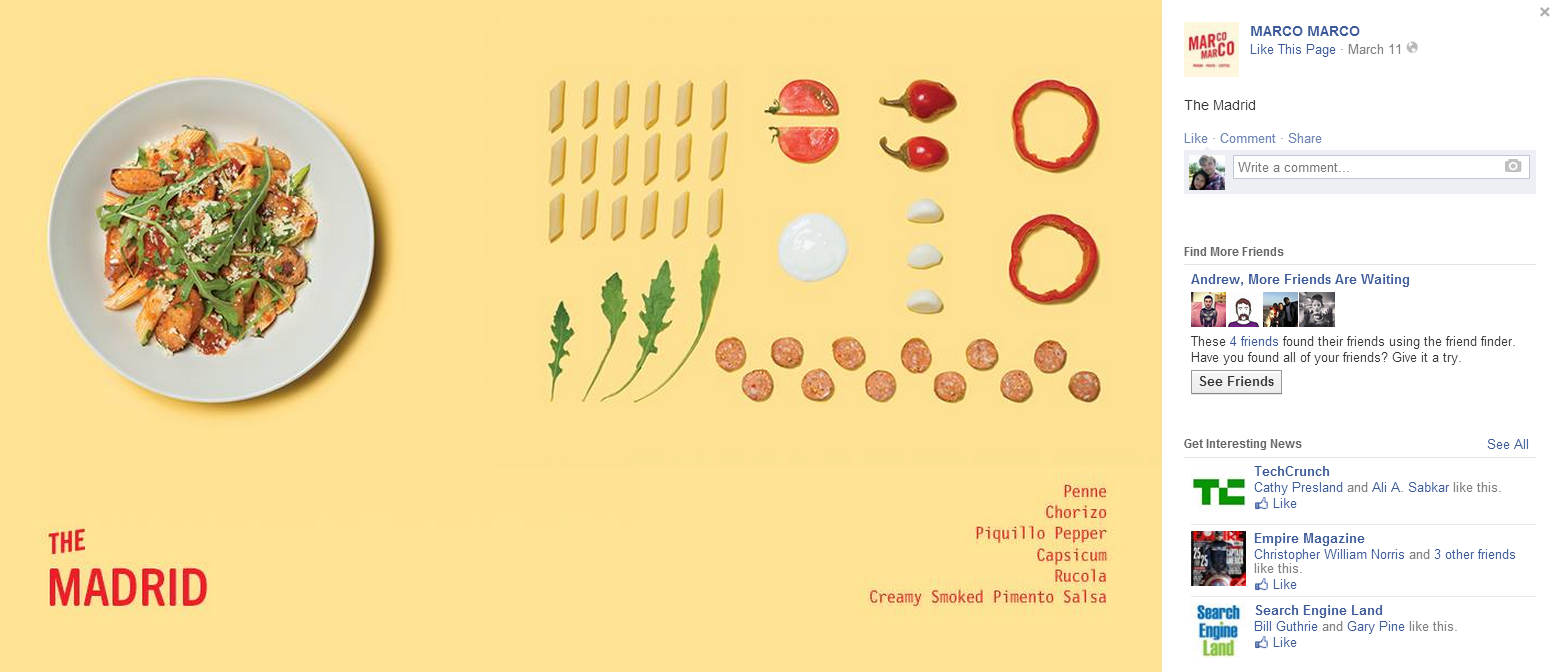
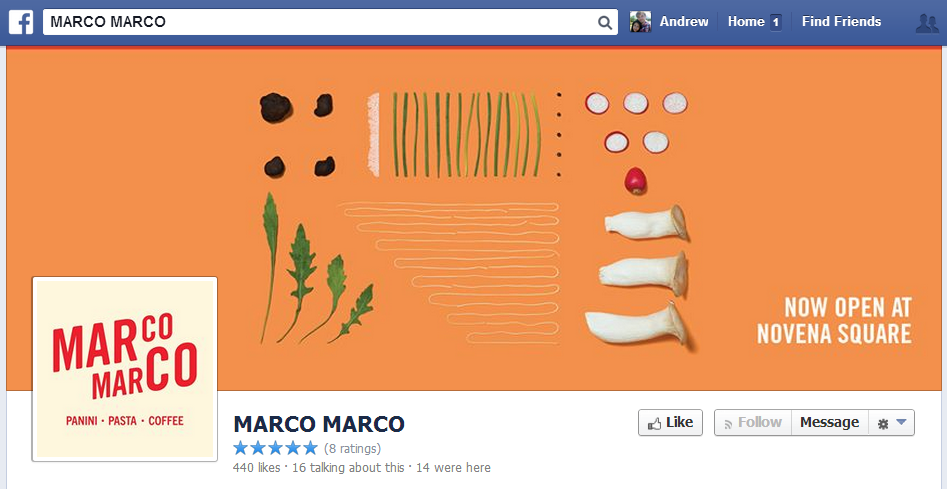
The #thingsorganizedneatly trend carries over to Marco Marco's Facebook Page, too:

I particularly like how the wider shots also give room to list the ingredients with text and also include a photo of the finished dish:

Conclusion

Marco Marco hasn't been open all that long, so the engagement its photos are getting aren't incredibly high, but I'm sure that will change if the reputation for its impressive visual storytelling continues. All in all, its impressive use of the #thingsorganizedneatly hashtag helps to grab people's attention, as well as conveying the time and passion that the restaurant has for its food - a tactic that is much more likely to lead to future custom via social media than any hard selling would.

Check out more at: http://instagram.com/marcomarcosg


Andrew Macarthy is a social media consultant and the author of the #1 Amazon Web Marketing Bestseller, 500 Social Media Marketing Tips.

Buy 500 Social Media Marketing Tips
Amazon US: http://www.amazon.com/dp/B007L50HE6
Amazon UK: http://www.amazon.co.uk/dp/B007L50HE6

Follow Me:
http://www.facebook.com/500socialmediatips/
http://www.pinterest.com/andrewmacarthy
http://www.twitter.com/andrewmacarthy
http://www.youtube.com/5
00socialmediatips

How to Edit Facebook Video Thumbnails | Change Thumbnail of Facebook Video

 
how-to-edit-change-facebook-video-thumbnail.jpg

When you upload a video to Facebook, after processing, a notification tells you that it is ready to view and says you can also change the video thumbnail. If you take notice of this straight away, you can edit the thumbnail in a pop-up window. If however, you want to edit the thumbnail after that point, the process isn't so obvious. Let's take a look... 

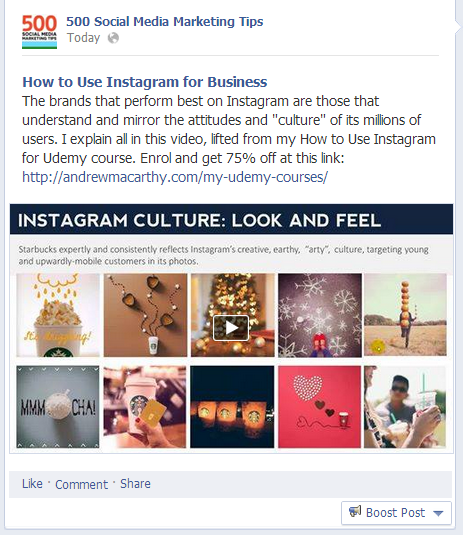
1. Your video will look like this on your Facebook Page or Timeline. Click on it to open it up in the full viewer.

how-to-change-choose-edit-a-facebook-video-thumbnail-3.PNG

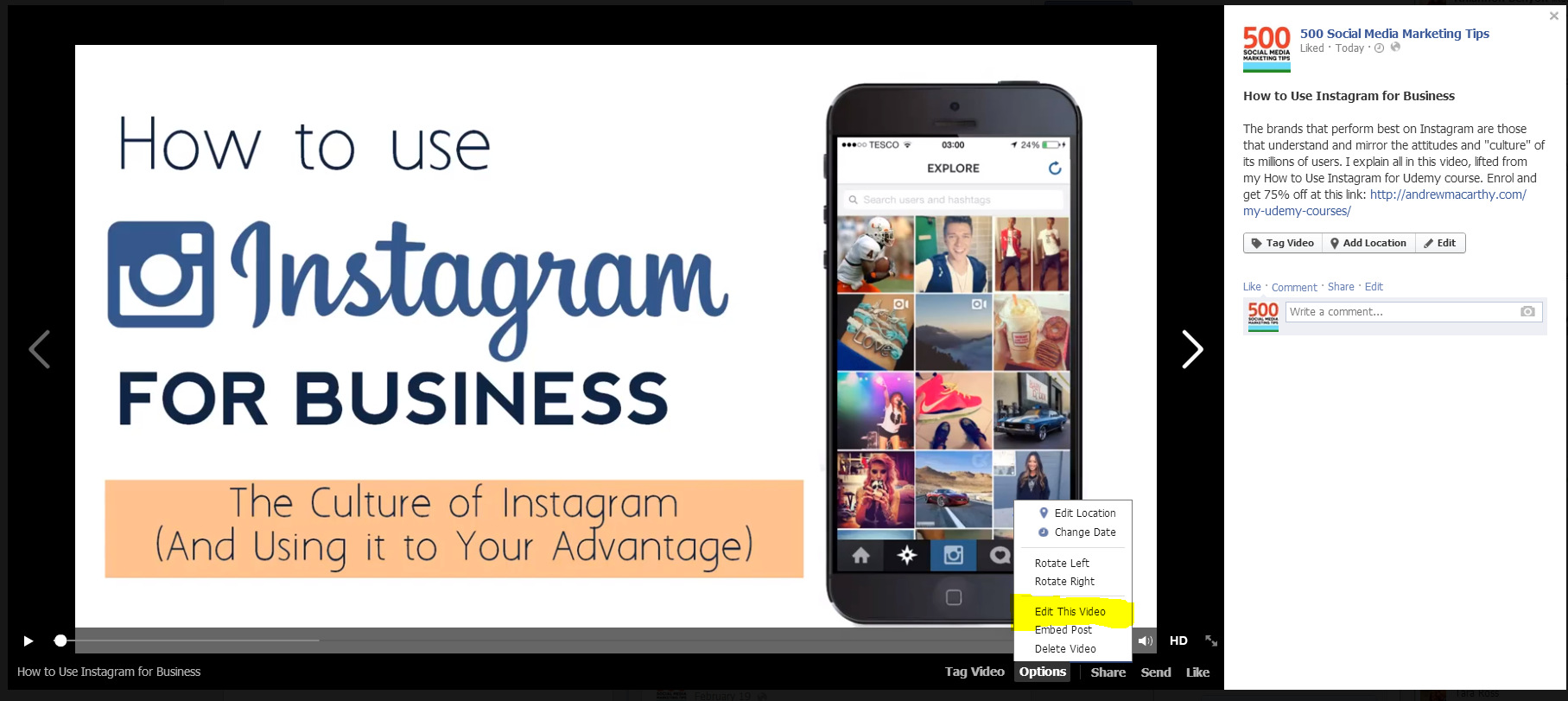
2. In the pop-up window, click Options at the bottom, and choose Edit This Video.

how-to-change-choose-edit-a-facebook-video-thumbnail-2.PNG

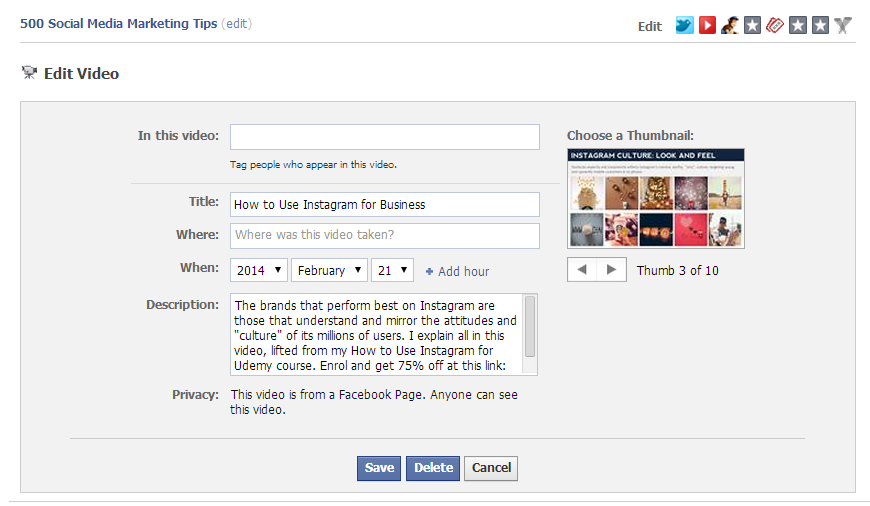
3. On the page that opens, select a thumbnail by clicking the left and right arrows underneath. You can't upload a custom image, but you can choose the best option from those available. Click Save to finish.

how-to-change-choose-edit-a-facebook-video-thumbnail-3.PNG

And that's all there is to it! If this post helped you out, please share it with your friends!


portrait-blog.jpg

Andrew Macarthy is the author of the #1 Amazon Web Marketing Bestseller, 500 Social Media Marketing Tips, available for Kindle and in paperback.

Buy 500 Social Media Marketing Tips
Amazon US: http://www.amazon.com/dp/B007L50HE6
Amazon UK: http://www.amazon.co.uk/dp/B007L50HE6

Follow Me
http://www.facebook.com/500socialmediatips/
http://www.pinterest.com/andrewmacarthy
http://www.twitter.com/andrewmacarthy

http://www.youtube.com/500socialmediatips

How to See Which Facebook Pages Have Liked Your Business Page

how-to-tell-see-which-pages-have-liked-your-business-page.jpg

Do you want to find out which other businesses have liked your Facebook Page? Discovering this is a good way to check out if the competition is keeping tabs on you, and often provides a good list of related company's that you might want to reach out to in order to join forces with to work together in some capacity. It's really easy to do, so let's take a look:

1. Open up the Admin Panel on your Facebook Page, and look for the "See Likes" link below the list of your most recent posts. Click it. 

Note: Sometimes the "Get More Likes" box doesn't show up for pages that have a huge number of likes, so go to this URL instead and replace the "PAGE_ID_HERE" with your own page's ID: https://www.facebook.com/browse/page_fans/?page_id=PAGE_ID_HERE (Thanks, Avtar Ram Singh!)

how-to-see-facebook-page-likes-1.PNG

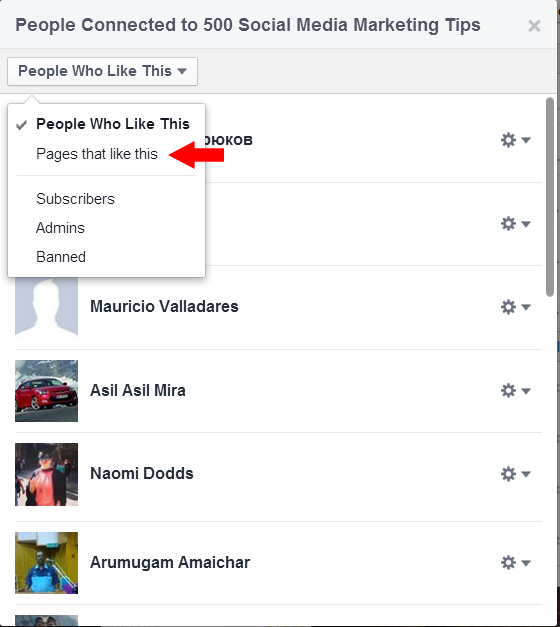
2. In the window that pops up, switch from People Who Like This to Pages that like this in the drop-down menu.

how-to-see-facebook-page-likes-2.png

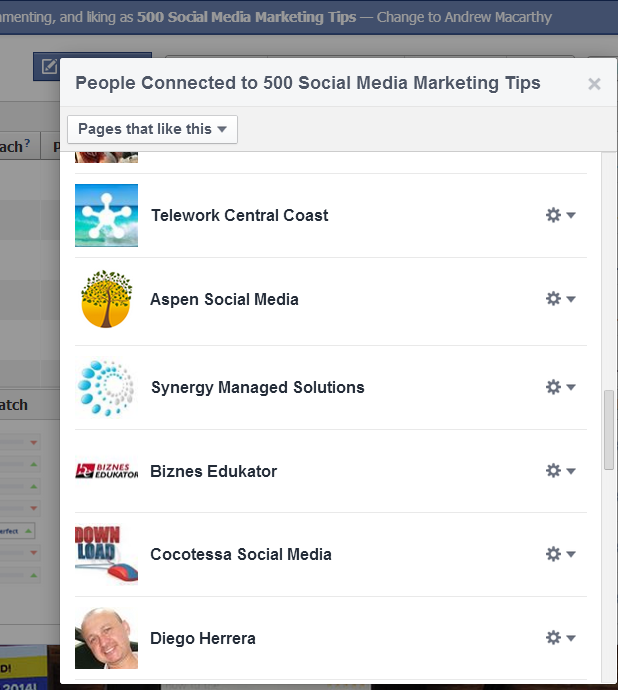
3. Here's a list of all the Pages that have liked you. Scroll down and keep clicking 'Show more' to view them all.

how-to-see-facebook-page-likes-3.PNG

Conclusion

That's all there is to it! Do you use this feature to benefit your marketing and business strategy? Let me know in the comments below.