How to Use Hashtags on Facebook Pages for Business Marketing

 
how-to-use-hashtags-on-facebook-pages-marketing-business.jpg

Hashtags finally rolled out to Facebook

Facebook - after a long period of expectation from many quarters - has rolled out the use of hashtags in posts that appear on Pages and in the news feed. At the time of writing, hashtags will only be clickable by desktop users on the site, although Facebook hints strongly that this will extend to mobiles and ads sometime in the future.

How Hashtags work on Facebook

FathersDayHashtagfacebook.png

If you are familiar with Twitter, Google+, Instagram, or Pinterest, you'll know that hashtags are a method used to group similar types of content together, and can be created by typing a hash or pound symbol directly before a word while composing a status update on your Page, personal profile, or in of a comment, like this: "What do you love about your local #kohls?" or "It's Gap's summer sale, with up to 50% off! Come take a look... #targetsale" where "#kohls" and "#targetsale" are clickable. 

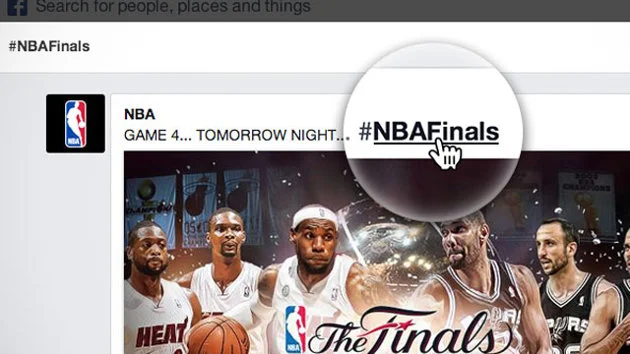
On Facebook specifically, clicking a hashtag will open up a feed where you’ll see stories from the Pages and people who have posted with the same hashtag. People can use hashtags in Facebook search to find posts related to specific topics or interests. Billions of pieces of content are shared on Facebook every day - peaking in the 8-11pm primetime slot - so hashtags provide a huge opportunity for brands and marketers to participate in conversations in a meaningful, relevant and timely way. 

Tips for Using hashtags for business on Facebook
hashtagsfacebooknba.jpg
  • Use hashtags related to your brand or industry in your Facebook posts - either general ones, e.g. #beauty or ones you create that are specific to your business, e.g. #denverburgerbar

  • Every Facebook has its own unique URL, so think about driving traffic to that URL from other locations, e.g. your blog, other social networks, business cards, instore marketing materials, etc. to encourage conversation. Use a URL shortener like bit.ly to make the link small and memorable.

  •  Discover new Pages and partners by searching for hashtags in Facebook search, and search your own hashtags to monitor what people are saying about you and your brand, then join the conversation.

Note: For more advice about using hashtags as effectively as possible on any social network, including the recommending formatting and amount you should use, check out the tips on hashtags in the Twitter Tips chapter of my book, 500 Social Media Marketing Tips 


ABOUT THE AUTHOR

Andrew Macarthy is the author of the #1 Amazon Web Marketing Bestseller, 500 Social Media Marketing Tips, available for Kindle and in paperback.

Buy 500 Social Media Marketing Tips
Amazon US: http://www.amazon.com/dp/B007L50HE6
Amazon UK: http://www.amazon.co.uk/dp/B007L50HE6

Follow Me:
http://www.facebook.com/500socialmediatips/
https://pinterest.com/500socialmedia/
http://www.twitter.com/500socialmedia
http://www.youtube.com/500socialmediatips

portrait-blog.jpg

YouTube Cover Art Template PSD | 2560 x 1440 Photoshop, GIMP

There was something bothering me about my last YouTube One Channel cover art template - not just the fact that, since it was made, YouTube has significantly upped its recommended dimage size without warning!  While it aids well in creating an image that will scale well for any resolution or device, it does not take into account the position of the channel icon, which overlays the image from the top left-hand corner. This new template is the new, bigger size, and optimised to take into account channel icons.

A quick recap on how YouTube channel art works: The YouTube One Channel artwork is massive (2560 x 1440 pixels), and designed to present consistent branding on whichever device it is viewed on, from a HD television down to a mobile device. What proportion of the image a person sees depends on the device they are using. On HD televisions and mobile devices, the channel icon does not even appear, but this template is designed to provide an optimised design for any device: television, desktop, tablet, or mobile. 

Example of Non-Optimised Channel Art

epic2.PNG

As you can see in the above example from the EpicMealTime channel, the channel art looks great at higher resolutions on desktops, but at 1024 x 768 pixels, the channel icon infringes on their cover art branding. My new template will help you avoid encountering any problems like this.

An Explanation on the Template

When you open up the .psd template in Photoshop or GIMP, it'll look like this (click for an enlarged view). It might look complex, but it's pretty simple, really. Here's how the different sections break down:

  • Lime green background: portion of art seen on HD televisions
  • Orange rectangle (full width): maximum portion of art seen on desktops.
  • Purple rectangle: Maximum portion of art seen on tablets. 
  • Brown rectangle: Logo safe area - this portion of the art will be visible on all devices. 
  • Multicoloured squares: Representation of the positions and size of channel icons at different resolutions - it does not appear on mobile devices.

How to Use the Template

              Here are a few quick steps to use my YouTube One Channel template: 

              1. Hide or delete the instructional text layers. 

              2. Design your channel art over the coloured rectangles, covering the whole space as you like. However, make sure to add the most important elements in the LOGO SAFE AREA, so that whichever device someone views your channel on, they can see it.

              Avoid placing important elements of your design behind the multicoloured squares that represent the position of channel icons at different resolutions on varying devices, otherwise they will be hidden and obscured.

              3. Once your design is complete, hide the remaining template layers - the coloured rectangles and squares - and save your image as a .png or .jpeg. 

              5. Upload your channel art to YouTube. Do not  adjust the crop.

              6. Click Select and admire the finished work!

              Download the Template

              Download the template

              This YouTube cover photo template (and several others for all the biggest social networks - expertly measured, simple to use, and up-to-date) is available instantly as a downloadable zip file via the purchase link above. For more information on all my social media templates, click here.

              Note: Payment is fast and secure via PayPal, but you do not need a PayPal account to buy and download. 

              Simply work around the template layers to add your design, save it as a .png file and upload it!


              ABOUT THE AUTHOR

              Andrew Macarthy is the author of the #1 Amazon Web Marketing Bestseller, 500 Social Media Marketing Tips, available for Kindle and in paperback.

              Buy 500 Social Media Marketing Tips
              Amazon US: http://www.amazon.com/dp/B007L50HE6
              Amazon UK: http://www.amazon.co.uk/dp/B007L50HE6

              Follow Me:
              http://www.facebook.com/500socialmediatips/
              https://pinterest.com/500socialmedia/
              http://www.twitter.com/500socialmedia
              http://www.youtube.com/500socialmediatips

              portrait-blog.jpg

              A Top YouTube Channel Trailer Tip: Use Shortened URLs

               
              how-to-get-more-youtube-channel-engagement.jpg

              One of my most popular video tutorials is about how to make a great YouTube ​channel trailer. A point I neglected to make in it, though, is how you can use shortened links to make the channel trailer video's description as enticing and clickable as possible. 

              The old description (and three reasons why I didn't like it)​

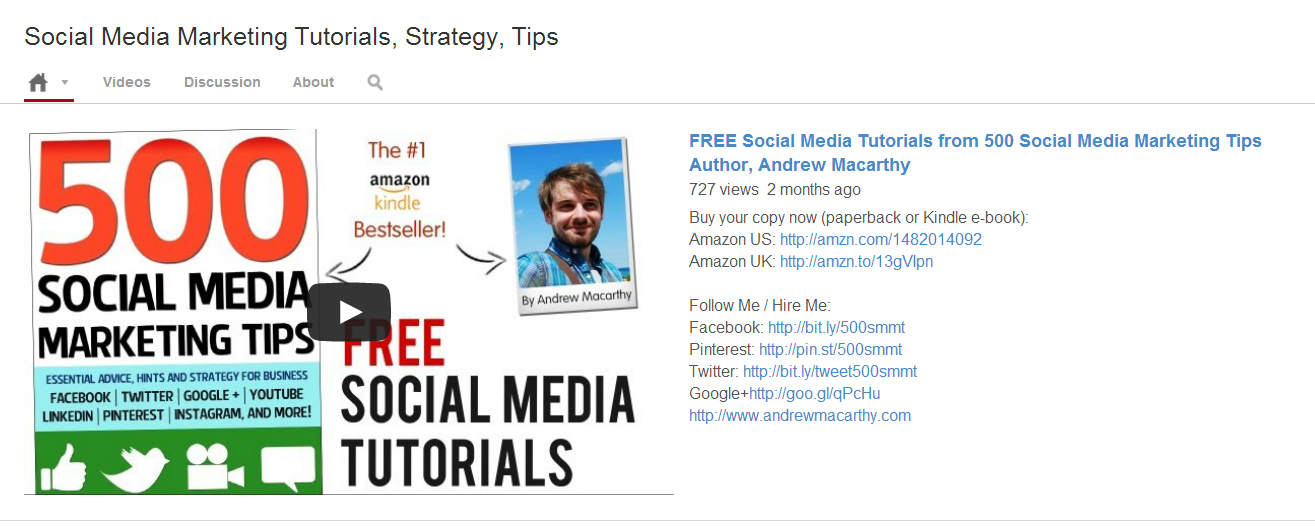
              ​This is how my YouTube channel trailer and its description looked before. If you take a close look, you'll see that several of the links to my social media profiles - which I obviously want users to click on - are not visible in their entirety. This small detail bothered me for three reasons: 

              1. It just looks a little messy.​
              2. The links cannot be glanced at and memorised, even if they aren't clicked on immediately.
              3. Any clicks on these links - visible front and centre on my YouTube profile - cannot be tracked easily, and I cannot measure their effectiveness over time.

              The new description (and why I like it much better)​

              youtube-trailer-about-section-after.PNG

              I my updated YouTube channel trailer description recently, and there are a couple of main differences:​

              1. The links are all shortened, look much neater, and are visible in their entirety.​
              2. Several of the shortened links are customised with my own branding to make them much more memorable.
              3.  All of the shortened links can be tracked via the sites on which they were created.

              The URL Shorteners I used

              I used several different URL shortening sites in my description, including:

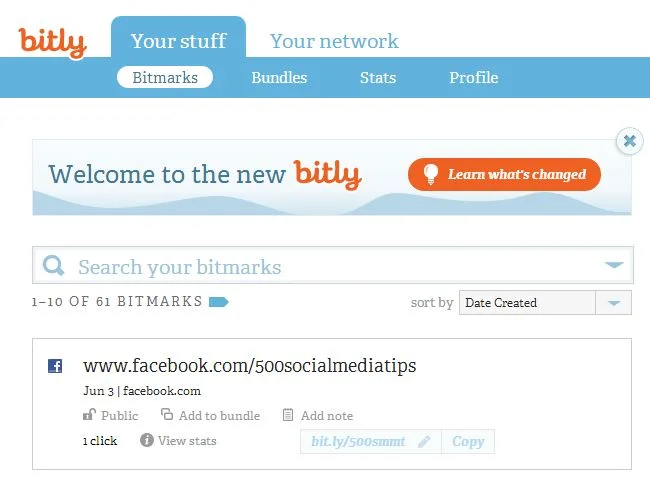
              bit.ly: My preferred choice, which adds the shortened Amazon ("amzn") text to products on the site, and allows link tracking - sign up required for URL customisation.

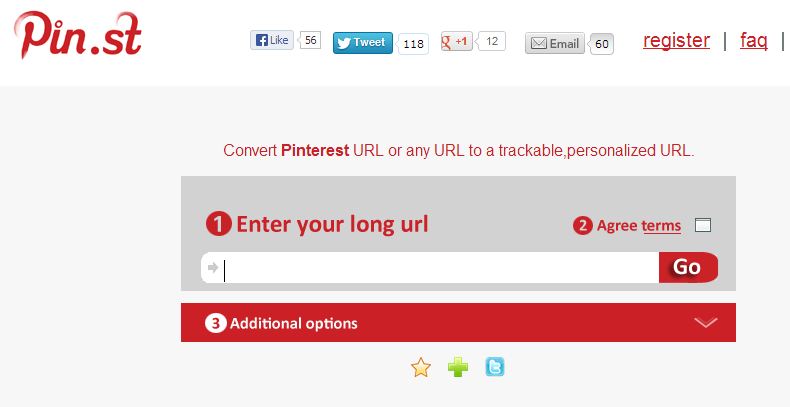
              pin.st: Mirrors Pinterest site name and allows tracking - sign up required for URLcustomisation.  

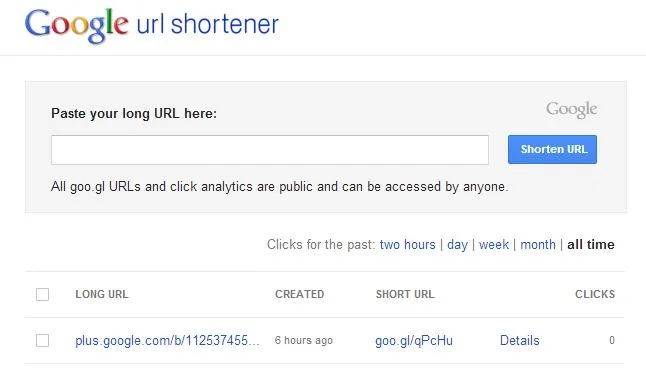
              goo.gl: Google's own URL shortener, includes publicly visible tracking but no customisation option at present.

              Conclusion

              Neatening up your YouTube channel trailer description and links is only a small detail, but I guess these little things are the elements that add up to make the big impacts :) ​


              ABOUT THE AUTHOR

              Andrew Macarthy is the author of the #1 Amazon Web Marketing Bestseller, 500 Social Media Marketing Tips, available for Kindle and in paperback.

              Buy 500 Social Media Marketing Tips
              Amazon US: http://www.amazon.com/dp/B007L50HE6
              Amazon UK: http://www.amazon.co.uk/dp/B007L50HE6

              Follow Me:
              http://www.facebook.com/500socialmediatips/
              https://pinterest.com/500socialmedia/
              http://www.twitter.com/500socialmedia
              http://www.youtube.com/500socialmediatips
              portrait-blog.jpg

              Facebook Cover and Profile Photo Template for Desktop AND Mobile App

              Not so long ago, I published a blog post containing a free template to help you design a really great-looking profile and cover photo for your desktop-viewed Facebook Page. The thing is, the way your Page design displays on desktops is not the same as on mobiles...

              And as the latest figures show that of the 1.11 billion monthly active Facebook users, 751 million of them access the site via their mobile devices, that's a huge and ever-increasing group of people you should take into consideration. The key, then, is to optimise your cover photo design for viewing on desktop and mobile devices.

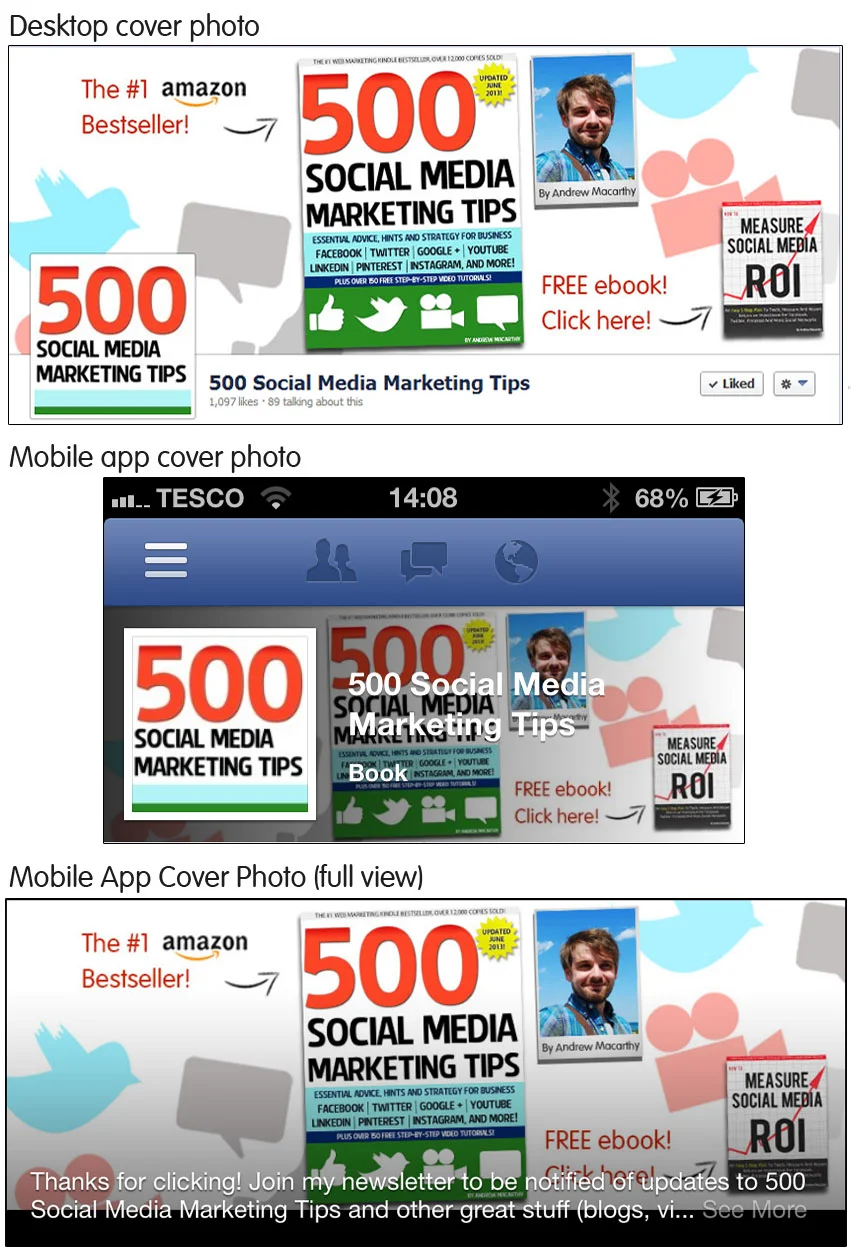
              A Comparison of Facebook desktop and mobile cover photos

              views.jpg

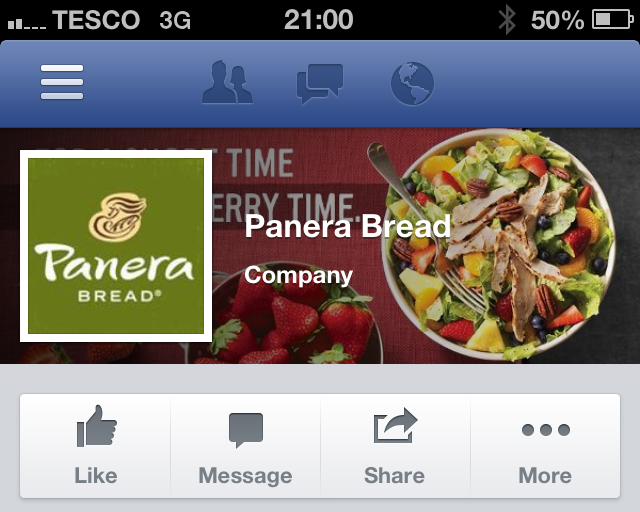
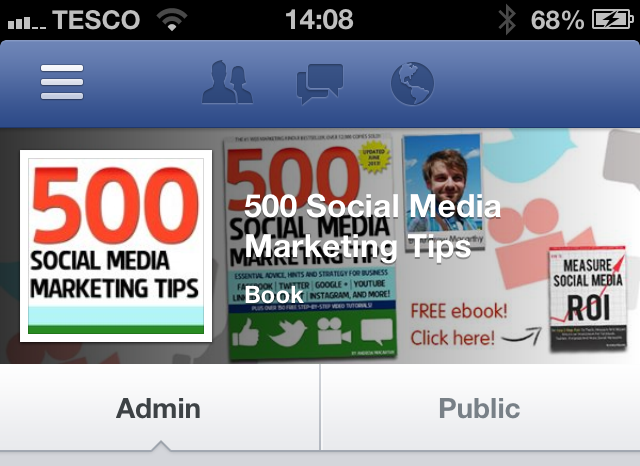
              As you can see in the image above, there is a distinct difference between the desktop and mobile (iPhone app) view of the profile and cover photos of a Facebook Page. On the mobile app:

              • The profile photo takes centre stage, relegating the cover to the background
              • The profile photo spans almost the whole height of the cover photo, and over a quarter of its width from the left-hand edge. 
              • The cover photo is obscured by the Page name and category, as well as a dark gradient overlay that begins from the left-hand edge. 
              • To see the cover photo in full and read its description, a mobile viewer must tap on it. 

              How to optimise your Facebook profile and cover photos for desktop and mobile

              panera-desktop.PNG

              With so many people accessing Facebook Pages on mobile, it is more important than ever to cater to their needs and encourage them to engage with your content - and an optimised cover and profile photo can go a long way to make that happen. 

              panera.PNG

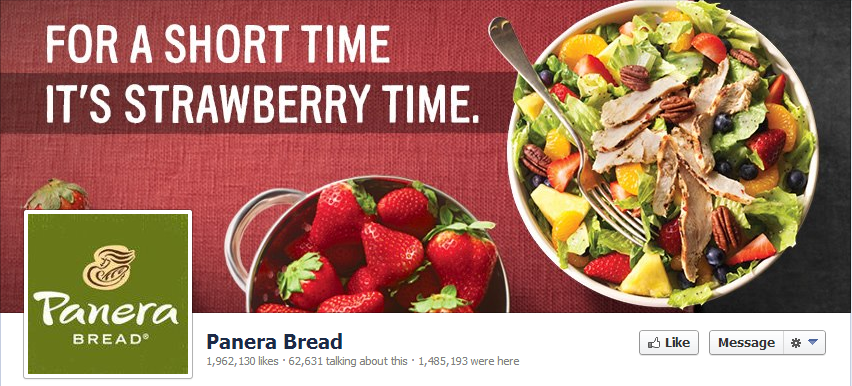
              And now you know how the mobile view affects the appearance of the profile and cover photo, you can work within these parameters. In the example above, Panera Bread has not taken mobile users into account, so their "For a short time, it's strawberry time" slogan is lost on what is probably hundreds of thousands of customers.

              My Facebook cover and profile photo template for desktop and mobile users

              facebook-cover-photo-template-desktop-and-mob-v3.jpg

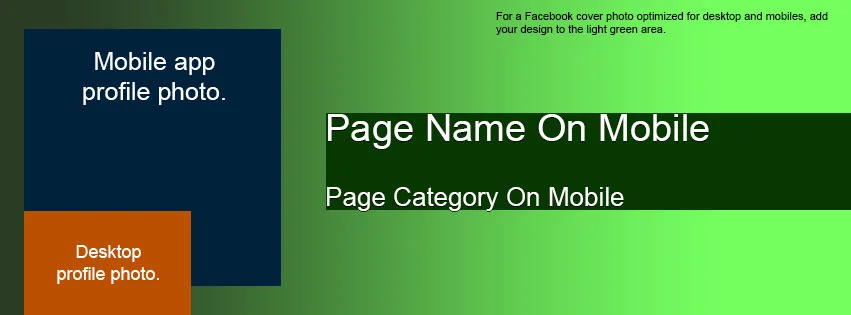
              Here it is, my template to help you create a Facebook profile and cover photo that is optimised for both desktop and mobile views:

              • The orange box represents the space covered by the desktop profile photo.
              • The blue box represents the space covered b the mobile profile photo.
              • The dark green box represents the general area covered by your Page's name and category on the mobile view.
              • The gradient emerging from the left represents the same gradient seen on mobile devices
              • The light green area represents the space where your design will be unobstructed

              Examples of Facebook profile and cover photos optimised for desktop and mobile

              bedbath.PNG

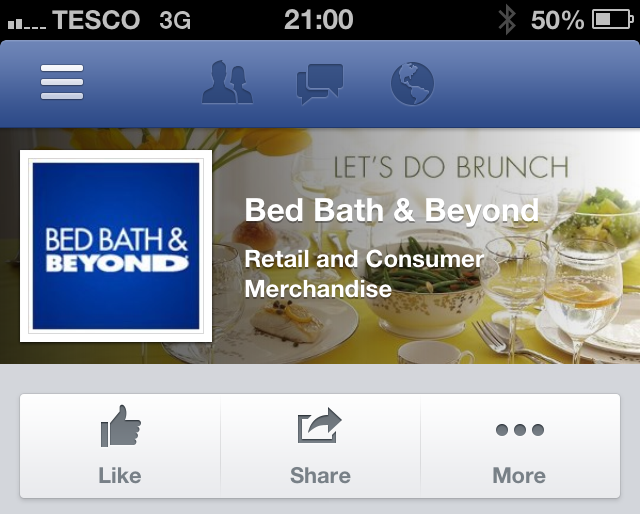
              Taking both desktop and mobile views into consideration means that quite a lot of the cover photo's space is obstructed, but that does not mean you can't still have a great design, as long as you are creative. In the above example, Bed Bath & Beyond's cover and profile photo looks great on mobile, and its "Let's do brunch" slogan is unobstructed by any of the elements on the page.

              photo (2).PNG

              And here's my new cover and profile photo for mobile viewers. Using the template, I have made sure that my free ebook call to action is visible, and that nothing crucially important is behind where the huge square profile photo sits.

              I think one of the most important points to make is that even though much of your cover photo is covered up - fully or partially - that doesn't mean that it still can't be visually appealing.

              Download the template


              This Facebook cover photo template (and several others for all the biggest social networks - expertly measured, simple to use, and up-to-date) is available instantly as a downloadable zip file via the purchase link above. For more information on all my social media templates, click here.

              Note: Payment is fast and secure via PayPal, but you do not need a PayPal account to buy and download. 

              Simply work around the template layers to add your design, save it as a .png file and upload it via the desktop Facebook site. Check how it looks on mobile, then tweak and re-upload if necessary. 


              ABOUT THE AUTHOR
              Andrew Macarthy is the author of the #1 Amazon Web Marketing Bestseller, 500 Social Media Marketing Tips, available for Kindle and in paperback.

              Buy 500 Social Media Marketing Tips
              Amazon US: http://www.amazon.com/dp/B007L50HE6
              Amazon UK: http://www.amazon.co.uk/dp/B007L50HE6

              Follow Me:
              http://www.facebook.com/500socialmediatips/
              https://pinterest.com/500socialmedia/
              http://www.twitter.com/500socialmedia
              http://www.youtube.com/500socialmediatips
               

              How to Get A Verified Facebook Page or Profile

              What are Facebook Verified Pages and Profiles? 

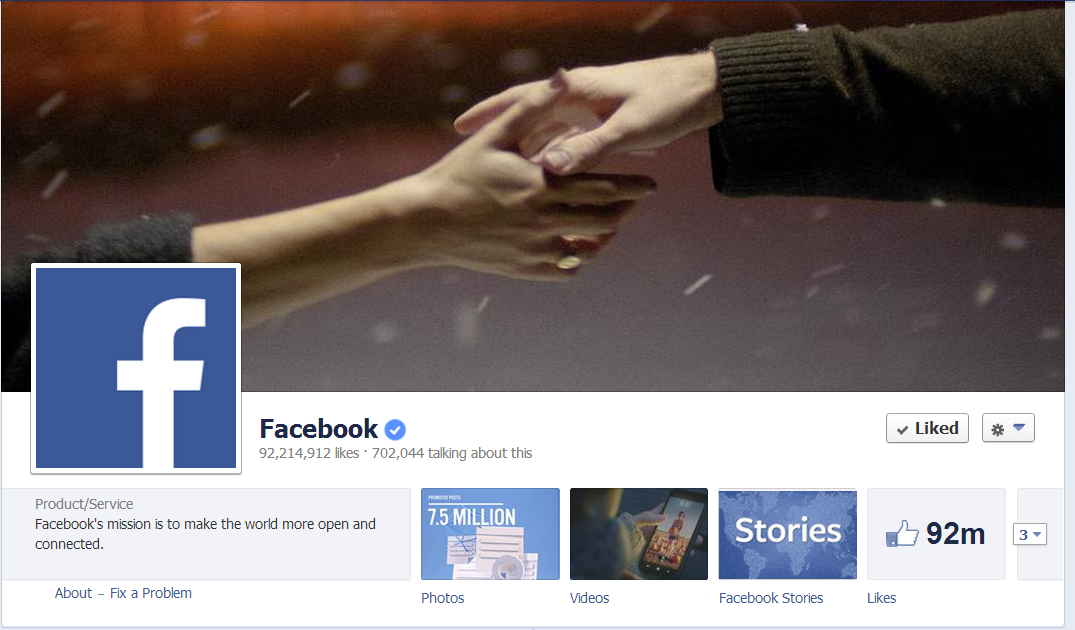
              In a roll out that will make it easier for people to find the authentic presence of a personal profile or Facebook Page and help to create a better user experience and increased authentic engagement with high profile people like celebrities, journalists, and popular brands, verified Pages were introduced at the end of May 2013. 

              veriied-facebook-page-how-to-example.PNG

              How do people know my Page or Profile is Facebook Verified? 

              selena-gomez-verified-facebook-profile.PNG

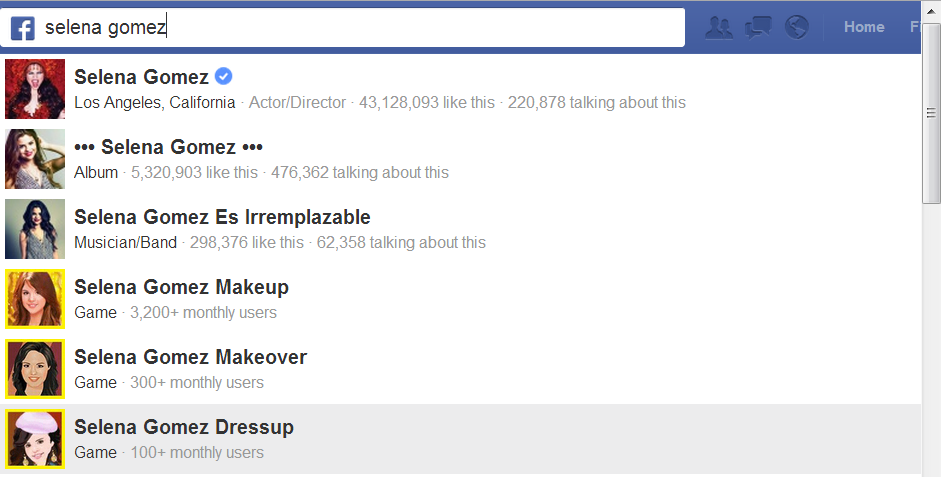
              Once a Page is verified, it will be adorned with a "verification badge" - a check mark in a blue circle, as in the example of Facebook's official page above. To make it as easy as possible to identify which Pages are authentic, verification badges will appear in a number of other places:

              • Next to the name of the Page
              • When hovering over the name of a Page
              • In Graph Search queries
              • In stories about people liking a Page
              • In News Feed ads for your Page

              How do I get a Verified Page or Profile on Facebook? 

                  white-house-verified-facebook-page.PNG

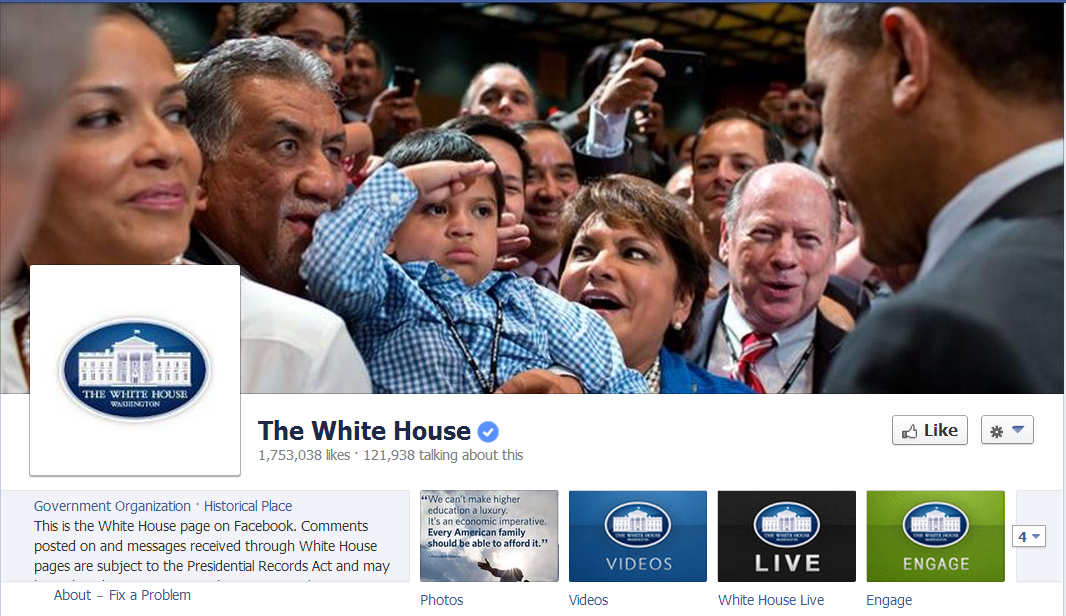
                  At the moment, the short answer to this question is you don't have to do anything. Facebook will automatically be adding verification badges to the Pages and personal profiles that are at greatest risk of duplication, and it won't, at present, accept requests for verification from other Pages. 

                  What do I do if someone is pretending to be me or my company? 

                  report-a-fake-facebook-page-profile.png

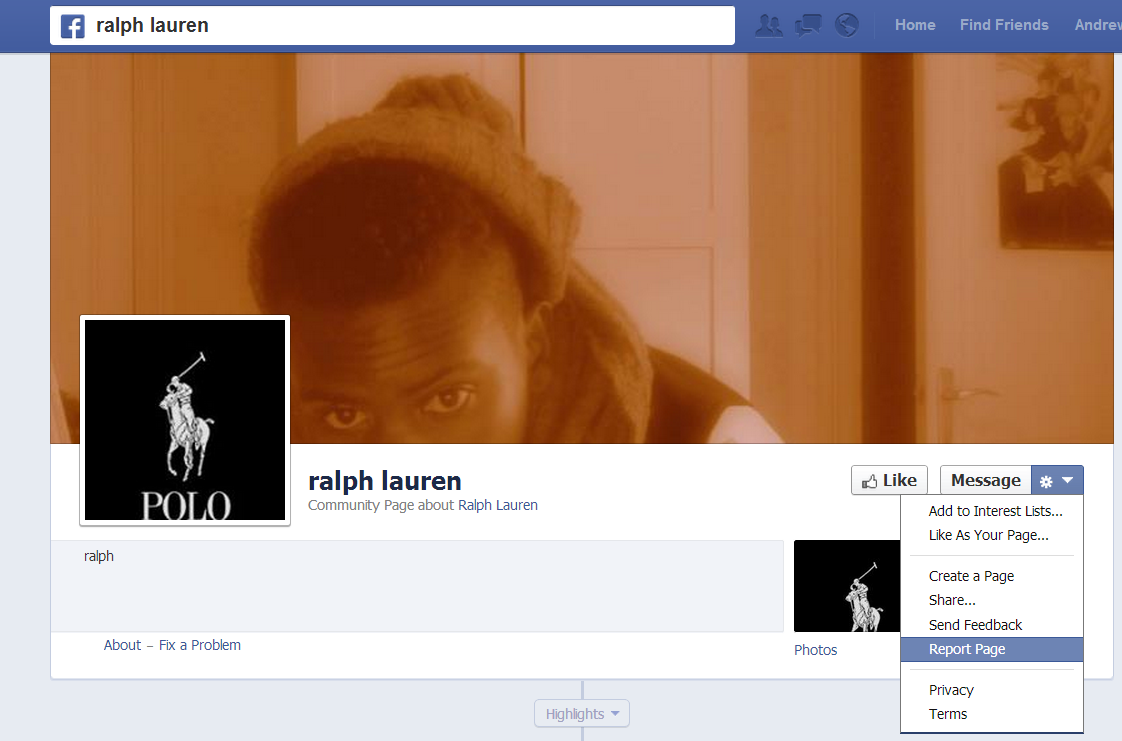
                  If you want to report an account that is fake or a duplication of your Page or personal profile, click the cog icon on its timeline, select Report/Block and follow the on-screen instructions to file a report.


                  ABOUT THE AUTHOR
                  Andrew Macarthy is the author of the #1 Amazon Web Marketing Bestseller, 500 Social Media Marketing Tips, available for Kindle and in paperback.

                  Buy 500 Social Media Marketing Tips
                  Amazon US: http://www.amazon.com/dp/B007L50HE6
                  Amazon UK: http://www.amazon.co.uk/dp/B007L50HE6

                  Follow Me:
                  http://www.facebook.com/500socialmediatips/
                  https://pinterest.com/500socialmedia/
                  http://www.twitter.com/500socialmedia
                  http://www.youtube.com/500socialmediatips