Christmas Explained With Social Media [INFOGRAPHIC]

For a bit of fun during the holiday season, and in the style of similar infographics that have popped up this year, here's Christmas Explained With Social Media. Please like, share, and pin to let your friends see!

Christmas Explained With Social Media [INFOGRAPHIC]

How to Edit Twitter Photos With Filters | Use Instagram Filters Tutorial

In December 2012, Twitter hotted up its spat with Instagram by introducing its own set of photo filters right into its mobile apps. Once you've downloaded the update, using the filters is really simple. Let's take a look:

Step 1: Take or Choose A Photo

In the Twitter app, tap the quill icon to begin tweeting and then tap the camera icon to take a new photo or choose from an existing one.

IMG_0824.PNG

Step 2: Auto Correct

Tapping the magic wand icon will make the app auto-correct the photo for you. Tapping again will remove the effect if you don't like what you see.

IMG_0826.PNG

Step 3: Add Filters

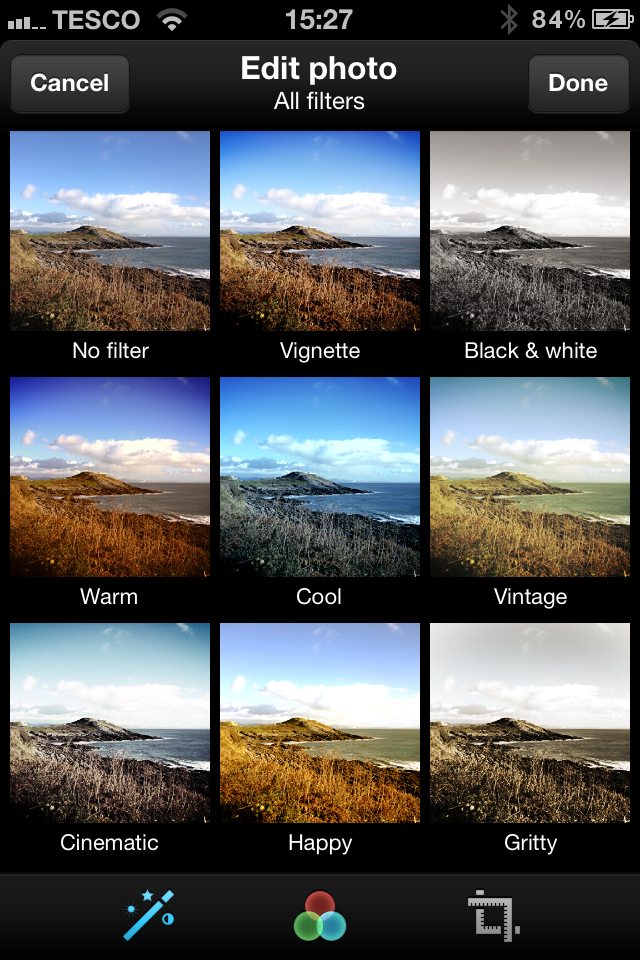
Tap the icon of the three interconnected circles to launch the app's new photo filters and tap to choose which one you want to apply. Alternatively, swipe your finger across the screen from left to right to preview the filters one by one. Tap 'Done' when you're happy.

IMG_0833.PNG

Step 4: Scale and Crop

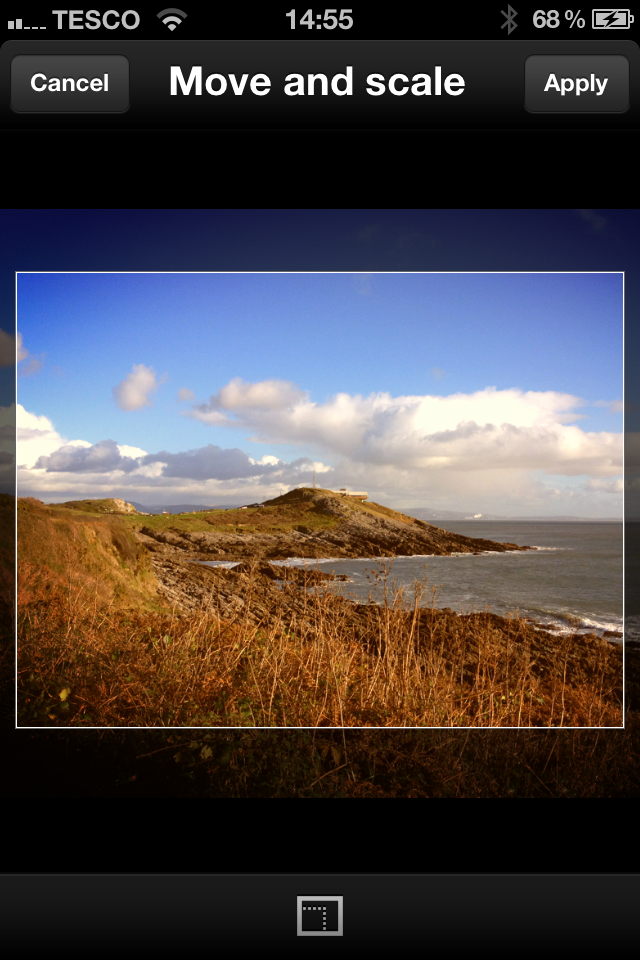
Tap the final icon of the right-angled rulers to open the option to scale and crop your photo. Zoom in and out by pinching your fingers, and adjust the framing by tapping and dragging the photo around. Tap 'Apply' when you're happy.

IMG_0829.PNG

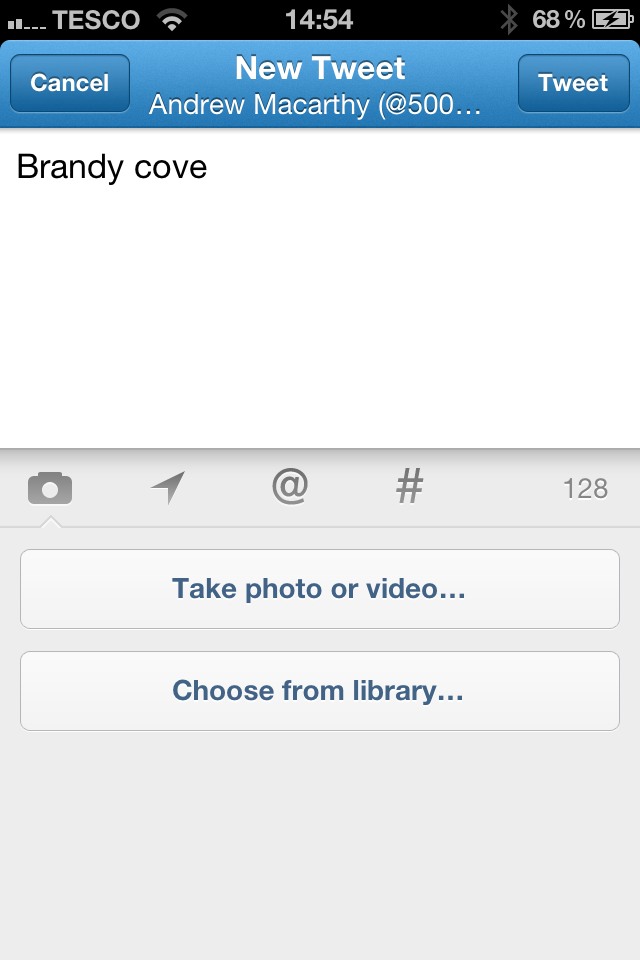
Step 5: Publish

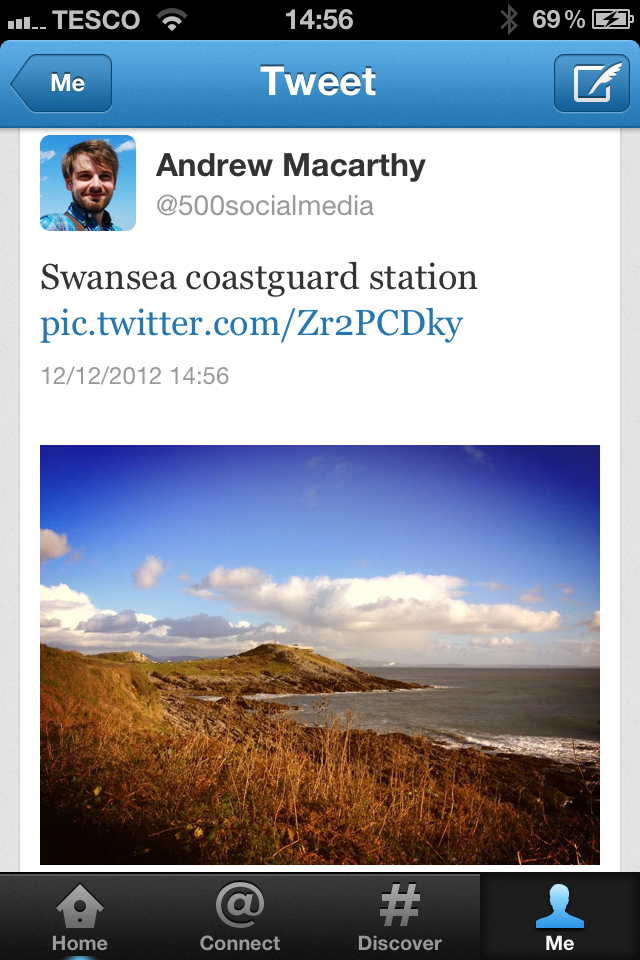
Twitter will compress your newly-edited image and attach it to your tweet. Type out your tweet as normal and click 'Tweet' to publish it to your feed.


IMG_0832.PNG

Will you be using Twitter's new filters instead of Instagram? Let me know in the comments below!

Andrew Macarthy is author of 500 Social Media Marketing Tips, the #1 Amazon Kindle Bestseller:

Buy 500 Social Media Marketing Tips
Amazon US: http://www.amazon.com/dp/B007L50HE6
Amazon UK: http://www.amazon.co.uk/dp/B007L50HE6

Follow Me:
http://www.facebook.com/500socialmediatips/
https://pinterest.com/500socialmedia/
http://www.twitter.com/500socialmedia/
http://www.youtube.com/500socialmediatips
www.andrewmacarthy.com
Can YouTube InVideo Programming Increase Subscribers? Early Signs Point to Yes!

YouTube's Invideo Programming is a relatively new feature that allows users to overlay a linked 'watermark' on their videos. When clicked by a viewer, it takes them to the video maker's channel page. The idea is that Invideo Programming will help to drive more subscribers and views, and keep people engaged with your content. By default, the watermarked image is your account's avatar, but crucially YouTube allows you to switch this out with any image you want.

As the screengrabs from my subscriber statistics show, in the full 7 days before Invideo Programming was added to my content (November 22 to November 29, 2012), I gained a net total of 10 new subscribers. In the week after Invideo Programming was added (November 30 to December 7, 2012), the net total gain in subscribers had risen to 23 - more than double the week before!

Admittedly, this is early days and there are a variety of factors that could have influenced a rise or gain in subscribers (new videos posted during the period I measured, old videos promoting new subscribers, luck, etc.), but the initial signs are very promising. I'll return to this topic again when I have a month to measure either side of adding InVideo Programming to see if the benefits hold up.

Have you added Invideo Programming to your YouTube videos? Have they made a difference to your subscribers or views?

Andrew Macarthy is author of 500 Social Media Marketing Tips, the #1 Amazon Kindle Bestseller:

Buy 500 Social Media Marketing Tips
Amazon US: http://www.amazon.com/dp/B007L50HE6
Amazon UK: http://www.amazon.co.uk/dp/B007L50HE6

Follow Me:
http://www.facebook.com/500socialmediatips/
https://pinterest.com/500socialmedia/
http://www.twitter.com/500socialmedia/
http://www.youtube.com/500socialmediatips
www.andrewmacarthy.com
New YouTube Layout Guide December 2012 | Overview For Marketers

Last night, YouTube rolled out the newest version of its site, with a new emphasis on Channels, and the aim to provide content creators with a site that drives more views and a loyal subscriber base to them.

There are three significant changes to the site, which are:

The Guide Bar
Visible on the left-hand side of every YouTube page is the Guide Bar, which gives viewers access to all of their subscriptions, as well as more content from the Channel they are currently visiting.

The Video Page and Avatars
On every video page, the video title and Subscribe button now sits below the player (instead of above it), in order to give the content centre stage. Comments are now accompanied by your Channel avatar, and this avatar is displayed in several more places across the site, including in your Feed and search results.

Playlists
The Playlist feature on YouTube has been given an overhaul. Now, the list of videos in the playlist is positioned on the right-hand side of the player instead of below it. This makes navigating the content of a playlist much easier, and will hopefully keep viewers more engaged with any given channel's content.

Do you like the new YouTube layout? How do you think it will benefit you as a YouTube content creator? Let me know in the comments below.

Andrew Macarthy is author of 500 Social Media Marketing Tips, the #1 Amazon Kindle Bestseller:

Buy 500 Social Media Marketing Tips
Amazon US: http://www.amazon.com/dp/B007L50HE6
Amazon UK: http://www.amazon.co.uk/dp/B007L50HE6

Follow Me:
http://www.facebook.com/500socialmediatips/
https://pinterest.com/500socialmedia/
http://www.twitter.com/500socialmedia/
http://www.youtube.com/500socialmediatips
www.andrewmacarthy.com

yt-new-layout.jpg

YouTube Invideo Programming Trick To Get More Views & Subscribers | Invideo Programming Tips Hack

Invideo programming is a fantastic new feature on YouTube, part of which allows content creators to watermark their videos with a clickable image that links through to their Channel page. While the default image is your account's profile image, this can be customised to display anything you like.

In this video tutorial, I show how editing your invideo watermark to become a clickable call to action can help drive more subscribers and traffic to your YouTube videos.