How to Create A Seamless Twitter Header Background and Profile Image

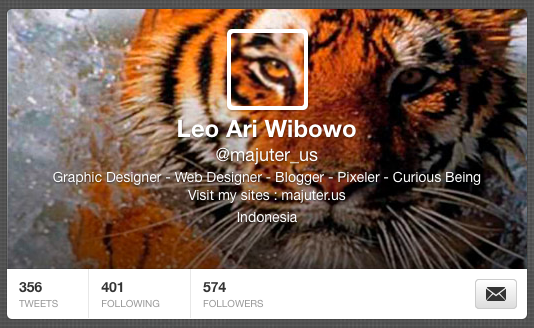
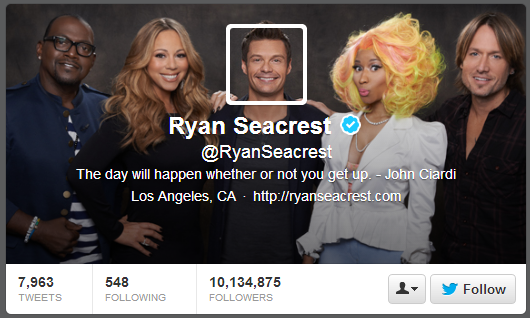
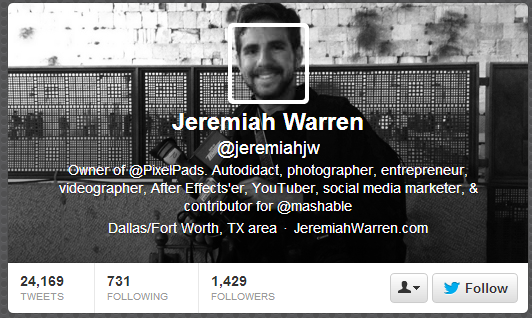
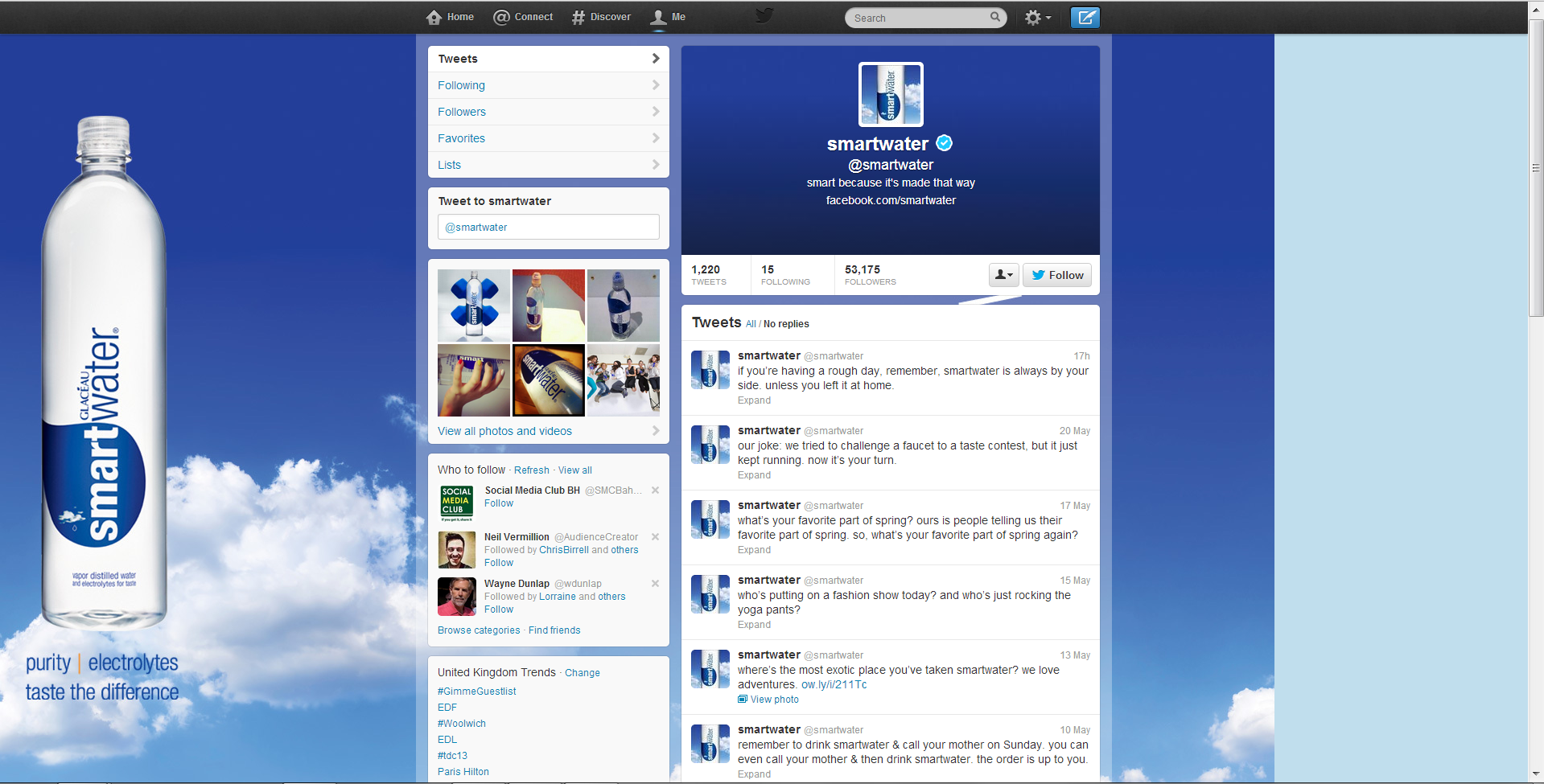
One of the most inventive ways to utilise your Twitter header space is to create a header background image that blends seamlessly into the profile photo that overlays it, as shown in the examples above.  If you'd like to do something similar, it's really not too difficult, even if you are a photo editing newbie. All you need is to download my Twitter Header Template .psd file for Photoshop or GIMP (link opens in a new window), and follow the simple step-by-step instructions below:

Alternatively, if you'd just like me to do it all for you or your business, get in touch and hire me via the Contact Me page or purchase using the Shoplocket widget above.

1. Open the template.
seamless-twitter-header-template-tutorial-step-1.PNG

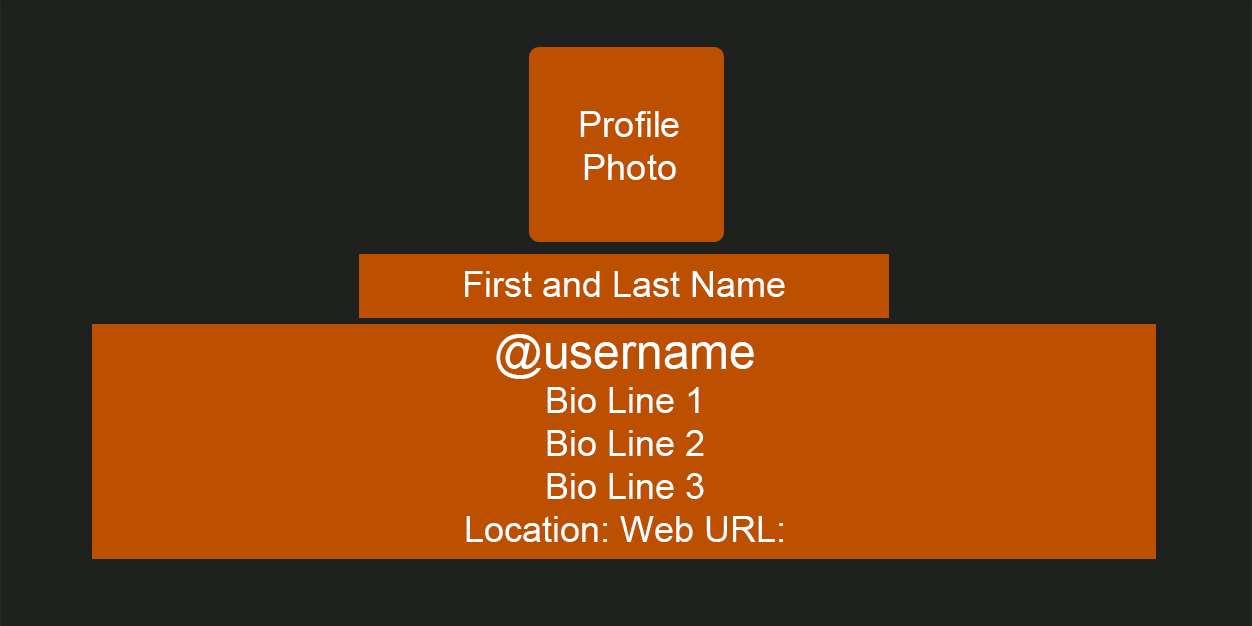
When you first load the template, this is what you will see. The grey area represents the size of your Twitter header's background image, while the orange boxes represent the different sections that sit on top of it - name, bio, website address, etc..

2. Hide every layer except the profile photo box.
seamless-twitter-header-template-tutorial-step-2.png

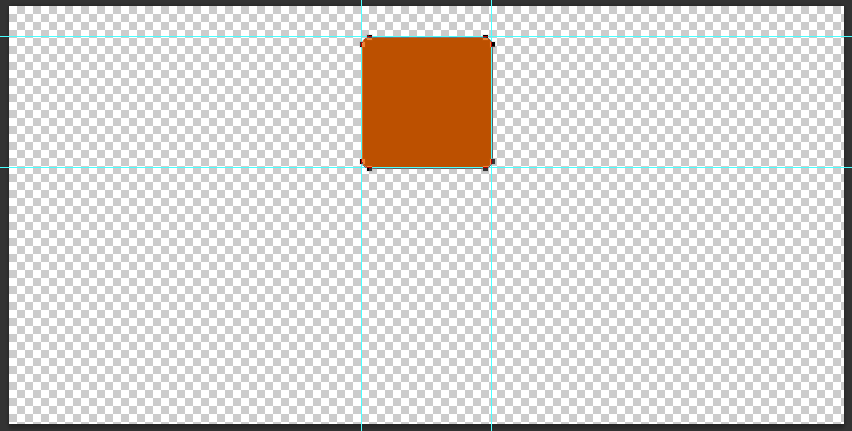
In this instance, we're only concerned about the position of the profile photo because we want it to overlay on top of our background image in exactly the right position. So, go ahead and hide every layer except the orange profile box layer, as above.

3. Insert your background image behind the profile box layer.
seamless-twitter-header-template-tutorial-step-3.png

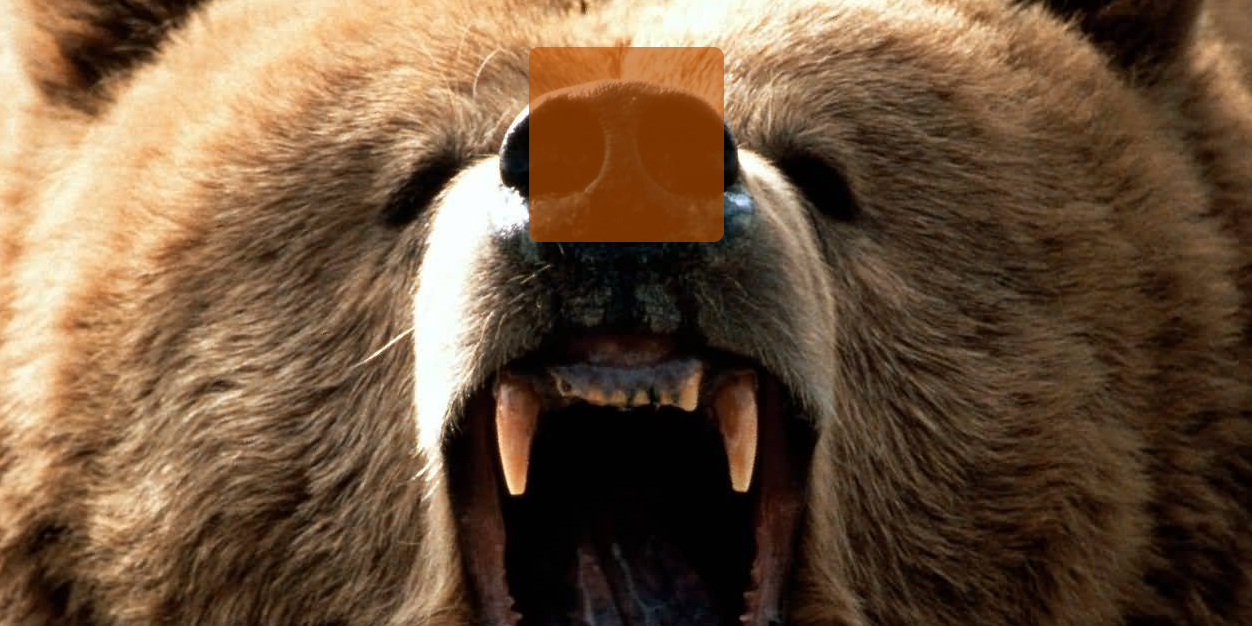
I want my header image to show this ferocious grizzly bear. Whatever image you choose, insert it into the template and move the layer so it is positioned behind the profile box. To make sure the image is lined up as you want, lower the opacity of the profile box to get a better look. 

4. Select the profile box layer, then copy from the background layer
seamless-twitter-header-template-tutorial-step-4.PNG

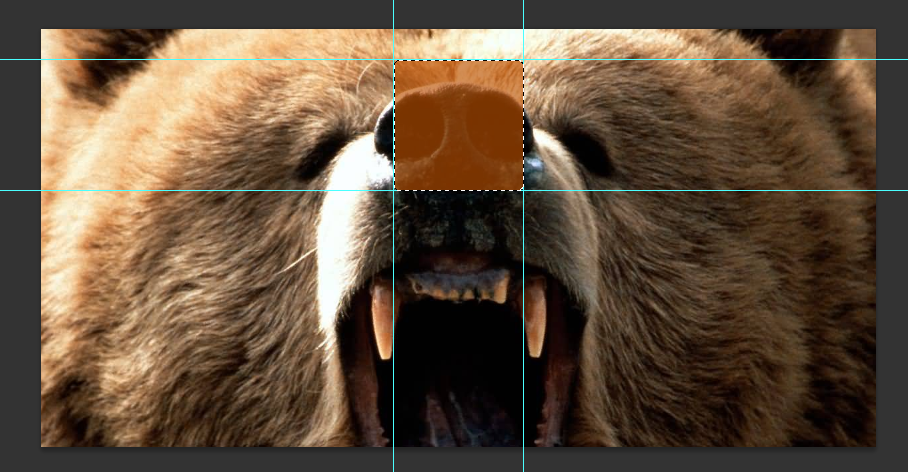
Here's where we create the profile pic that will sit above your background image. Choose the profile box layer and use the Magic Wand tool to select the orange box, as above. With the selection made, highlight the background image layer from the Layers panel, and copy the selection.  

5. Create a new image file and paste the copied selection into it.
seamless-twitter-header-template-tutorial-step-5.PNG

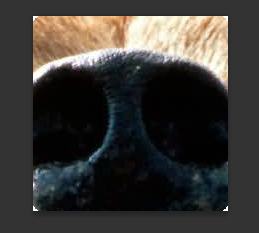
With your selection copied, create a new image file and paste the selection in - if done correctly, it should be 195 x 195 pixels big.  Save this file as a PNG and keep it safe for later.

6. Save your Twitter background image

seamless-twitter-header-template-tutorial-step-6.png

Return to the Twitter background template, hide the orange profile box layer and save the image as a PNG.  You should now have two images - this one, and the profile image you created in the last step.

7. Visit Twitter and click 'Edit' on your Header image
seamless-twitter-header-template-tutorial-step-7.png

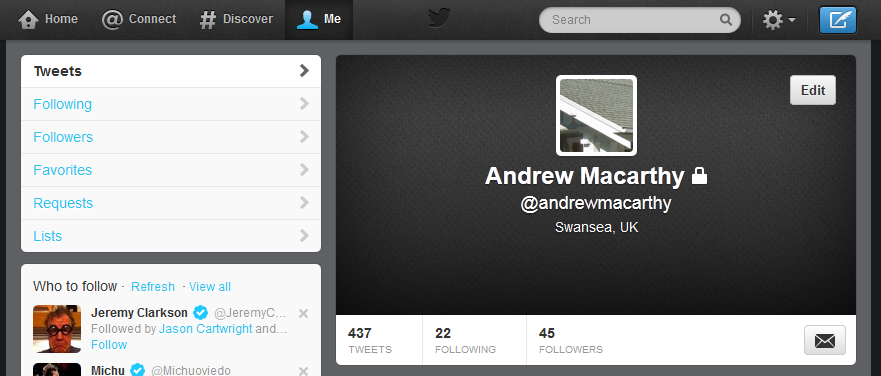
It's time to upload your seamless header image! Visit your Twitter account, hover your mouse over the header and click the "Edit" button that appears.

8. Upload your profile and header background images.
seamless-twitter-header-template-tutorial-step-8.PNG

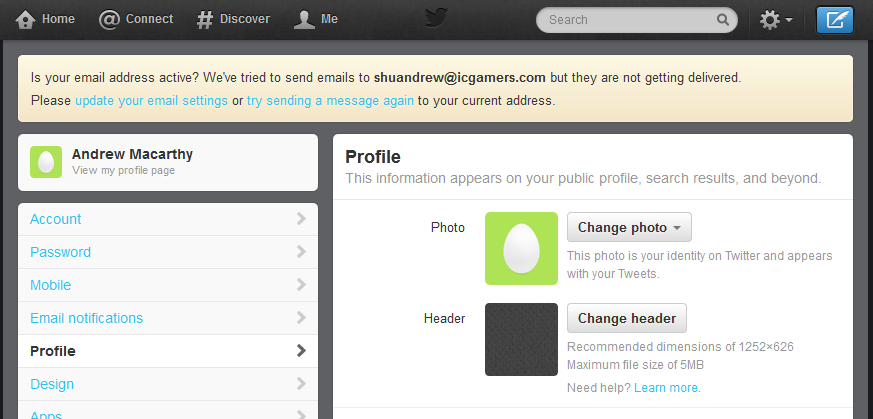
Click the "Change photo" and "Change header" buttons to upload your profile photo and header images. Don't adjust the position and zoom of them when prompted, just save them as is.

9. Tweak background image position if necessary
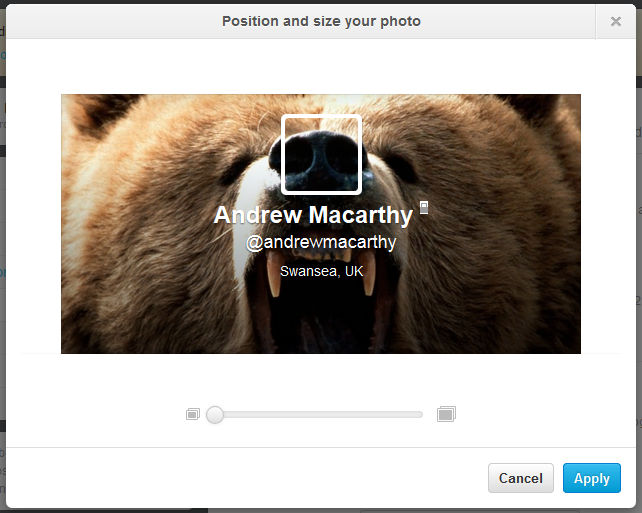
wonky2.PNG

If, as above, your background image doesn't line up with the profile pic seamlessly when you upload it, no worries. Head back to the template file and shift the position of your background image up or down a four or five pixels, then upload it again. It might take a try or two, but you'll get there :)

10. View the finished product! 
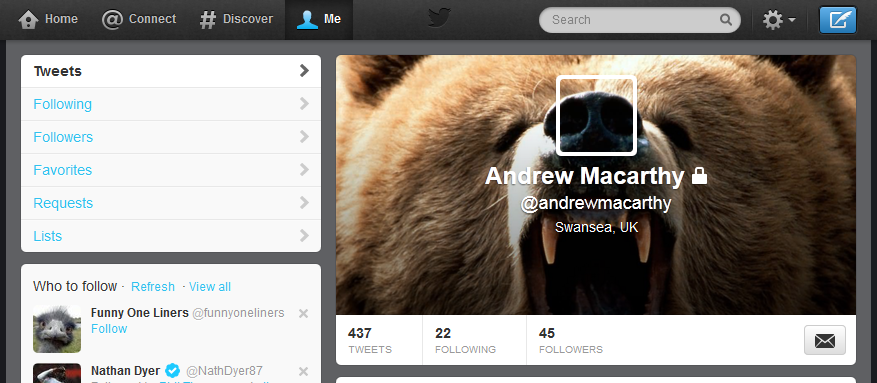
seamless-twitter-header-template-tutorial-step-10.PNG

Here it is, the finished header and profile image, perfectly lined up with each other and looking great!

Want me to do it for you? 

If you'd like me to create a Twitter header image like the ones above for you or your brand, please get in touch via the Contact Me page for more information. 


Case Study: Top Brands' Twitter Background Design Fails

 
twitter-background-case-study.jpg

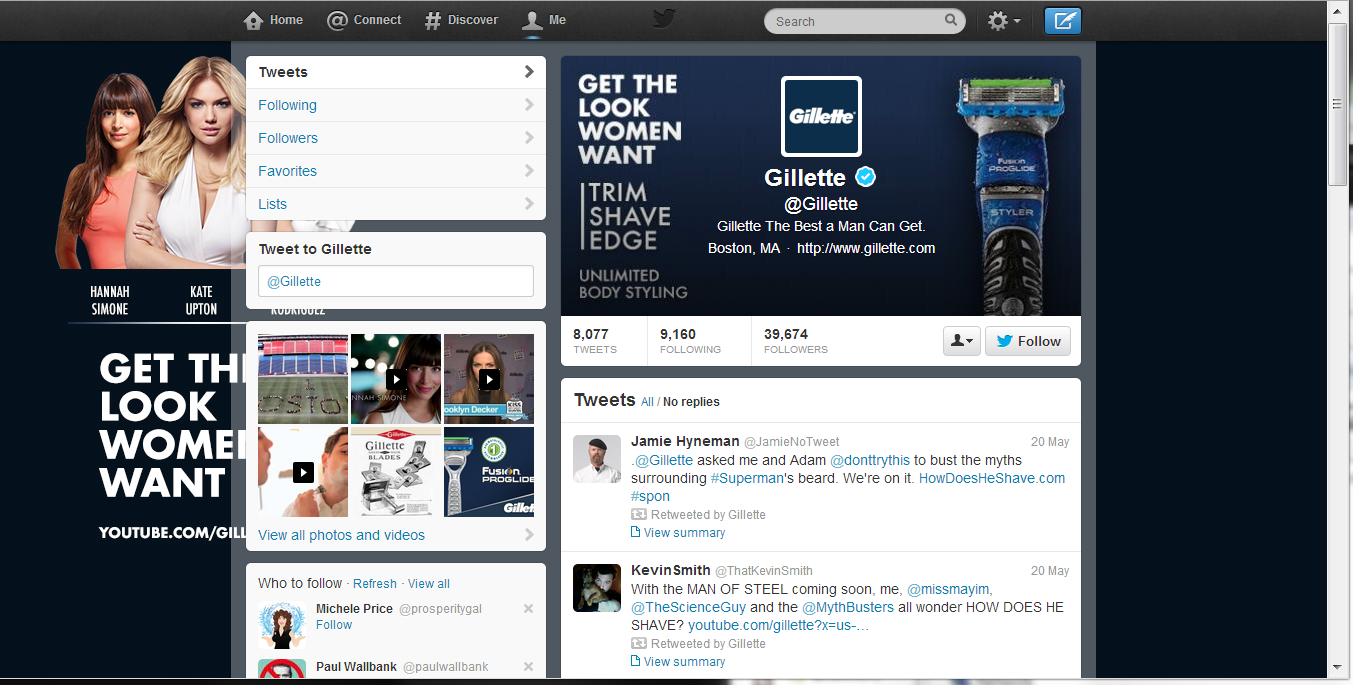
In a recent blog post, I offered my new Twitter background template as a free download so that you can easily optimise your profile's design to be viewed as intended on whichever screen resolution a desktop viewer is using. That got me wondering... with teams dedicated to design and social media management, how do the Twitter background designs of some of the world's biggest companies fare?

Across a random sample, I screen grabbed the 1920 x 1200 (the biggest screen resolution at which people are likely to view a Twitter profile) and 1366 x 768 (currently the most common screen resolution, according to global statistics). The results were pretty surprising...

The Bad

Where the companies I came across had attempted specific Twitter branding on both sides of the news feed, i.e. not just a single-image background), lots of the designs had not been optimised for viewers on different resolutions. Here are a few examples: 

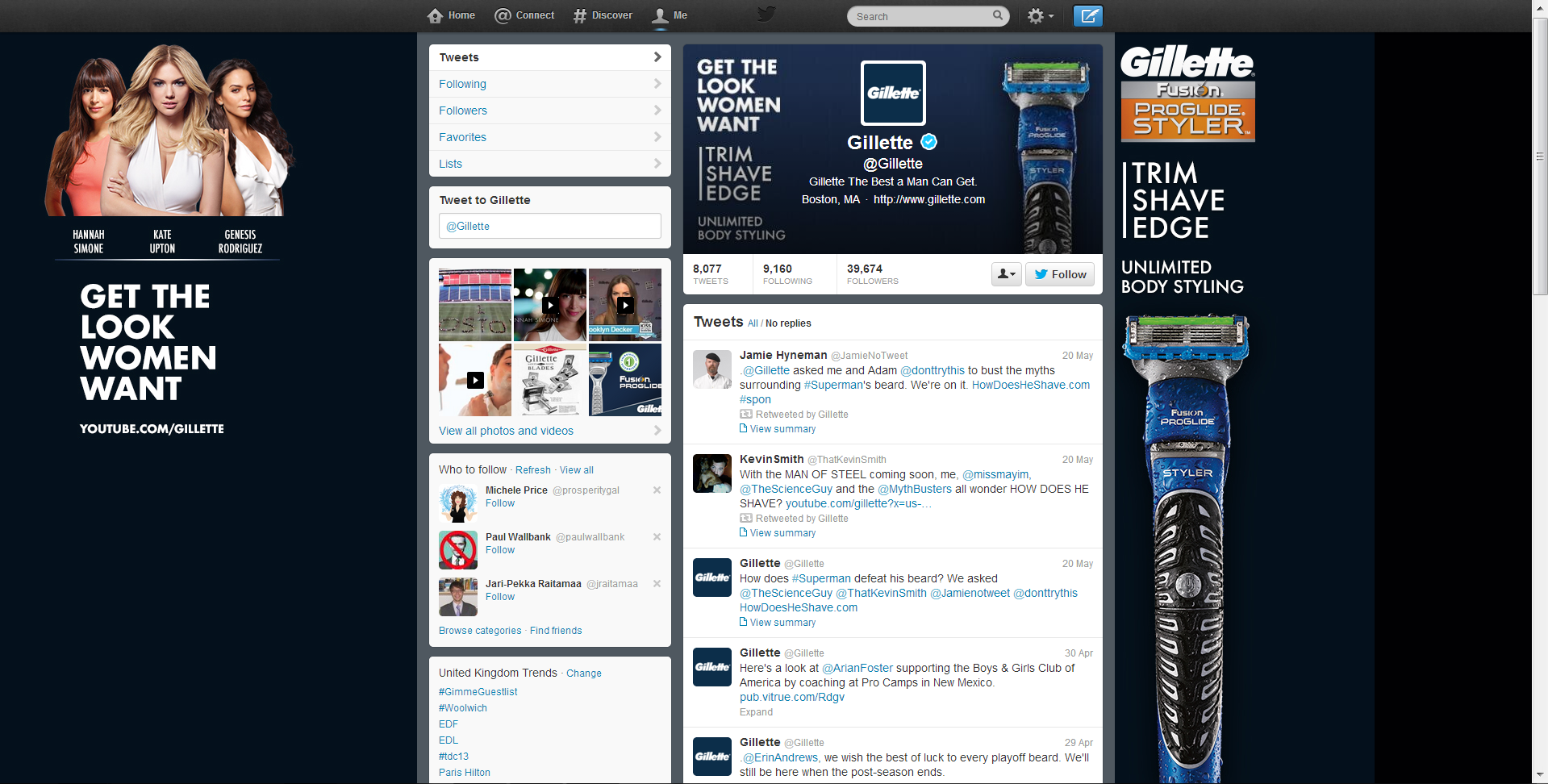
gillette-big.PNG
gillete-sm.PNG

Here's the Twitter page for Gillette. At 1920 x 1200 pixels, the design looks great but for the big black bar on the right-hand side which reveals that the navy gradient hasn't been made big enough to accommodate for large displays. And at 1366 x 768 pixels, the "Get the Look Women Want" branding is hidden behind the feed, while the image on the right-hand side of the feed completely disappears! 

smartwater-big.PNG
smartwater-small.PNG
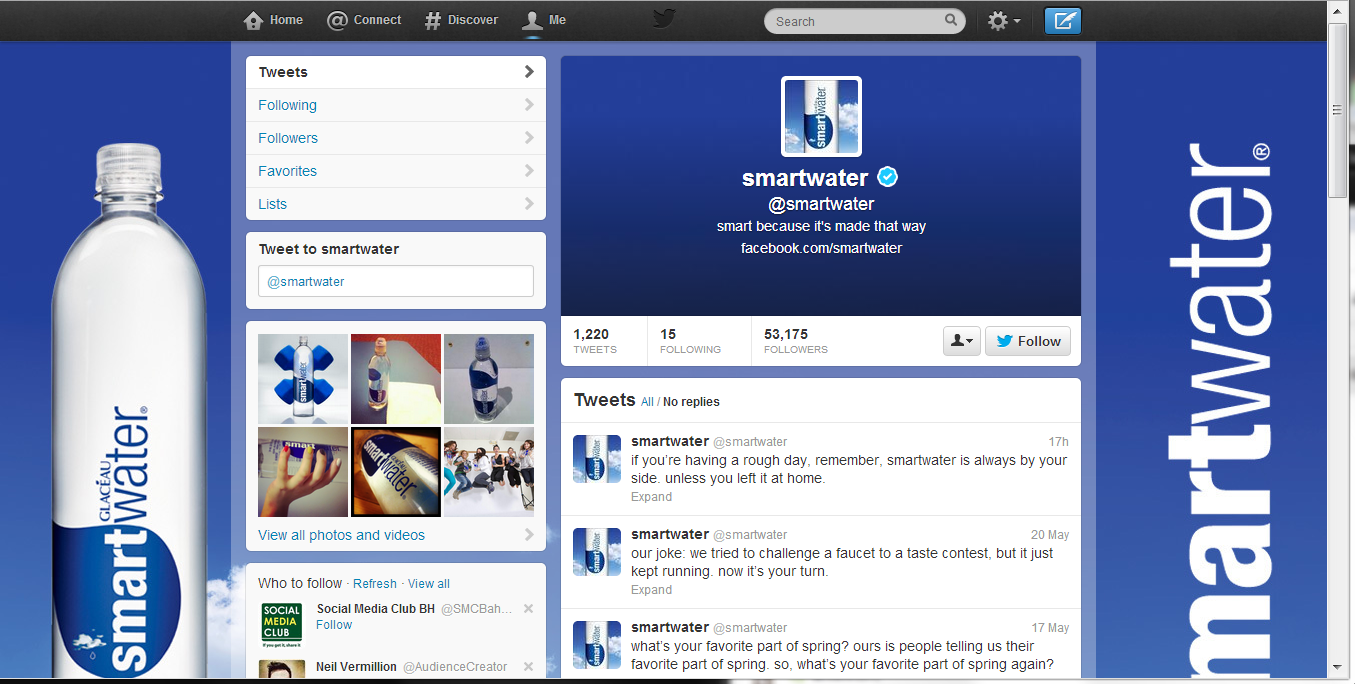
Onto SmartWater now. As with Gillette, its Twitter profile suffers from a big empty space  on the right-hand side at high resolutions. At the most common resolution, however, a "SmartWater" brand logo appears... well, most of it.

wendys-big.PNG
wendys-small.PNG

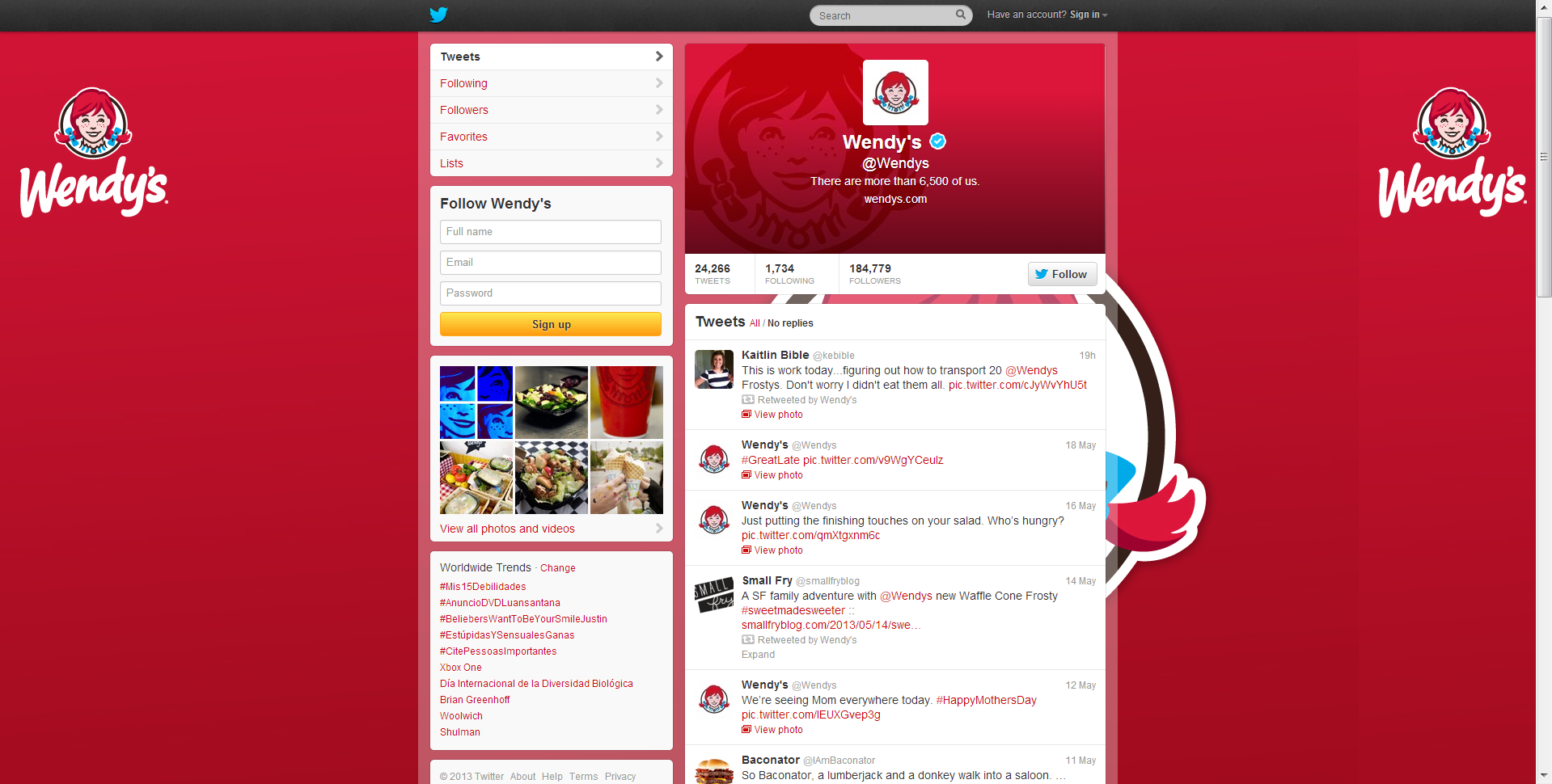
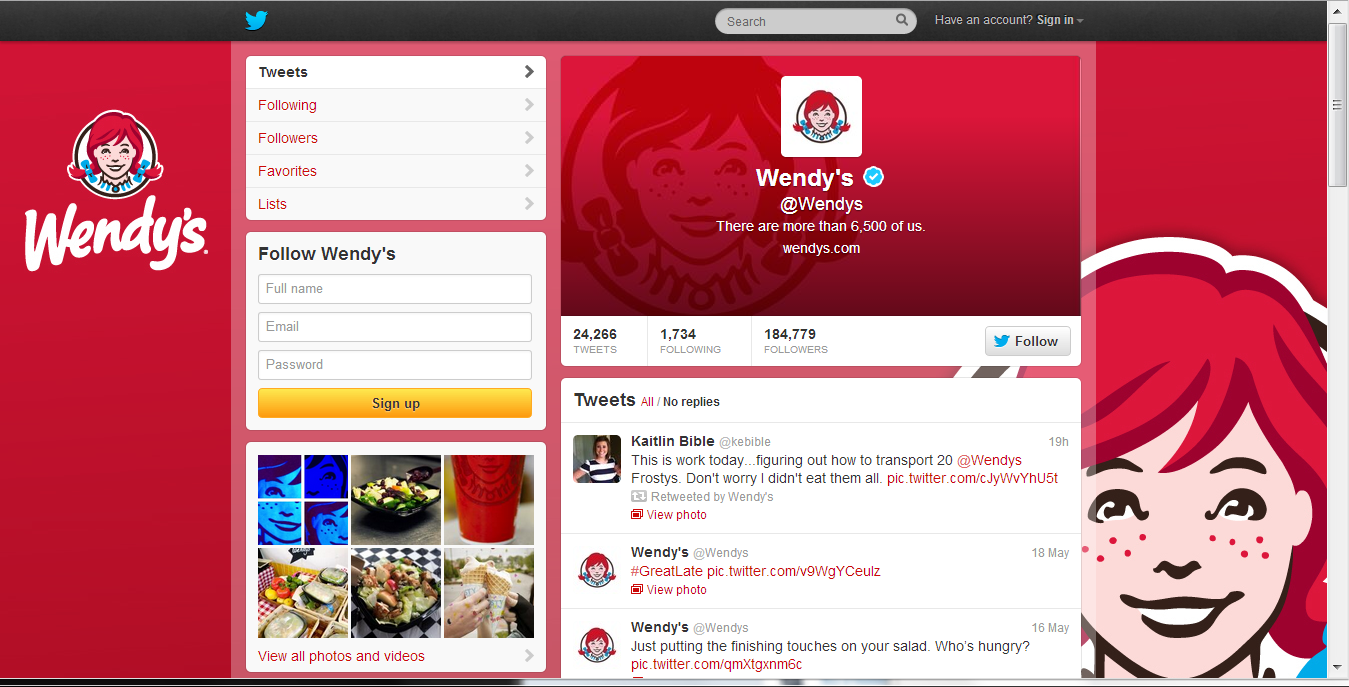
 Last up, here's fast food company, Wendy's, who get things half-right. At high resolution, its left-hand side Twitter branding is fine, but a second large image is obscured by the news feed. At 1366 x 768 pixels, the design looks as it was probably intended to. 

The Good

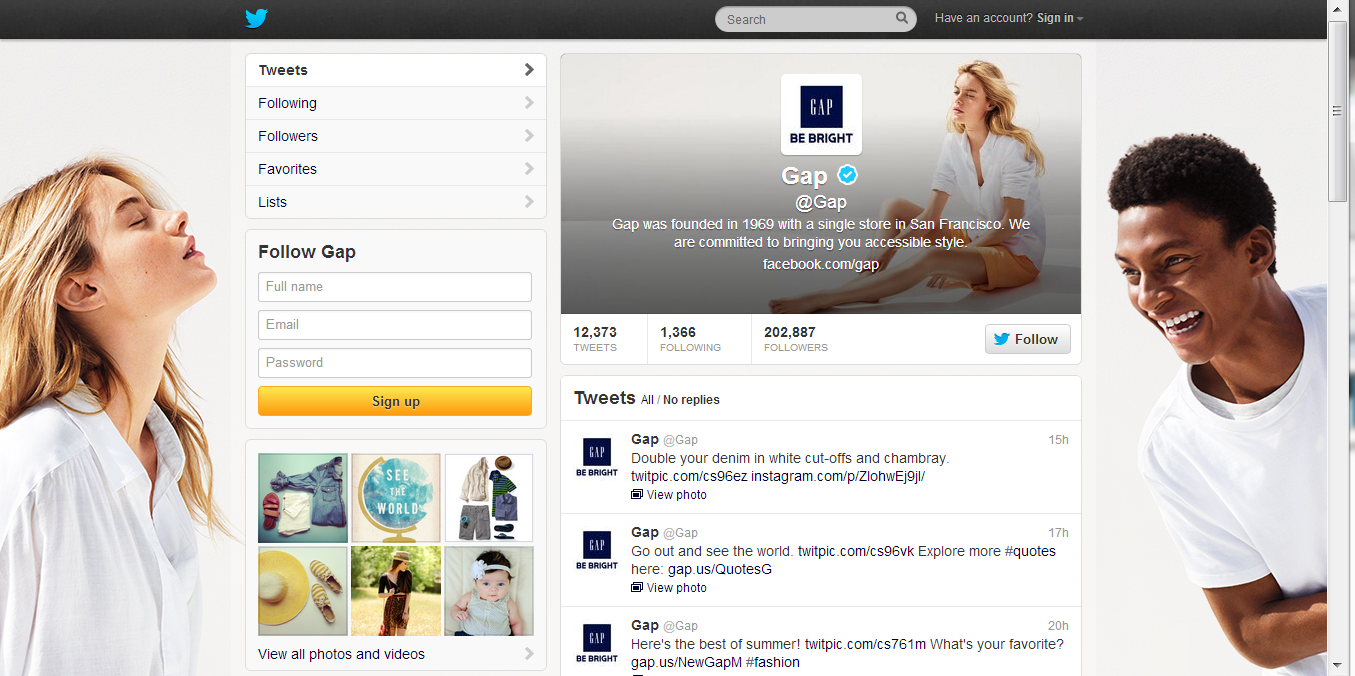
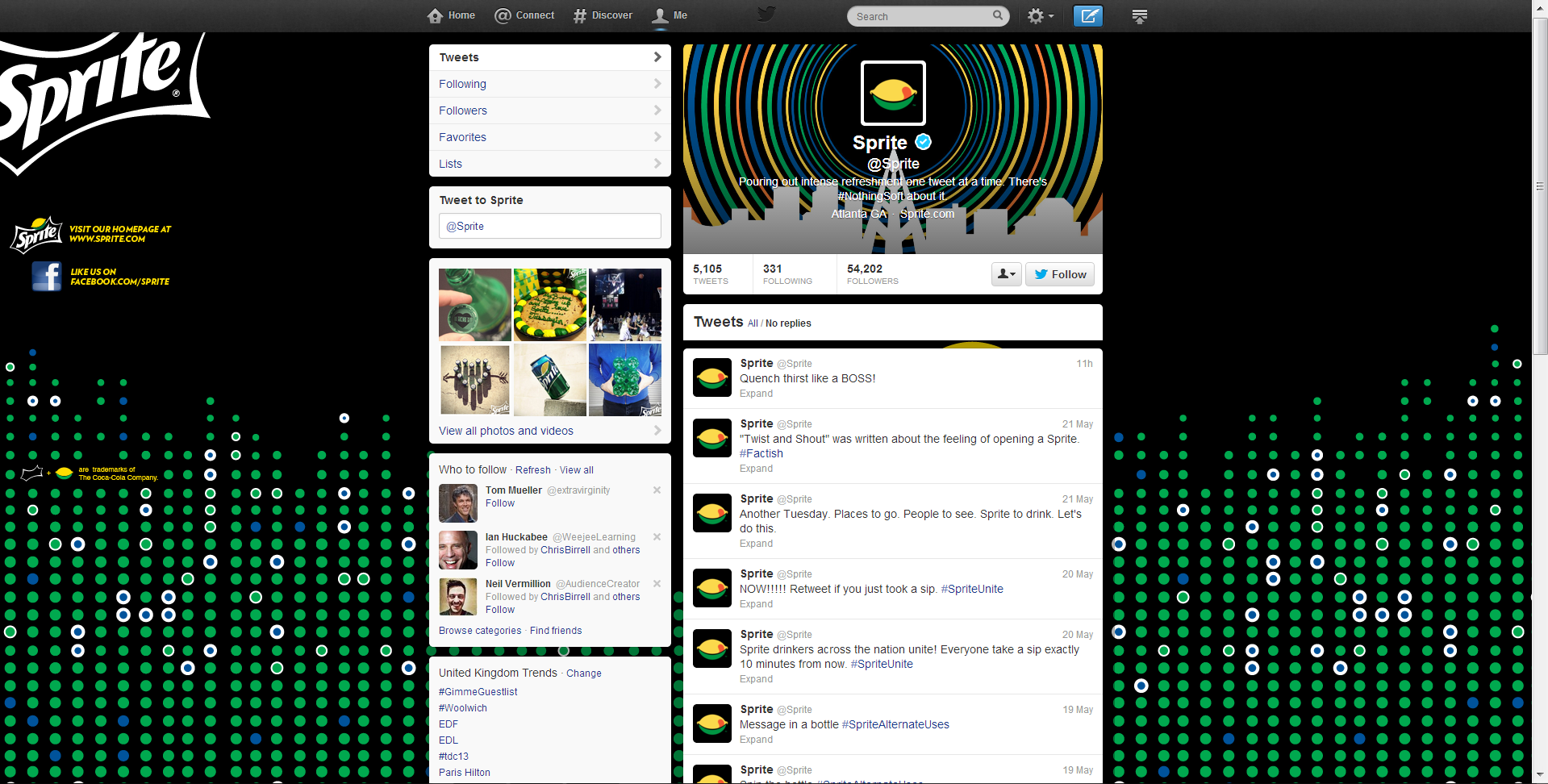
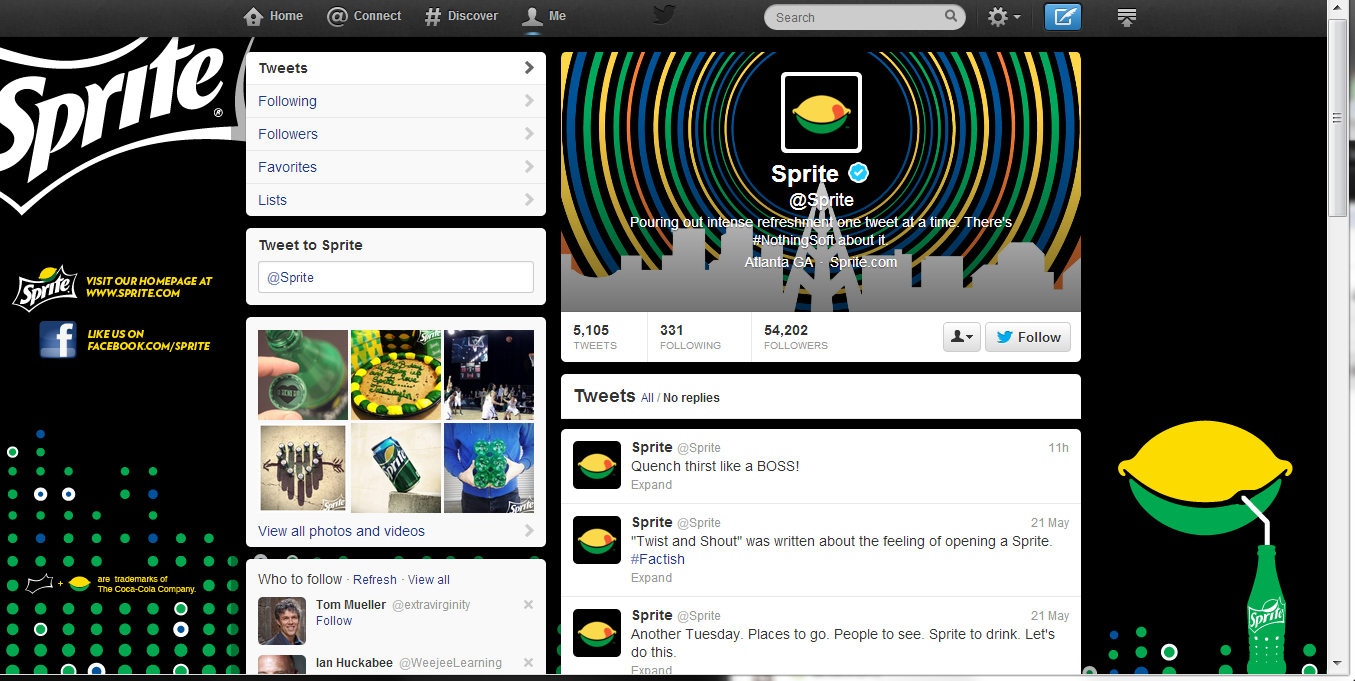
It was surprisingly difficult to find good examples of optimised Twitter backgrounds from the hour or so I spent looking at the feeds of big brands, so props go to Gap and Sprite (kinda) for these examples!

gap.PNG
gap-small.PNG

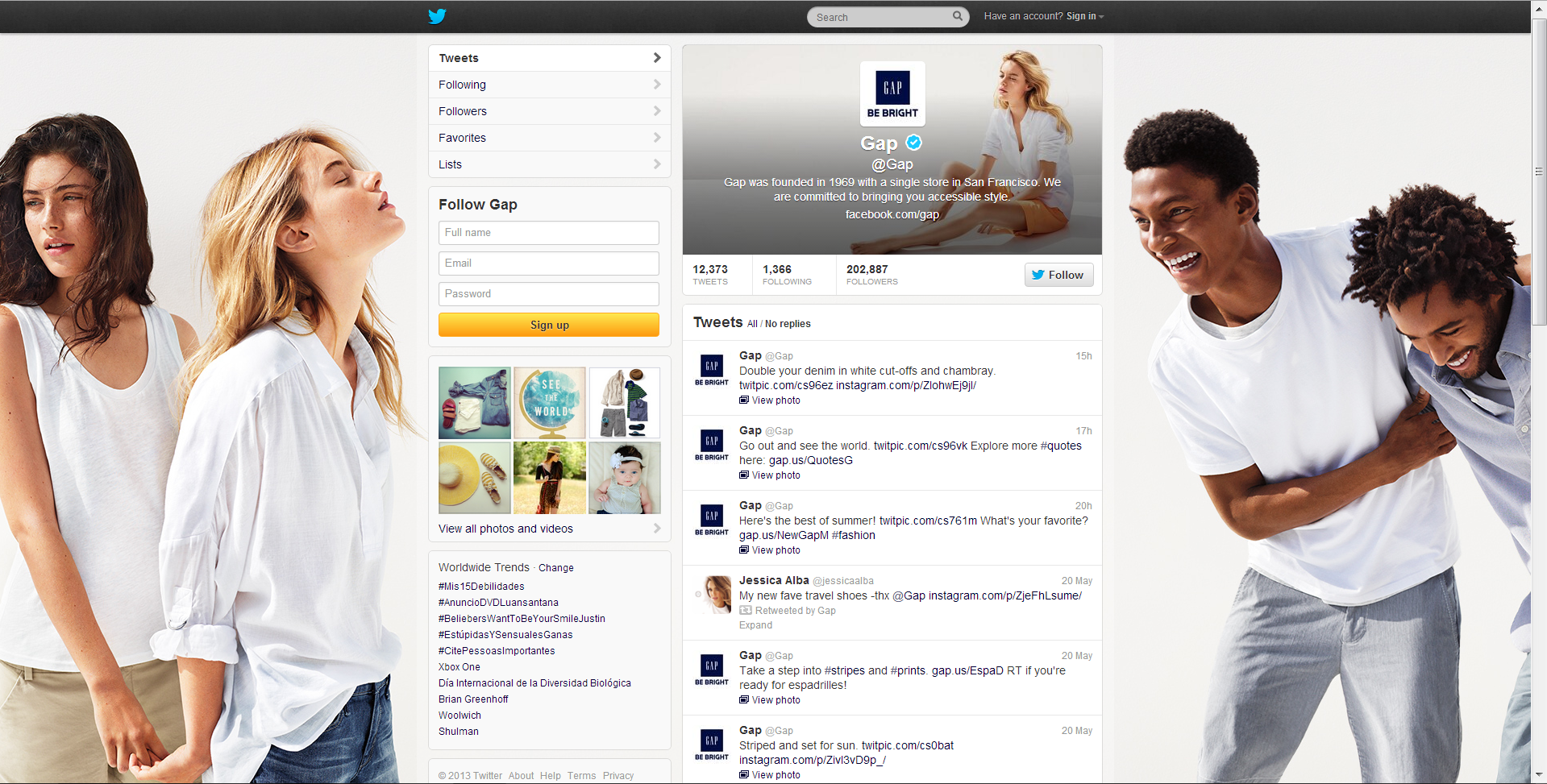
Gap's Twitter background works at both the biggest resolution, and at the most commonly viewed resolution. While one person is chopped off either side in the reduced view, the design still looks great.

sprite-big.PNG
sprite-small.PNG

Finally, here's Sprite. Okay , the logo is chopped off the side in both examples, and the lemon-sipping-a-drink graphic is missing in the high resolution review, but both designs still mostly  work! 

Conclusion

From my terribly unscientific experiment, it seems that a significant proportion of big brands, while keen on branding their Twitter accounts, have not done so in a way that takes into account all of the different resolutions that people will be viewing their pages at on desktop computers, resulting in branding that is unusually slack for such big commercial voices. 

If you want to stay one step ahead of Gillette, SmartWater, Wendy's, and many others with an optimised Twitter background design, have a read of my Twitter background Template blog post and grab a link to download the template there too.


Social Media Templates 2014, 2015 PSD | Facebook, Twitter, Google Plus, YouTube One Channel

 
social-media-templates-2013-2014.jpg

Introduction

I've previously posted several social media templates in individual blog posts, but I think it would probably be more handy for you guys to be able to grab them all in one spot. This also means that I can easily update the templates and links should the designs change - as we know they often do!  

The templates for Facebook, Twitter, Google+, and YouTube are in the .psd file format, which can be opened and edited in Photoshop or GIMP (a free photo editing program).  Each template includes simple instructions for where your design should be placed in order to be viewed optimally on each site.  

Want me to build and design your social profiles? 

Even with the templates below, I understand that designing and building great social media branding can be tricky, especially if you have never used Photoshop or don't have the time to do the work due to a busy schedule... that's where I can help!

If you'd like me to create your social media branding for Facebook, Twitter, YouTube, and more, purchase via PayPal below (no PayPal account required) or get in touch via the Contact Me page. I'll get back to you shortly afterwards to find out about your requirements.


Purchase Options

Facebook Cover Photo Template

facebook-cover-photo-template-2.jpg

This is the basic Facebook cover photo template. It'll help you create a design that is optimised for desktops and ensure that your profile photo doesn't obscure any of your design's most important information. For more information and detailed instructions for using this template, click here

Facebook Cover Photo Template Optimised for Desktop and Mobile


This template takes into account the appearance of cover photos and profile photos on the Facebook mobile app and is recommended for those who want to super optimise their Facebook Page. For more information and real-life examples, click here.

Twitter Background Image Template

To get the most out of the Twitter Background Image template, i.e. to optimise it for viewing by all Twitter users, I urge you to read this blog post before downloading:  http://andrewmacarthy.com/andrew-macarthy-social-media/free-twitter-background-template-psd-2013-1920-x-1200

Twitter Header Image Template

This template will help you brand your Twitter header photo without having any of your most important design elements be hidden by your profile photo, name, bio, etc. Simply add your design to the grey areas and remove all of the template layers before saving. If you would like to create a seamless header and profile photo on Twitter, click here for instructions:   

Google Plus Cover Photo Template

The Google+ cover photo is massive! This template has the correct dimensions for you and a guide (the green bar) to make sure that none of your design is hidden by a dark grey gradient added to the bottom of all cover photos on Google+. 

Google Plus Profile Photo Template for Square Logos

Google+ doesn't like square logos. Getting one to upload properly is a bit of a nightmare, but this template will help you upload one without it being cropped or chopped off by the default circular profile photo. For more information and step-by-step instructions on using the template, click here


YouTube One Channel Template

This YouTube template will help you create channel art optimised for all devices, from mobile phones all the way up to HDTVs. The different-coloured rectangles represent how much of the design each device will see, while the coloured squares represent the position of your channel icon on different devices. Have your design fill the whole space, but remember that only content in the brown area will be seen by everyone on every device.  For detailed instructions about how to use this template, click here.

Download these templates

All of these templates - expertly measured, simple to use, and up-to-date) is available instantly as a downloadable zip file via the purchase link above. For more information on all my social media templates, click here.

Note: Payment is fast and secure via PayPal, but you do not need a PayPal account to buy and download. 


ABOUT THE AUTHOR

Andrew Macarthy is the author of the #1 Amazon Bestseller, 500 Social Media Marketing Tips.

Buy 500 Social Media Marketing Tips (Kindle or Paperback)
Amazon US: http://www.amazon.com/dp/B007L50HE6
Amazon UK: http://www.amazon.co.uk/dp/B007L50HE6

Follow Me:
http://www.facebook.com/500socialmediatips/
https://pinterest.com/500socialmedia/
http://www.twitter.com/500socialmedia
http://www.youtube.com/500socialmediatips
How to Use Thinglink For Marketing on Facebook and Twitter

 
how-to-use-thinglink-for-marketing-facebook-twitter.jpg

This week, Thinglink, a site that allows users to create free, interactive images launched its full service on Facebook (it's been available on Twitter for a while now too). For brands, this means that they can share images to their Facebook Page Timelines that can include multiple, clickable links to any external URL, e.g. your website and its products, YouTube Channel, Twitter profile, etc..  In this blog post, I'll show you step-by-step how to create an interactive image on Thinglink and demonstrate how it functions on Facebook.

1. Sign up for a free account at Thinglink  and click on the Create button.

2. Upload the image you want to use, import it from Facebook or Flickr, or grab it using a web link.

3. Click on the image to add a 'tag'; tags are the interactive, clickable icons that will appear on top of your image. 

4.PNG

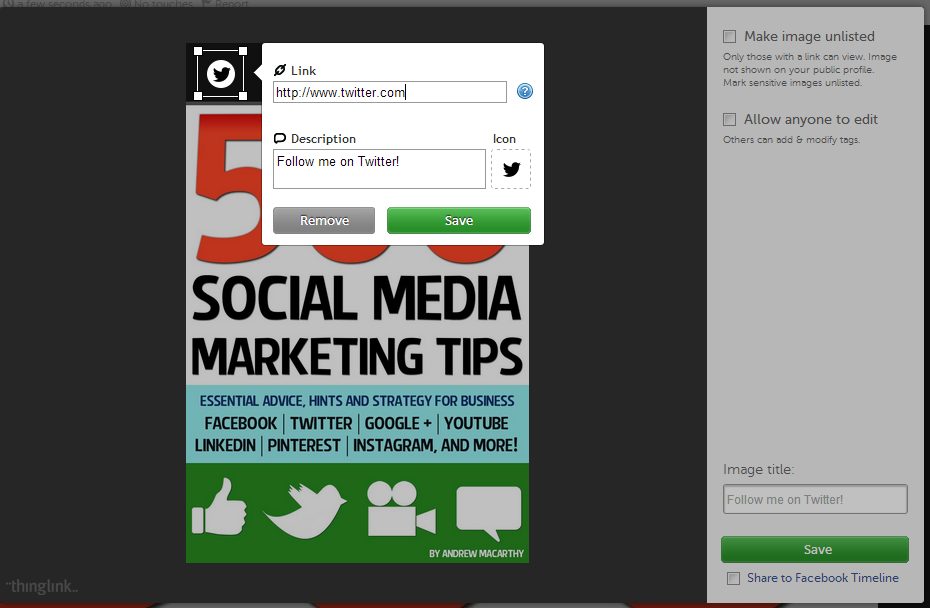
4. On each tag, you can specify a URL and add a description that will appear when someone hovers over it with their cursor.

5.PNG

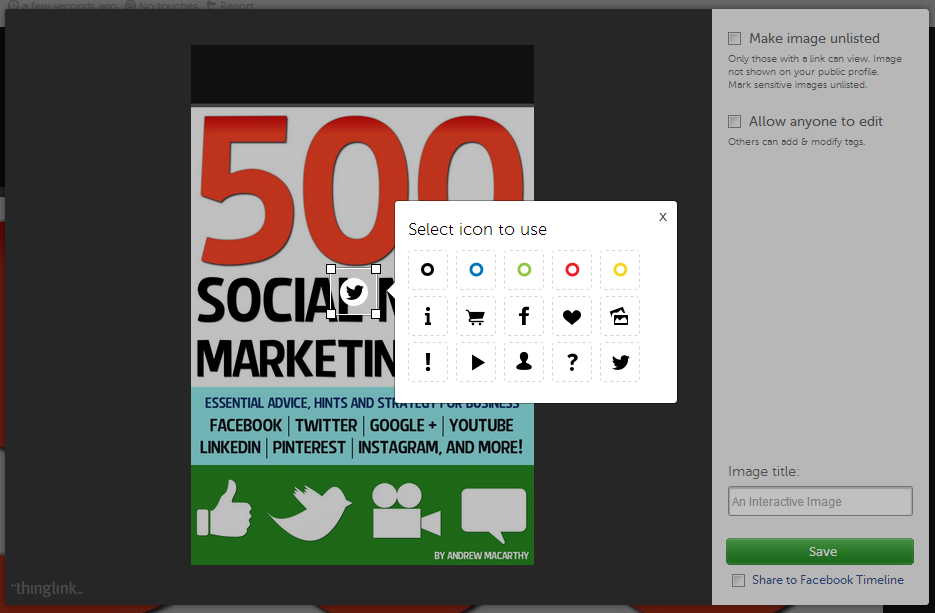
5. Also click to choose an appropriate tag icon. 

6.PNG

6. Click and drag the tag to re-position it. Be aware that the tags are all white, so might not be seen so easily on a very light background.

7.PNG

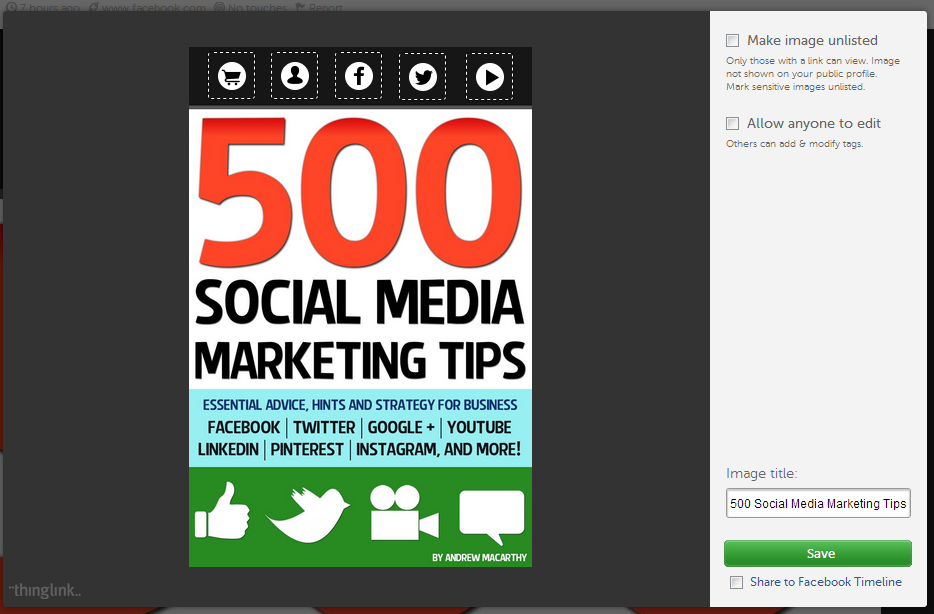
7. Add as many tags as you wish, add an image title and click Save. Leave the 'Make image unlisted' and 'Allow anyone to edit' check boxes blank.

8. Click the Share button to post your image on a variety of social networks, or by e-mail. Images shared to Facebook or Twitter will be interactive within your Timeline and users' news feeds, but other sites will just provide a link to view your creation on Thinglink.

9. Here's how your Thinglink image appears when it is shared to your Facebook Timeline. Make sure to instruct your fans to click on it to interact.

10. And here how the image displays once clicked, with fully interactive icons and their descriptions.

Conclusion

There's a few things I'd like to see improved on Thinglink - notably an ability to change the colour of link icons, to make positioning the icons more exact, and an easier way to embed interactive images to websites - but otherwise, I am very impressed. As well as promoting the odd product to your fans and followers, it can be used as a way to group several themed links together in one image. 

Will you be giving Thinglink a go? Let me know in the comments below! 


ABOUT THE AUTHOR

Andrew Macarthy is the author of the #1 Amazon Bestseller, 500 Social Media Marketing Tips.

Buy 500 Social Media Marketing Tips (Kindle or Paperback)
Amazon US: http://www.amazon.com/dp/B007L50HE6
Amazon UK: http://www.amazon.co.uk/dp/B007L50HE6

Follow Me:
http://www.facebook.com/500socialmediatips/
https://pinterest.com/500socialmedia/
http://www.twitter.com/500socialmedia
http://www.youtube.com/500socialmediatips
How to Use Valentine's Day for Social Media Marketing

 
valentines-day-social-media-marketing.jpg

Valentine's Day is just around the corner, and while many people view the ocassion as an over-hyped, over-commercialised cash-in for big brands (probably true), that doesn't mean they don't go along with it! And for social media and content marketing, the provides a great opportunity to give your profiles an overhaul and pump out some powerful related content to help grow brand loyalty and increase sales. Here are just a few examples of how to use Valentine's Day for social media marketing:

1. Update Your Facebook Cover Image

Giving your Faceboook cover a Valentine's makeover is a simple and powerful way of promoting the event to your fans, particularly if the product you offer - as in the case of Hotel Chocolat above - is heavily linked to the day. As many people will click on your new cover image for a closer look, don't forget to include a description, call to action, and a link to where you want them to go, e.g. your Valentine's online shop.

2. Update Your Twitter Header Image and Background

twitter-valentines-day.PNG

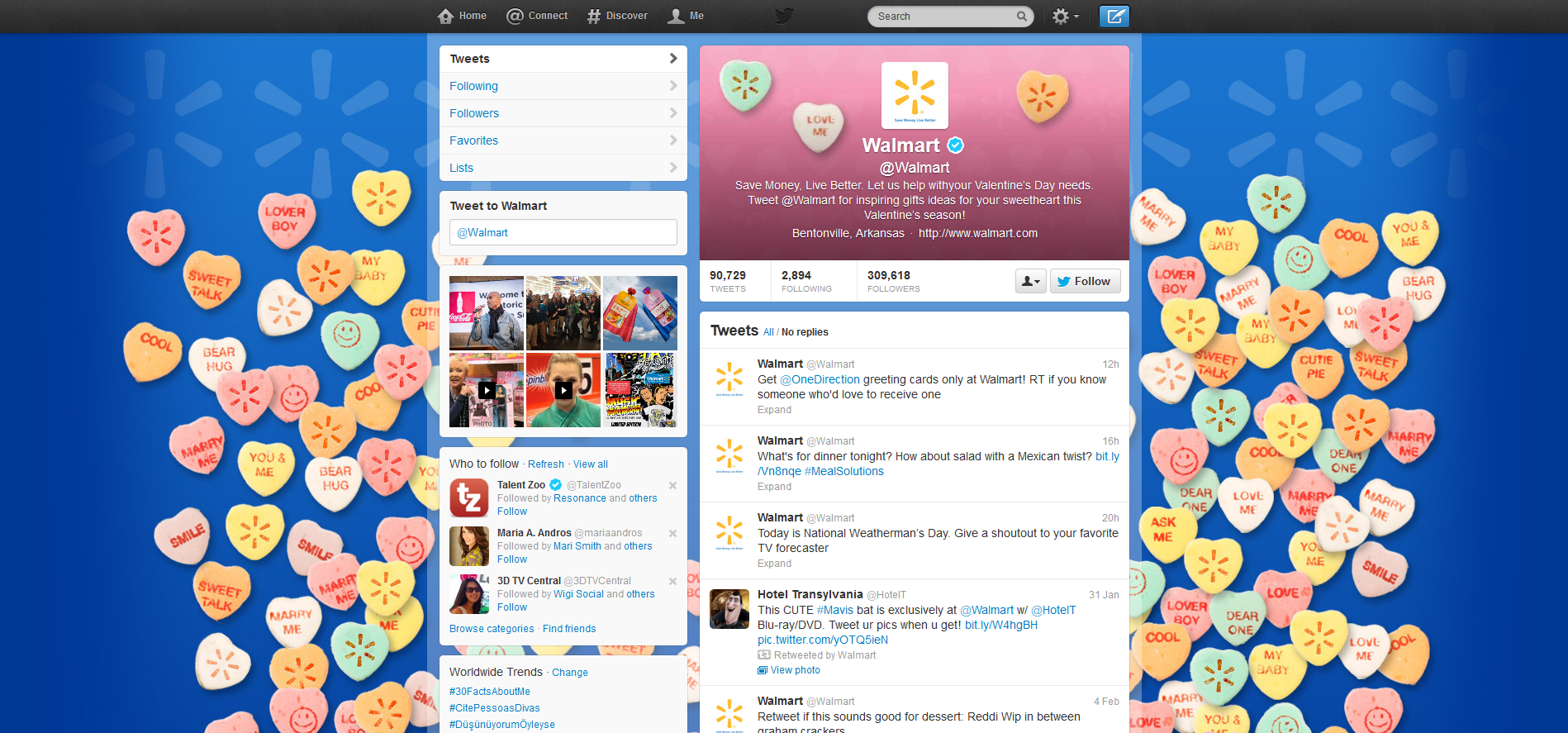
Walmart has amassed over 300,000 followers on Twitter, and it knows - with its love heart-themed Twitter background and header image, that it can communicate a powerful message about its Valentine's offerings to them. There's no hard sell with the images, but take a closer look what their Bio has been changed to: "Save Money, Live Better. Let us help with your Valentine’s Day needs. Tweet @Walmart for inspiring gifts ideas for your sweetheart this Valentine’s season!"  Not only will this call to action be seen by Twitter users, but it also appears underneath Walmart's Twitter page description on Google search.

3. Share Images, Offers, and Promotions

valentines.jpg

Of course, Valentine's Day can also be used as a way to directly market to your customers via status updates across social media. In my case, 500 Social Media Marketing Tips is hardly the most romantic of gifts, so I've gone for a very playful approach. With a bit of creativity, you can capitalise on the impact of Valentine's Day whatever your business type. For example, a company that sells printer ink could launch a Valentine's Day offer for X% amount off Product X because they love their customers so much, or a pet store could remind people not to forget about the four-legged friends in their life that deserve a little Valentine's Day treat too.

Conclusion

These examples are just the tip of the iceberg when it comes to hopping on the Valentine's Day bandwagon to help customers to love your brand more, or tell them how much their love and support means to you. How will you be using Valentine's Day in your social media marketing? Let me know in the comments below!


ABOUT THE AUTHOR

Andrew Macarthy is author of 500 Social Media Marketing Tips, the #1 Amazon Kindle Bestseller:

Buy 500 Social Media Marketing Tips
Amazon US: http://www.amazon.com/dp/B007L50HE6
Amazon UK: http://www.amazon.co.uk/dp/B007L50HE6

Follow Me:
http://www.facebook.com/500socialmediatips/
https://pinterest.com/500socialmedia/
http://www.twitter.com/500socialmedia/
http://www.youtube.com/500socialmediatips