When is the Best Time to Post on Facebook? Here's How to Find Out!

 
when-is-the-best-time-to-post-on-facebook.jpg

It's one of social media's oldest questions, and one that many a marketer has struggled to answer - when is the best time to post on my company's Facebook Page? The answer used to be a little difficult to decipher, but the recent overhaul of Facebook Insights now gives everyone a much clearer idea. 

Whoa! Watch out for time zones

Here's a screen grab from my own Facebook Page's Insights. And the first thing to note is that the data shown is from your own computer's local time zone.  This means that if, for example, you are advising a client in a faraway country on the best time to post on their Page by looking at their Insights, what you see as the best time won't  be the best time for them if they're several hours ahead or behind you. Be sure to do the maths and adjust the timing accordingly!

What days are your fans on Facebook? 
best-time-to-post-on-facebook-page-insights-when-fans-are-online.PNG

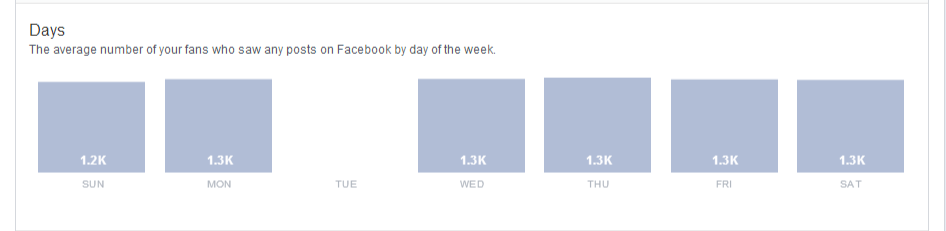
The next section takes your fans and tells you how many of them are on Facebook at any  time on any  day during the past week. In my example, Facebook tells me that 1.3 thousand of my fans (my current 'like' total is around 1.4 thousand) are online each day... not sure what happened to Tuesday!

What time of day do most of your fans see your Facebook posts? 
best-time-to-post-on-facebook-page-insights-when-fans-are-online-2.PNG

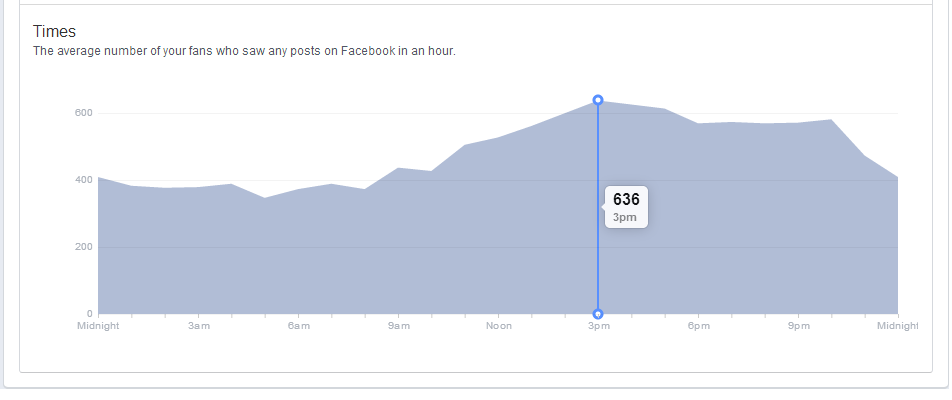
The last section of the page shows you the average number of your fans who saw any posts on Facebook in an hour - I'm assuming this is over the seven days shown above. Hover your mouse over the graph and you'll get figures the the one above, which shows me that the time that the most of my fans saw a post from me in the past week was 636 people at 3pm, on average.

Conclusion

Of course, taking just one week's figures and using them as a basis for all of my posting on Facebook would be unwise. However, by checking Insights regularly, I can begin to get a more detailed idea about when my fans are online, and optimise my posting strategy to catch as many eyes as possible. 


ABOUT THE AUTHOR 

Andrew Macarthy is the author of the #1 Amazon Web Marketing Bestseller, 500 Social Media Marketing Tips, available for Kindle and in paperback.

portrait-blog.jpg

How to Choose A Powerful YouTube Thumbnail Image | 5 Examples of Effective Video Thumbnails


YouTube video thumbnails act as mini marketing posters for your videos, so the more clued up you are about using them effectively, the more clicks you will attract through to your content. Here are five examples of great YouTube video thumbnails:


1. Looks great at small and large sizes

youtube-thumbnail-examples-how-to-1.PNG

hilahcooking's 'How to Cook a Lobster' video wasn't the first to appear in YouTube's search when I went looking, but its branded thumbnail, complete with a quality close-up image of the cooked lobster, encouraged me to click on it over a handful of others.  And whether displayed in a big or small size across the site or on the web, the image always looks great.

2. Visually compelling

youtube-thumbnail-examples-how-to-2.PNG

Vlogger, Louis Cole, has experimented with several different types of thumbnails - often including channel branding - but has most recently settled on choosing one powerful image to represent the video. Whether you're a One Direction fan or not, you'd be hard-pressed not to be tempted to click through and see what all that crowd-filled craziness is all about! 

3. Close up of faces

youtube-thumbnail-examples-how-to-3.PNG

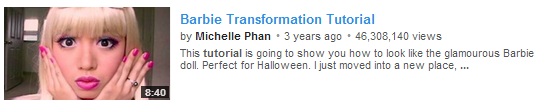
For most social media platforms (Pinterest being a notable exception), the appeal of connecting with viewers instinctively by using a close-up image of a human face, is extremely strong. And while this example is on the extreme end of the scale - after all, Barbie isn't a real person! - for people who see this thumbnail in search results and are hunting for a particular look, the effect is extremely powerful. 

4. Foreground stands out from background

youtube-thumbnail-examples-how-to-4.PNG
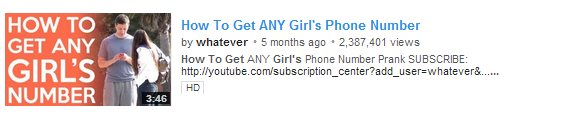
With YouTube's background colour being white, many channels use this to their advantage with thumbnails that are a complete contrast. In this example from 'whatever', the bright orange leaps from the page to attract viewers who catch eye on this video in search results.
 

5. Accuately represents content

youtube-thumbnail-examples-how-to-5.PNG

This might be the most important point of all. One of the worst things any content creator on YouTube wants to do is to mislead their audience, so implementing a custom thumbnail that is a true representation of the video itself, is very important in helping to build loyalty and trust. While the above example might not make for the most exciting thumbnail image, it is a fair and true reflection of what the video is about and does its job very well.


How to Embed A Facebook Post | Facebook Embedded Posts Tutorial


What are embedded Facebook posts? 

Embedded posts are a way to lift publicly shared content from Facebook - either from a Page or personal profile - and place it on your website or blog. Embedded posts show any media attached to them, as well as the number of likes, shares, and comments associated with it. Even better, viewers are be able to follow or like authors or Pages on Facebook direct from the embedded content.

How to embed a Facebook post: getting the code

Before you embed a Facebook post, first you'll need to ensure that it is public. Do this by hovering over the audience selector next to the date of the post. If the post is public (signified by a globe icon), you're good to go.

Click on the 'down arrow' icon that appears in the top right corner of the post on Facebook and choose Embed Post from the drop-down menu that appears.

A pop-up window will appear along with the embed code for the post you want to use. Simply copy this code and paste it into the section of your website or blog post that you want it to appear.

Embedding Facebook posts FAQs

  • Currently, you can't customize how embeded posts are displayed on your website. The size of the post will be fixed to the same dimensions that it is displayed at on Facebook.
  • Long posts will be truncated. Viewers will be shown a "see more" link that can be clicked to view the embedded post in its enterity.
  • If an embedded post is later deleted or hidden by the original author, it will be replaced by a message that tells readers that that this is the case.

Live example of an embedded Facebook Post


Andrew Macarthy is the author of the #1 Amazon Web Marketing Bestseller, 500 Social Media Marketing Tips, available for Kindle and in paperback.

Buy 500 Social Media Marketing Tips
Amazon US: http://www.amazon.com/dp/B007L50HE6
Amazon UK: http://www.amazon.co.uk/dp/B007L50HE6

Follow Me:
http://www.facebook.com/500socialmediatips/
http://www.pinterest.com/andrewmacarthy
http://www.twitter.com/500socialmedia

http://www.youtube.com/500socialmediatips
portrait-blog.jpg

How to Use Vine App's Ghost Mode | Ghosting on Vine Tips

In the last major update for Twitter's Vine app, the Ghost feature was introduced. But what is it for and how should you best use it? Here's the low down:

The primary benefit of the ghost feature on Vine is for when you are creating time-lapse or stop-motion videos. With the ghost feature switched on - just tap the little ghost icon in the bottom-right corner of the app - the end point of your last recording snippet will overlay the "live" scene, as in the pic above.

With the ghost mode on, you will much more easily be able to line up your stop-motion animation shots, without the guesswork that might ruin the finished video. 

Somewhat ironically - I was in a rush to get this video recorded! - there is a noticeable jump in the position of the camera in the resulting Vine video used to demonstrate this technique, embedded above. Of course, with a little more time, patience, and a tripod, you could make much better use of the ghost mode!