5 Brands Using Instagram Video Effectively for Business

5 Brands Using Instagram Video Effectively for Business

Since launching in mid 2013, a number of brands have experimented with use of video on Instagram as a way to market to their customer base. The app's huge and loyal audience makes it a fantastic destination to focus efforts. Here are a selection of companies using Instagram video well...

Read More


How to Share Instagram Photos to A Facebook Page | Post Instagram Images to Facebook Page


The introduction of hashtags on Facebook have made the effect of sharing Instagram images onto social media even mor powerful. If you want to set your Instagram app account up to share photos right to your Facebook Page - not your personal timeline - here are some simple instructions:

1. Open up the Instagram app and visit your profile page 

2. Click on the cog icon at the top of your profile page 

3. Click on the "Share Settings" option

4. Click on "Facebook"

5. Click on "Share Photos to" ...

6. Choose your Facebook Page from the "Choose A Page" list

And that's it! Now, when you share a photo from Instagram to Facebook, it'll go straight to the Facebook Page you chose. 


ABOUT THE AUTHOR

Andrew Macarthy is the author of the #1 Amazon Web Marketing Bestseller, 500 Social Media Marketing Tips, available for Kindle and in paperback.

Buy 500 Social Media Marketing Tips
Amazon US: http://www.amazon.com/dp/B007L50HE6
Amazon UK: http://www.amazon.co.uk/dp/B007L50HE6

Follow Me:
http://www.facebook.com/500socialmediatips/
https://pinterest.com/500socialmedia/
http://www.twitter.com/500socialmedia

http://www.youtube.com/500socialmediatips

portrait-blog.jpg

How to Embed An Instagram Video on Your Blog or Site in 3 Steps | Instagram Video Embed Code


Instagram video gives individuals and brands a great new way to produce fresh and exciting content to their fans and followers to view within the app and via instagram.com, but what if you want to embed an Instagram clip on your blog or website? There is no official method at the time of writing this, but there is a pretty simple workaround. Below, you'll learn how to embed an Instagram video in three simple steps. 

1. Grab the URL of your video

Visit your Instagram profile on the web at www.instagram.com/yourinstagramusername, click on the video that you want to embed, then copy its unique URL from your browser's address bar.

2. Generate the embed code

Visit www.instaembed.com, paste the unique URL you copied into the box here, and click the Generate Code button. 

3. Embed the code on your blog or website

Copy the generated code and paste it as HTML into your blog post or onto your website. The result will look like my example above.  The default size of the video is 640 x 640 pixels, but you can change this by editing the height and width in the code. Lastly, if you're feeling courteous, do leave the "Embed Your Own Instagram Videos" link in at the bottom, to give instaembed the credit it deserves. 


ABOUT THE AUTHOR
Andrew Macarthy is the author of the #1 Amazon Web Marketing Bestseller, 500 Social Media Marketing Tips, available for Kindle and in paperback.

Buy 500 Social Media Marketing Tips
Amazon US: http://www.amazon.com/dp/B007L50HE6
Amazon UK: http://www.amazon.co.uk/dp/B007L50HE6

Follow Me:
http://www.facebook.com/500socialmediatips/
https://pinterest.com/500socialmedia/
http://www.twitter.com/500socialmedia

http://www.youtube.com/500socialmediatips


portrait-blog.jpg

How to Record Video on Instagram: A Guide to Shooting Video on Instagram

 
how-to-record-video-on-instagram-tutorial-cinema-instagram.jpg

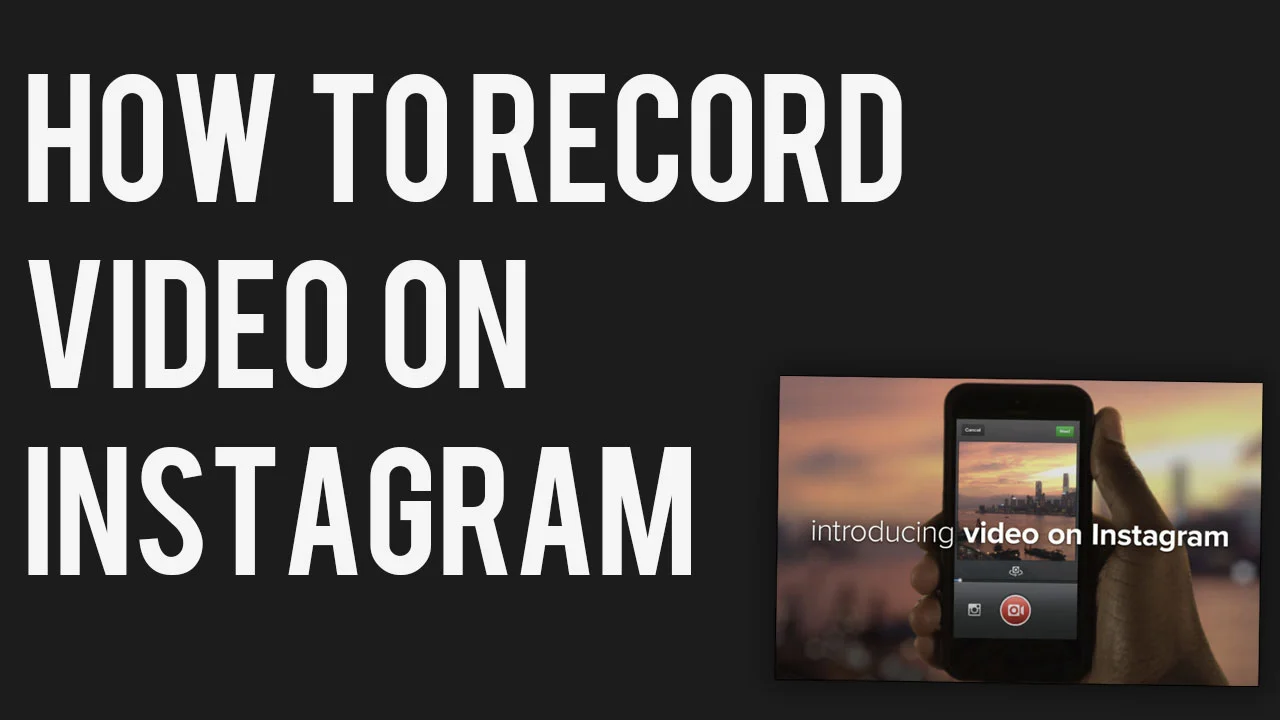
In June 2013, Instagram introduced video creation to the mega-popular mobile app. Shooting video on Instagram is super easy, so let's take a look, and answer any questions you might have about how it works: 

How to record a video on Instagram

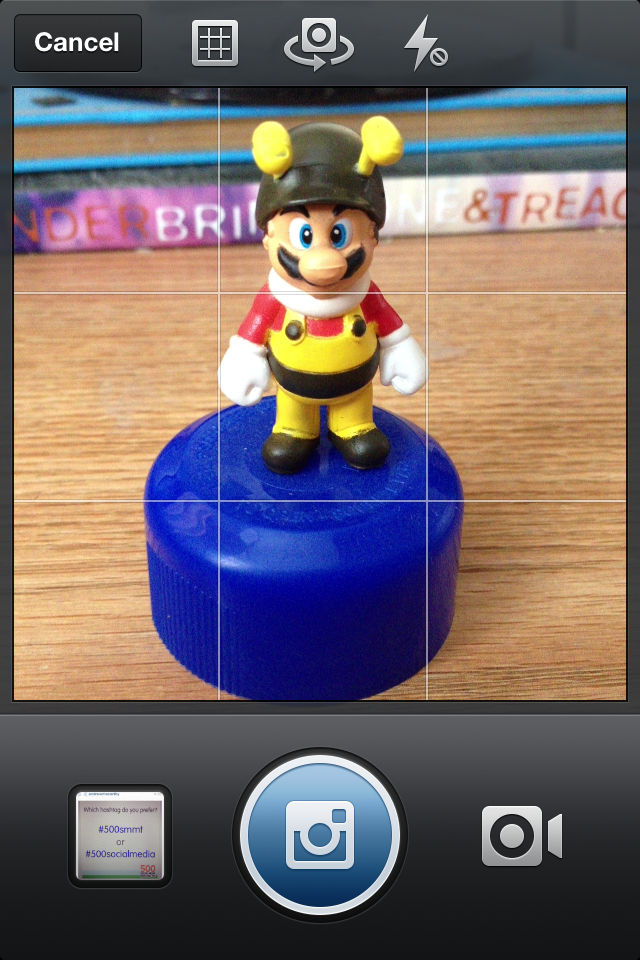
1. Open Instagram as normal and tap on the camera icon at the bottom of the screen. 

record-video-on-instagram-2

2. The app will default to taking a still image. To change to video recording, cick on the video camera icon.

3. To begin recording, press and hold your finger on the red video camera icon. To stop recording, lift your finger off. Every time you stop and start a new snippet of video recording, a break in the blue video bar is created to show it.

Instagram video clips have a maximum length of 15 seconds, and a minimum length of 3 seconds.  And unlike with photos you cannot import videos into Instagram; they must be recorded from within the app.

4. If you are unhappy with the previous snippet of video that you shot, you can remove it by tapping the 'X' arrow. When the snippet of video you want to remove is highlighted in red on the video bar, click the trash can icon to confirm its deletion. You can only delete the previous clip, so be careful that each shot is as you want it before you record a subsequent snippet. When you're done recording, click Next.

5. On the next screen, you can choose from over a dozen filters specific for video and preview how your video will look. When you tap a filter, your video will play automatically.

Cinema for Instagram

See the "shaky camera" icon below the video? That's Instagram's new Cinema mode, designed to eradicate the jittery quality of so many mobile videos.  Tap it and the effect will be applied, smoothing out your unsteady camera work as best it can. Click Next when you're happy.


6. Now it's time to choose a cover frame for your video. Like YouTube's video thumbnails, a video cover is the snapshot that will represent your video in its best light in Instagram search and in your friend's feeds. Simply tap and slide your finger over the bar at the bottom to select the frame you like best, and then click Next to continue.

7. Last up, it's time to give your video a caption (with hashtags, of course) and choose your sharing options. Unlike with photos, you cannot tag people in videos.

To post your Instagram, hit Share. Instagram will process your video for a short while before it appears live on the app and on the web.


ABOUT THE AUTHOR

Andrew Macarthy is the author of the #1 Amazon Web Marketing Bestseller, 500 Social Media Marketing Tips, available for Kindle and in paperback.

Buy 500 Social Media Marketing Tips
Amazon US: http://www.amazon.com/dp/B007L50HE6
Amazon UK: http://www.amazon.co.uk/dp/B007L50HE6

Follow Me:
http://www.facebook.com/500socialmediatips/
https://pinterest.com/500socialmedia/
http://www.twitter.com/500socialmedia
http://www.youtube.com/500socialmediatips

portrait-blog.jpg

How to Use Photos of You on Instagram For Business Marketing

Instagram has rolled out a new feature called "Photos of You," a way for users - businesses included - to tag people, businesses, and products in their photos on the app very similar to how tagging works on Facebook.

​Nike tags a photo on Instagram using the Photos of You feature.

For example, when Nike posts a photo of an athlete to its Instagram account, it can tag the photo so that the athlete can (if they wish) also add the photo to their stream, engaging the followers on Nike and of the athelete, and increasing the total amount of photo views. Individuals can tag their favourite brands in their own photos, and these could be picked up and shared on a brand's own feed.

Photos Of You gives brands a new level of consumer reach on Instagram,  driving them to interact directly with the brands and businesses they follow.

Will you be using Photos Of You on your own Instagram account? Let me know in the comments below!


ABOUT THE AUTHOR

Andrew Macarthy is the author of the #1 Amazon Bestseller, 500 Social Media Marketing Tips.

Buy 500 Social Media Marketing Tips (Kindle or Paperback)
Amazon US: http://www.amazon.com/dp/B007L50HE6
Amazon UK: http://www.amazon.co.uk/dp/B007L50HE6

Follow Me:
http://www.facebook.com/500socialmediatips/
https://pinterest.com/500socialmedia/
http://www.twitter.com/500socialmedia
http://www.youtube.com/500socialmediatips